Get NCache Alerts on MS Teams
NCache events can be sent to Microsoft Teams so administrators can receive important cache notifications directly in a Teams channel. This helps teams stay informed about cache failures, node connectivity issues, service interruptions, and other important runtime events without continuously monitoring dashboards or logs. This page guides you through configuring Microsoft Teams alerts for NCache on both Windows and Linux environments.
Prerequisites
Before you begin, ensure that:
- NCache is installed and configured.
- You have a Microsoft Teams work or organizational account.
- You have permission to create Teams workflows.
- A Team and Channel already exist in Microsoft Teams.
- The server has outbound internet access to communicate with Microsoft Teams workflows.
Step 1: Create a Microsoft Teams Workflow
Microsoft Teams workflows can generate webhook endpoints that allow external applications or scripts to send notifications directly to a Teams channel. In this setup, the webhook endpoint is used by NCache alert scripts to post Windows or Linux event notifications to Microsoft Teams. For more information, see Create an Incoming Webhook Microsoft Docs.
To create a Microsoft Teams workflow:
Open Microsoft Teams.
Navigate to the Team and Channel where you want to receive NCache alerts. For example, NCache-Test3 > General.
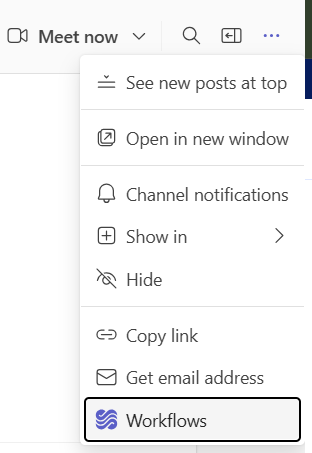
Click the three dots (...) in the top-right corner of the channel and select Workflows.
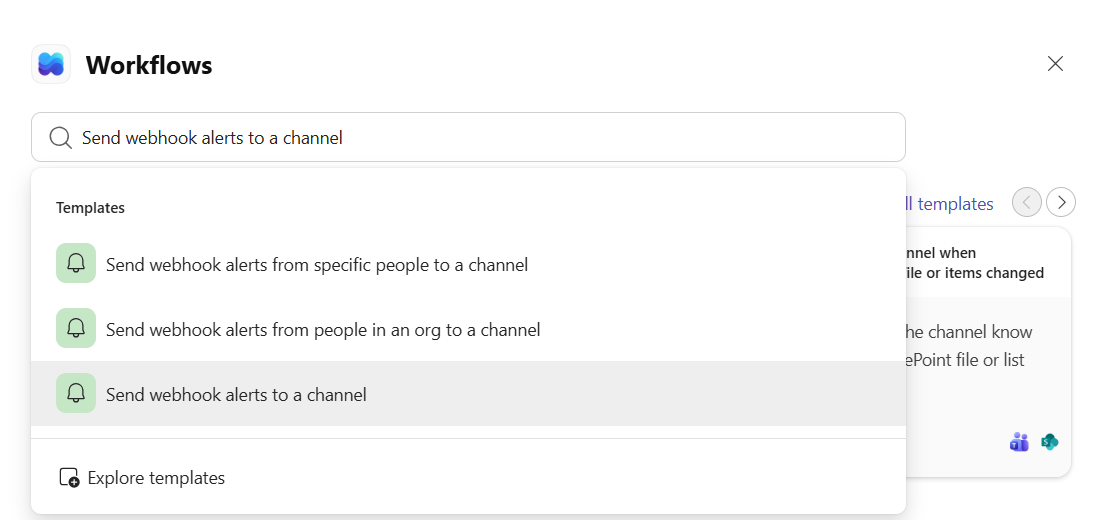
In the Workflows window, search for and select the Send webhook alerts to a channel template.
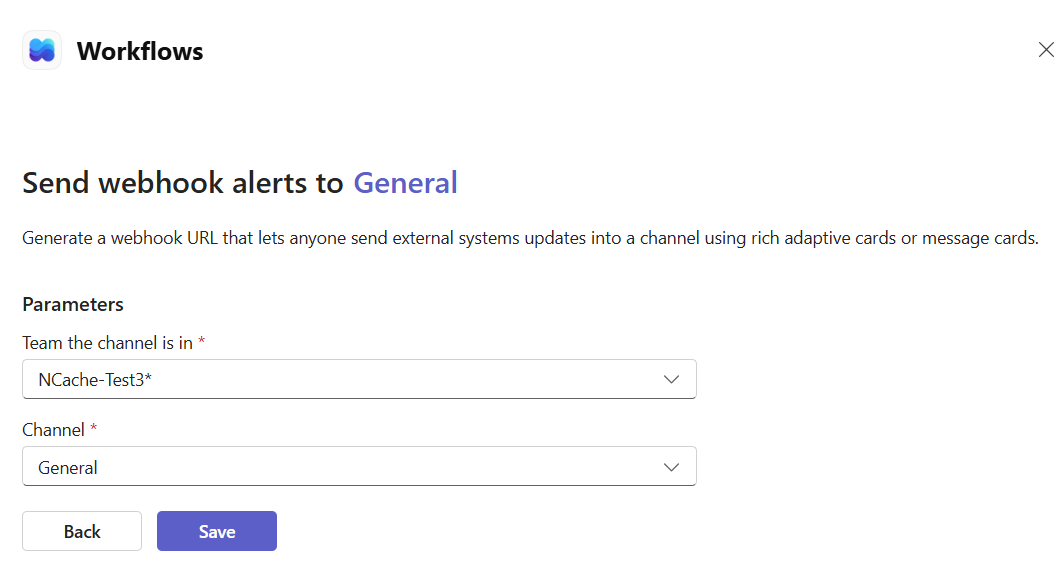
Choose the Team and Channel where the alerts should be posted and click Save.
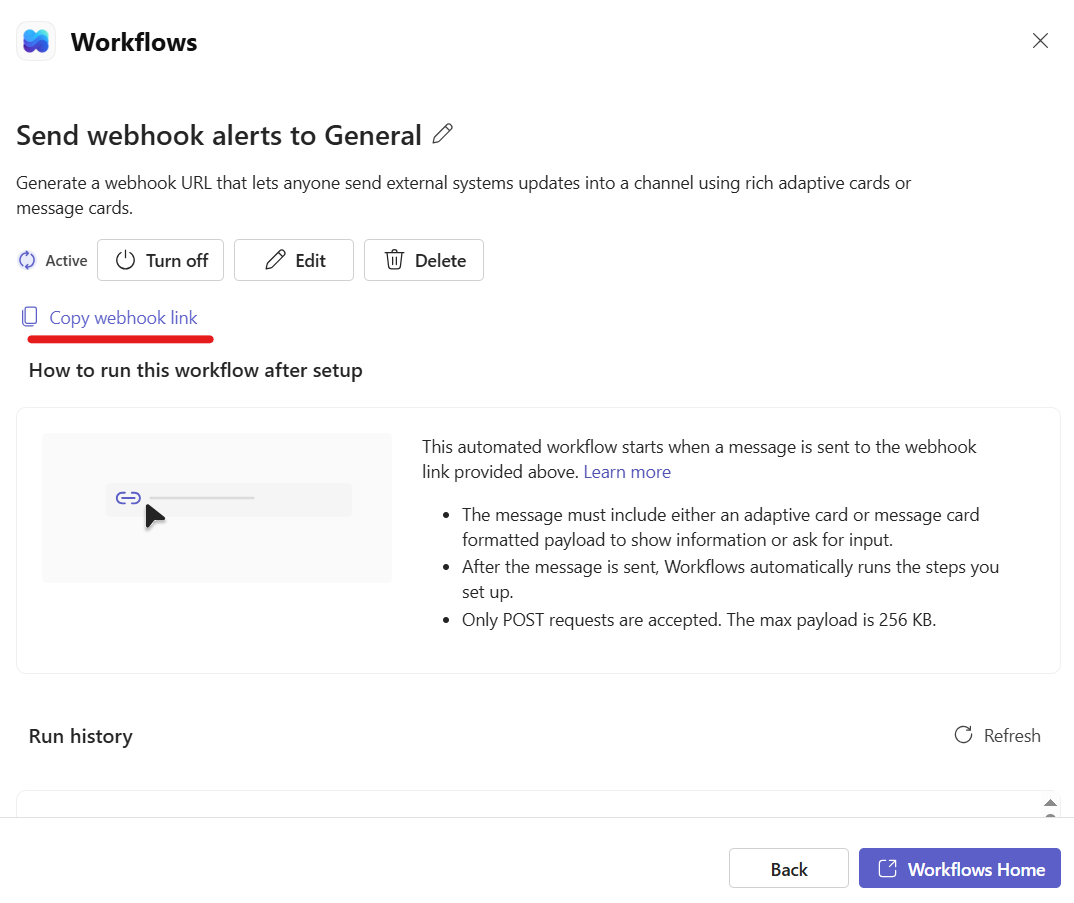
Once the workflow is created, Microsoft Teams generates a webhook URL.
Click Copy webhook link and save the generated URL securely.
Important
Treat the webhook URL like a password. Anyone with access to this URL can send messages to your Teams channel.
The generated webhook URL is used to send alert notifications to the selected Microsoft Teams channel.
Step 2: Decide What Alerts You Want from NCache
NCache writes operational and runtime events that can be used to trigger Microsoft Teams alerts. On Windows, these events are available in the Windows Application log. On Linux, similar event information is available in the NCache event log file.
Common alerts include:
- Cache started or stopped
- Cache node joined or left
- Service failures
- Network or connectivity issues
- Cache synchronization failures
- Critical runtime exceptions
This page uses the CacheStart event with Event ID 1000 and source NCache as an example for both Windows and Linux.
Important
You can learn more about NCache Event IDs from the NCache Administrators Guide.
Step 3: Create a Teams Alert Script
In this step, you will create a PowerShell script that reads the latest NCache event from the Windows Application log and sends it to the Microsoft Teams webhook URL created earlier. This script acts as the bridge between Windows Event Log and Microsoft Teams.
- Create a PowerShell script, for example at
C:\Scripts\Send-NCacheEventToTeams.ps1, add the following content to it, and replacePASTE_YOUR_WEBHOOK_URL_HEREwith the webhook URL generated by Microsoft Teams:
$webhookUrl = "PASTE_YOUR_WEBHOOK_URL_HERE"

$event = Get-WinEvent -MaxEvents 1 -FilterHashtable @{
    LogName      = 'Application'
    ProviderName = 'NCache'
}

$messageText = $event.Message
$cacheName = if ($messageText -match '"([^"]+)"') { $matches[1] }

$eventMessage = @"
Cache Name: $cacheName
Node: $env:COMPUTERNAME
Event: NCache Event (Event ID $($event.Id))
Time: $($event.TimeCreated)

Message:
$messageText
"@

$body = @{
    type = "message"
    attachments = @(
        @{
            contentType = "application/vnd.microsoft.card.adaptive"
            content = @{
                '$schema' = "http://adaptivecards.io/schemas/adaptive-card.json"
                type = "AdaptiveCard"
                version = "1.2"
                body = @(
                    @{
                        type = "TextBlock"
                        text = "NCache Event Alert"
                        weight = "Bolder"
                        size = "Large"
                    },
                    @{
                        type = "TextBlock"
                        text = $eventMessage
                        wrap = $true
                    }
                )
            }
        }
    )
} | ConvertTo-Json -Depth 10

Invoke-RestMethod `
    -Uri $webhookUrl `
    -Method Post `
    -Body $body `
    -ContentType "application/json"
Note
The ProviderName in the script can be changed depending on the event source you want to monitor. Common sources include:
NCacheNCacheSvcNCache Bridge
Note
You can customize this script based on the event source, Event ID, severity level, or message details you want to send.
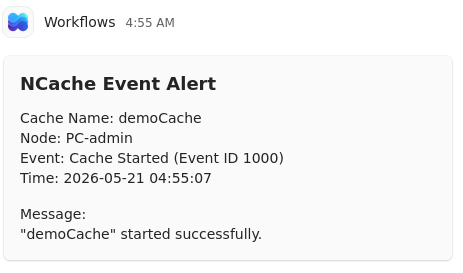
The above script reads the latest NCache event from the Windows Application log, extracts the cache name, node name, event ID, event time, and message, formats these details as a Microsoft Teams adaptive card, and sends the alert to the selected Teams channel through the webhook URL.
To verify the script, run the following command in PowerShell:
powershell -ExecutionPolicy Bypass -File "C:\Scripts\Send-NCacheEventToTeams.ps1"
After the script runs successfully, an alert message appears in the selected Microsoft Teams channel.
Step 4: Set Up A Trigger
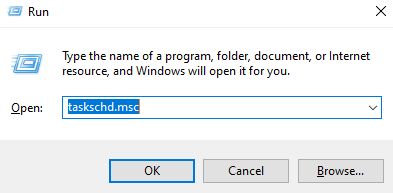
- Press Windows + R, type
taskschd.msc, and press Enter.
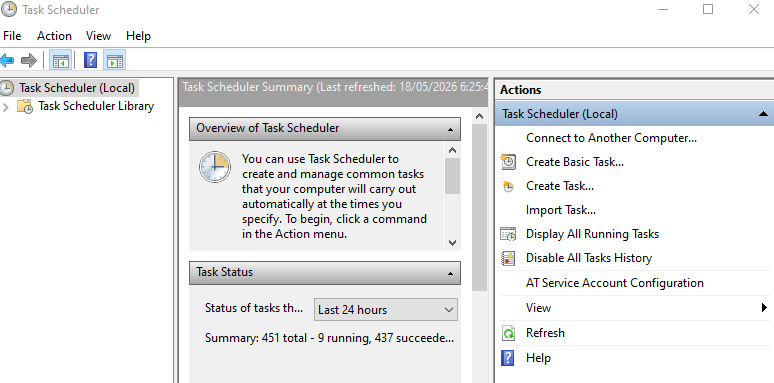
- In Task Scheduler, click Create Task.
Warning
Do not use Create Basic Task, as it does not support advanced event filtering properly.
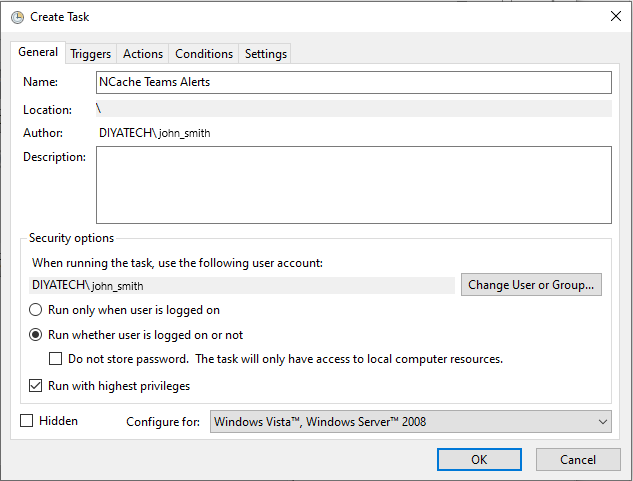
- In the General tab, specify the task name, for example, NCache Teams Alerts. Then enable Run whether user is logged on or not and Run with highest privileges.
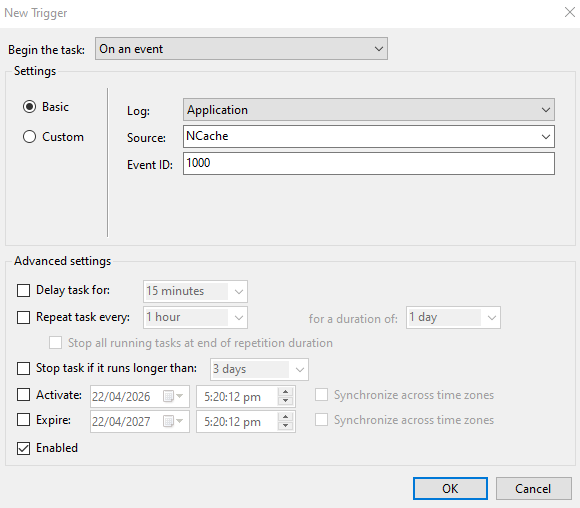
- In the Triggers tab, click New.
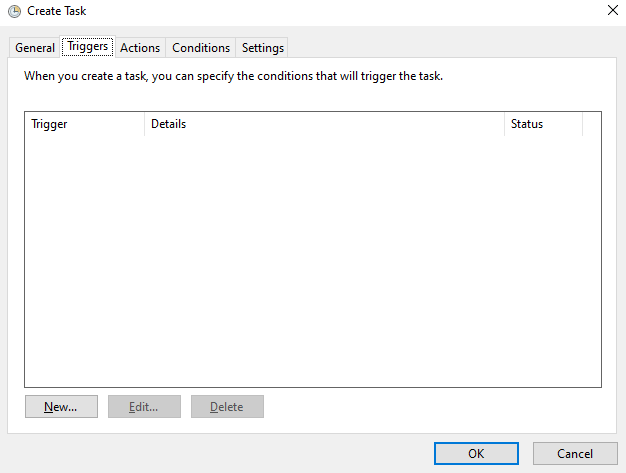
- In the New Trigger window, configure the event trigger:
- Set Begin the task to On an event.
- Set Log to Application.
- Set Source to NCache.
- Enter the required Event ID, if you want to trigger alerts only for a specific event.
- Click OK.
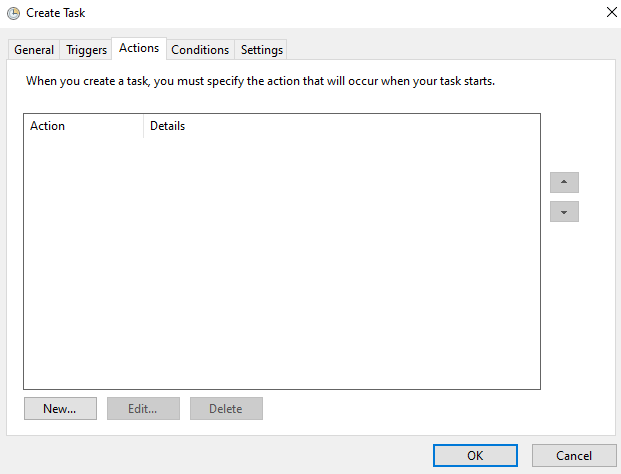
- In the Actions tab, click New.
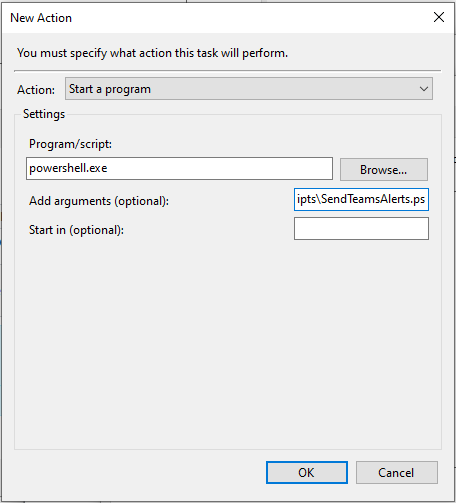
- In the New Action window:
- Set Action to Start a program.
- Set Program/script to
powershell.exe. - Add the following arguments to run the Teams alert script:
-ExecutionPolicy Bypass -File "C:\Scripts\Send-NCacheEventToTeams.ps1"
Note
In the Conditions tab, you can enable Start only if on AC power, which is recommended for servers.
- In the Settings tab, enable Allow task to be run on demand and Run task as soon as possible after a scheduled start is missed.
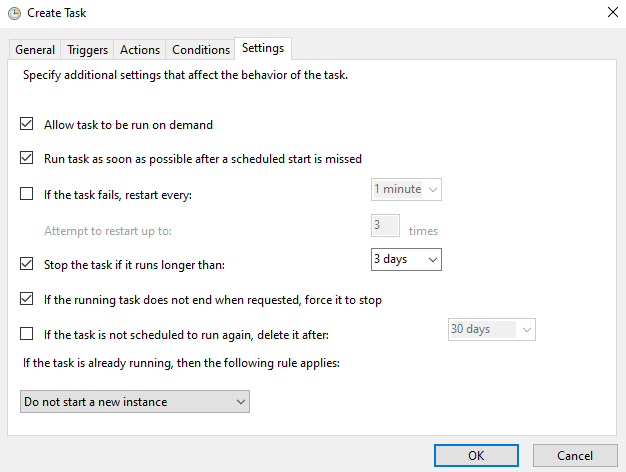
Click OK to save the task.
To verify that the task has been created successfully, run the following PowerShell command:
Get-ScheduledTask -TaskName "NCache Teams Alerts"

Once the selected NCache event occurs, Windows Task Scheduler runs the PowerShell script and sends the alert to the configured Microsoft Teams channel.
Now, if the event you chose occurs you will get a message on MS Teams.
Note
Excessive event notifications can generate a large number of Teams alerts. In production environments, it is recommended to filter only important or critical events.
