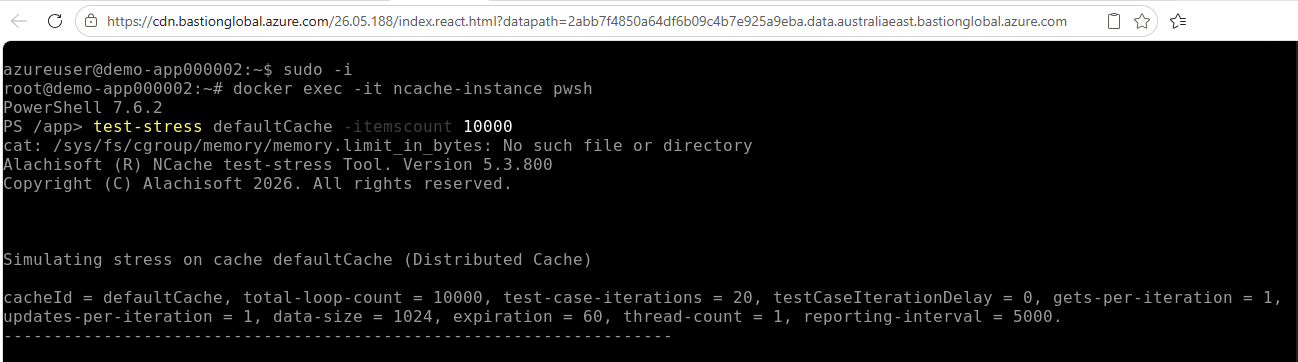
Connect to VMSS Host Instances
NCache Cloud deploys cache cluster nodes on Linux virtual machines managed by an Azure Virtual Machine Scale Set (VMSS). Each host VM runs an isolated NCache Docker container.
To maintain security, individual VMSS instances are never assigned public IP addresses, even if public access is enabled during deployment. A single public IP is provisioned exclusively at the Azure Load Balancer tier to route HTTPS traffic to the NCache management portal. Because the host VMs are isolated within your virtual network, direct SSH access from the public internet is disabled.
To manage, troubleshoot, or inspect the container host environment, you can connect to a VMSS host instance using either an internal SSH connection (via a jumpbox/peered network) or Azure Bastion.
Navigating to VMSS Host Instances
Follow these steps in the Azure Portal to locate your scale set instances and access connection details:
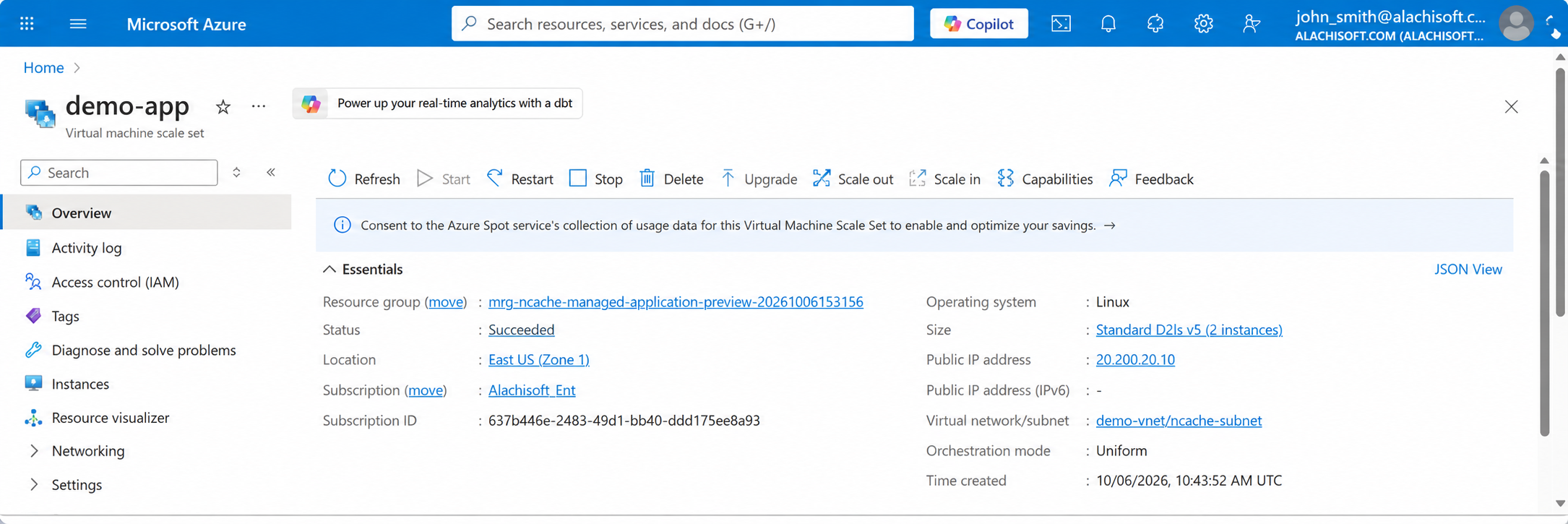
Open Your Managed Application: Navigate to the resource group containing your NCache Cloud deployment and open your deployed Managed Application (e.g.,
demo-app).Access the Managed Resource Group: On the Overview page under Essentials, click the link next to Resource Group (e.g.,
mrg-ncache-managed-application-...).
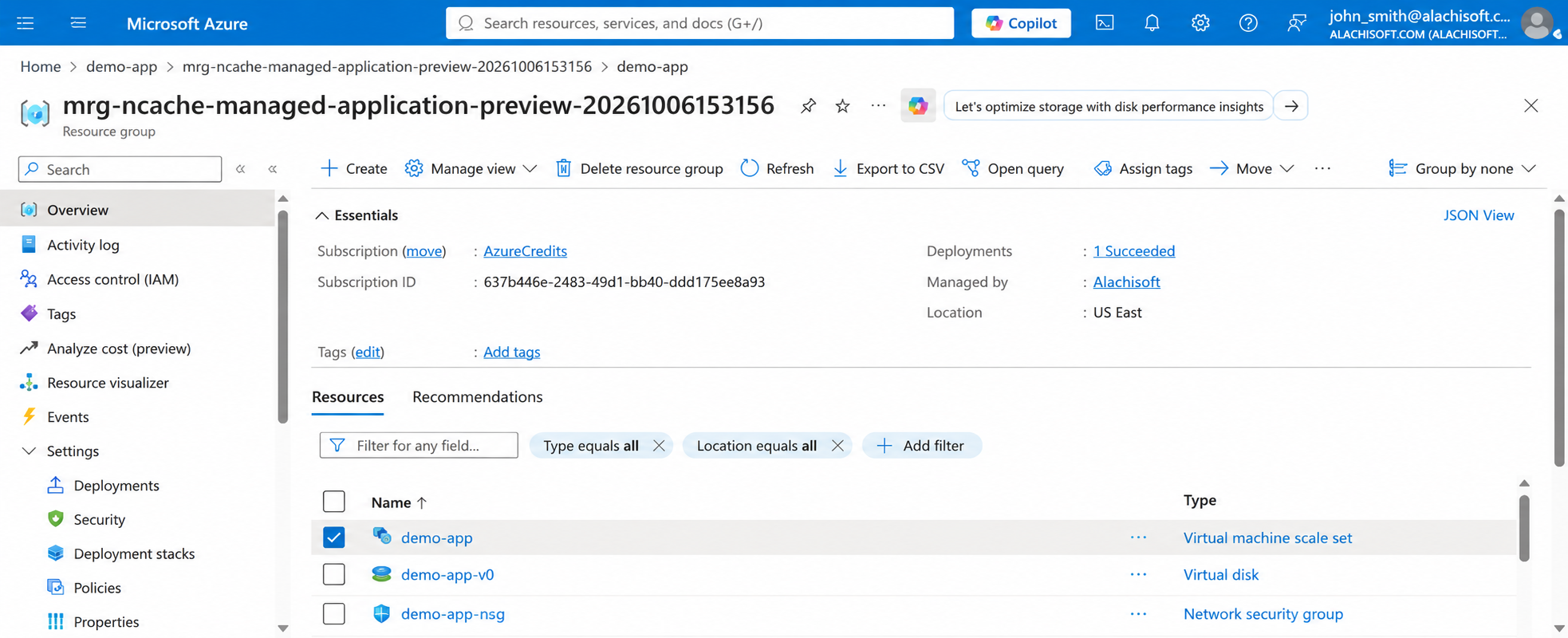
- Select the Virtual Machine Scale Set:
Inside the managed resource group, locate and click on the Virtual machine scale set resource (e.g.,
demo-app).
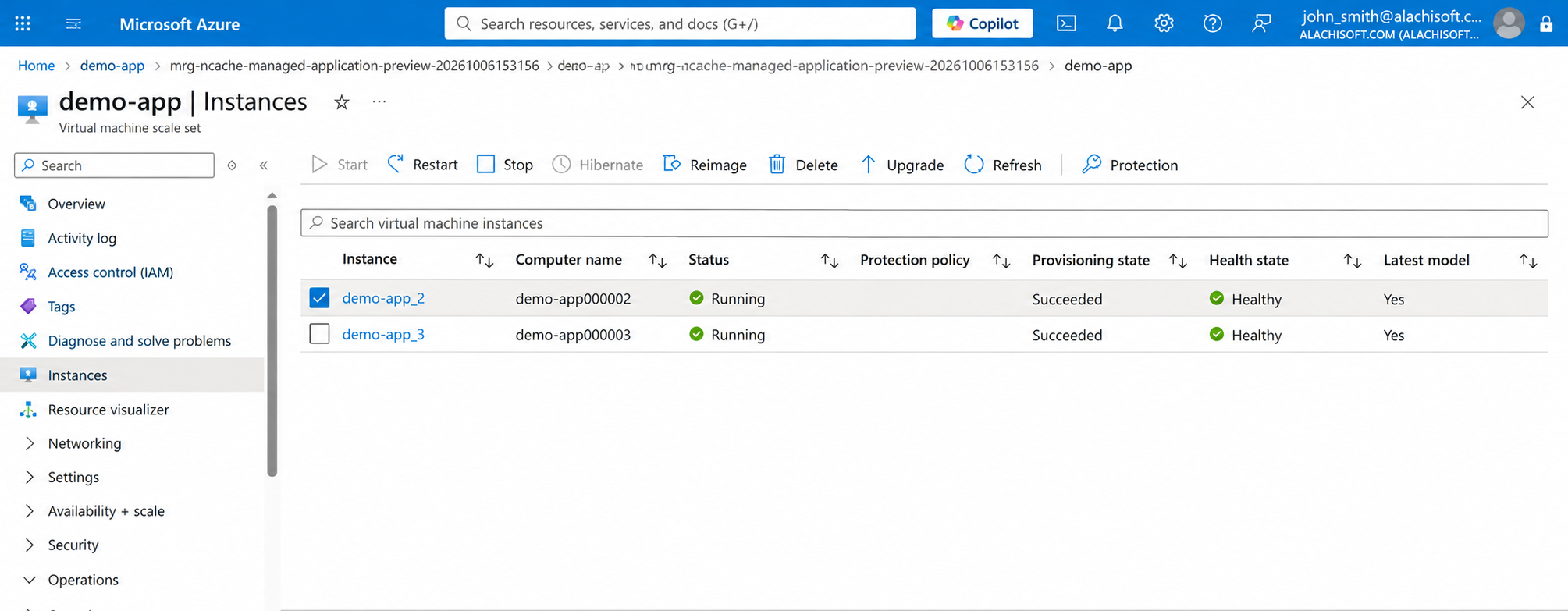
- Open the Instances Section: From the left navigation menu under Settings, select Instances. You will see a list of all deployed VMSS nodes along with their status and health state.
Select a Target Host Instance: Click on the specific instance you wish to access (e.g.,
demo-app_2).Navigate to the Connect Section: From the left navigation menu of the selected instance:
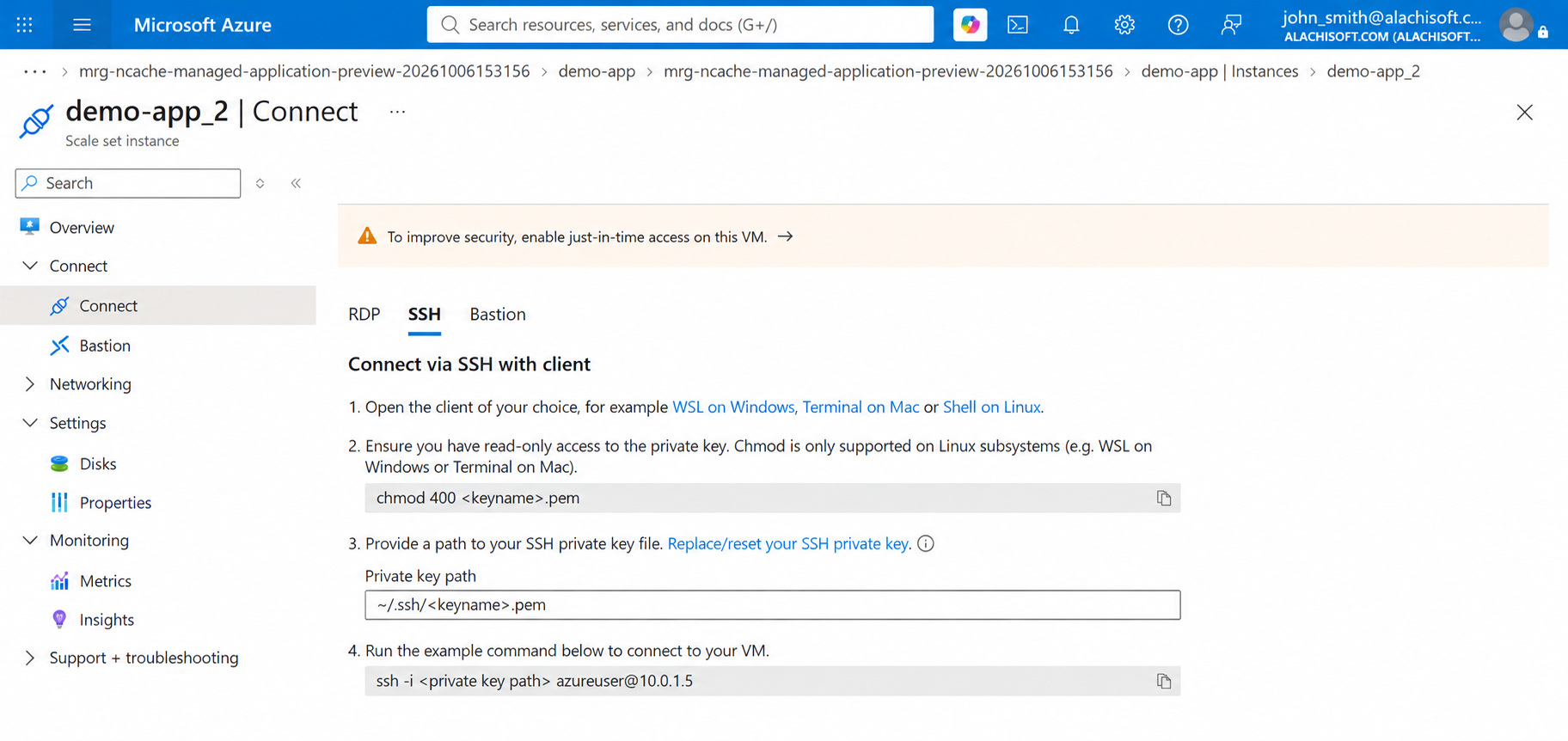
Select Connect under the Connect group in the left menu (or click the Connect dropdown in the top command bar) for standard SSH details.
Alternatively, select Bastion directly from the left menu to connect via Azure Bastion in your browser.
Understanding Host Network Security and Public IP Handling
Before connecting, keep the following architectural points in mind:
No Public IPs on Instances: Virtual machine scale set instances reside strictly within the dedicated private subnet (
ncache-subnet). In the instance overview, the Public IP address field is blank (-), while an internal Private IP address is assigned.Load Balancer Isolation: The public IP associated with the deployment belongs strictly to the Azure Load Balancer to serve management portal requests; it does not map SSH ports directly to the nodes.
Container Isolation: When connecting to a host instance, you are accessing the underlying Linux Host VM. The NCache cache server processes operate inside Docker containers running within this host.
Connection Methods
Method 1: Connect via SSH (Using Private IP)
Since the instance lacks a public IP, SSH connections must originate from within the same Virtual Network, a peered Virtual Network, or via an established VPN/ExpressRoute.
Prerequisites
A Linux or Windows jumpbox VM deployed inside the same VNet (or a peered VNet) with network connectivity to
ncache-subnet.The private SSH key (
.pem) matching the public key specified during Step 4 (Environment) of deployment.
Steps to Connect via SSH
Transfer or locate your private key file on your jumpbox machine.
Ensure appropriate read-only permissions are applied to the key:
chmod 400 <keyname>.pemEstablish the SSH session using the instance's private IP address (visible on the instance overview section):
ssh -i /path/to/<keyname>.pem azureuser@<INSTANCE_PRIVATE_IP>
Method 2: Connect via Azure Bastion
Azure Bastion provides secure, seamless RDP/SSH connectivity to your virtual machines directly through the Azure Portal over TLS (port 443), eliminating the need for public IP addresses or a separate jumpbox.
Note
NCache Cloud uses the Bastion Developer SKU for lightweight, direct connectivity to individual VM instances without requiring a dedicated public IP or prior deployment wait times.
Steps to Connect via Azure Bastion
In the instance menu under Connect, select Bastion.
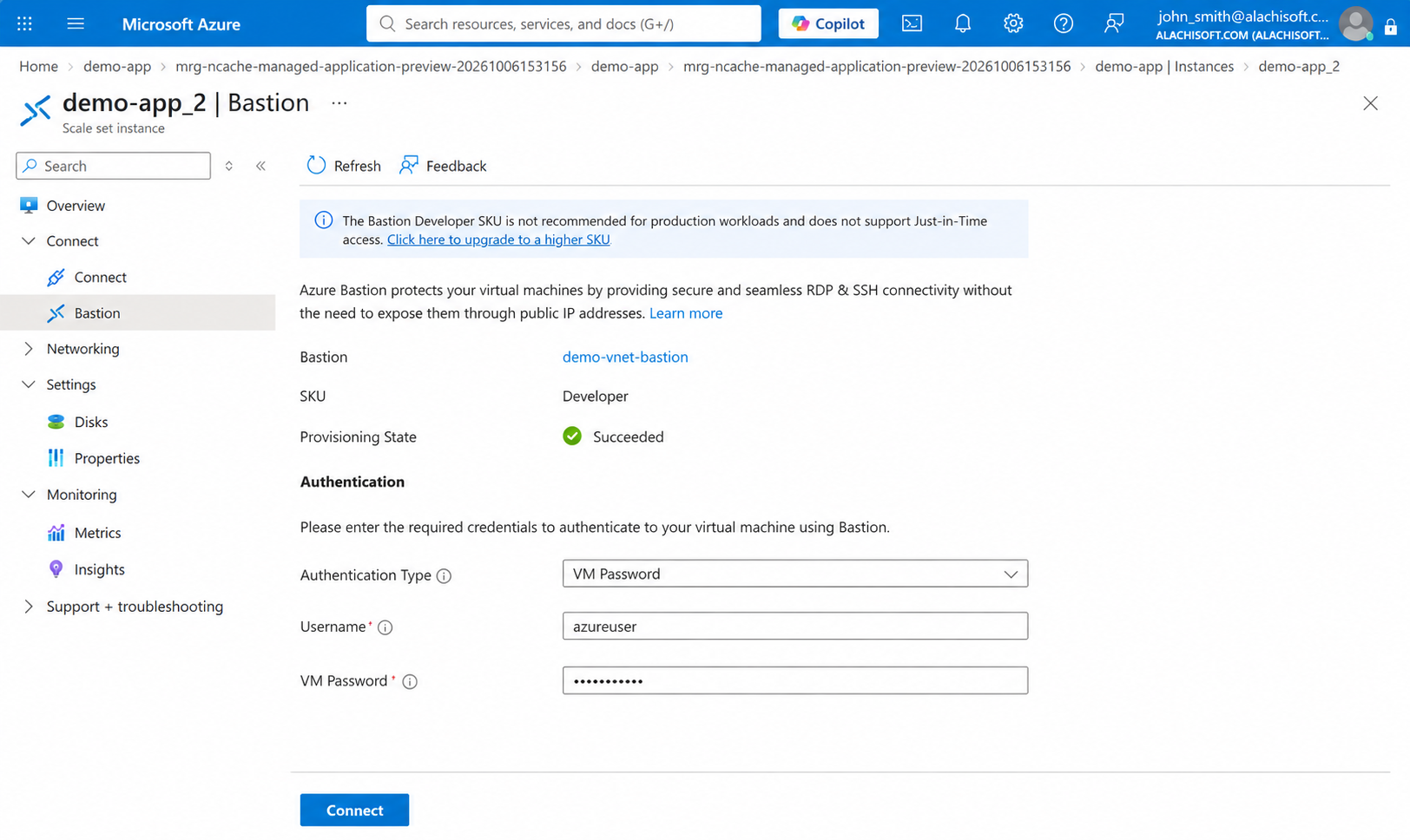
Bastion configuration details are as follows:
Bastion Host Name: Displays the active bastion instance associated with your VNet.
SKU: Set to Developer.
Provisioning State: Confirms successful deployment status (Succeeded).
Under the Authentication section, provide your credentials:
Authentication Type: Select your preferred verification method from the dropdown options:
Microsoft Entra ID: Authenticates using your corporate Microsoft Entra ID credentials and role-based access control.
VM Password: Authenticates using the standard administrator password defined during deployment.
VM Password from Azure Key Vault: Retrieves and authenticates using a secure VM password securely stored in an Azure Key Vault.
Private Key from Local File: Uses a local
.pemor private key file matching your deployment key pair.Private Key from Azure Key Vault: Retrieves and authenticates using an SSH private key stored securely within an Azure Key Vault.
Username: Enter the VM administrator username (e.g.,
azureuser).VM Password: Enter the administrator password.
Click Connect at the bottom of the page.
A secure, web-based terminal session will launch in a new browser tab directly connected to the host VM.
Once connected to the host shell, you can elevate privileges and verify the running NCache container:
sudo -i
docker exec -it ncache-instance pwsh