Configure TLS Encryption in Windows and Linux
NCache supports Transport Layer Security (TLS) to encrypt communication between clients, cache servers, cluster nodes, Bridges, and management components. It provides a unified TLS configuration for Windows and Linux using PEM-formatted certificates, eliminating the need to identify certificates through Common Names (CNs) or thumbprints.
NCache supports TLS to encrypt communication and authenticate servers, and Mutual TLS (mTLS) to additionally authenticate connecting clients using certificates. Both modes support the following server certificate options:
- NCache-provided certificates: Automatically generated, signed, managed, and renewed by NCache without requiring manual certificate provisioning.
- Custom certificates: Issued by your organization's Certificate Authority (CA), with certificate provisioning, trust, and renewal managed by your organization.
NCache-Provided Certificates
NCache automatically provisions and manages server certificates through its certificate-signing service, eliminating the need for manual certificate provisioning or distribution between server nodes. Each server node receives a unique certificate and retains its private key locally.
Certificate Architecture
NCache-provided certificates use a three-level certificate hierarchy to establish trust between NCache components:
NCache Root CA → Customer Intermediate CA → Server Leaf Certificate
Each level serves a specific purpose in the certificate-signing and validation process:
- Root CA: Alachisoft maintains the NCache Root CA, which signs customer Intermediate CA certificates. Its public certificate is included with NCache Server and Client SDK installations, allowing NCache components to validate certificates issued through this hierarchy.
- Intermediate CA: Each customer is assigned a separate Intermediate CA when their NCache license is issued. The same Intermediate CA is reused across the customer's deployments, while its private key remains protected within Alachisoft's certificate-signing infrastructure.
- Leaf certificate: Each NCache server node receives a unique leaf certificate signed by the customer's Intermediate CA. The corresponding private key is generated and stored locally on the server node.
Certificate Issuance Process
When TLS or Mutual TLS is enabled using NCache-provided server certificates, NCache automatically performs the following operations on each participating server node:
- Generate the certificate request: The node generates a unique private key and Certificate Signing Request (CSR). The private key remains on the node and is never sent to Alachisoft.
- Submit the signing request: NCache sends only the CSR to its certificate-signing service, where the customer's Intermediate CA is used to sign the request.
- Receive the signed certificate: The signing service returns the signed leaf certificate and Intermediate CA certificate to the requesting node.
- Store the certificate: NCache creates
leaf.pemin the node's certificate directory. The file contains the private key, signed leaf certificate, and Intermediate certificate chain, in that order.
Once the certificate is available, the server presents its certificate chain during TLS communication. The connecting NCache component validates the chain against the NCache Root CA public certificate included with its installation or Client SDK. This establishes trust without requiring manual installation of the NCache Root CA for those components.
Throughout this process, server private keys remain on their respective nodes, while Intermediate CA private keys remain within Alachisoft's signing infrastructure. Only public certificates and certificate issuance or renewal metadata are stored centrally.
Automatic Certificate Renewal
NCache automatically renews NCache-provided server certificates to maintain TLS communication without requiring manual certificate replacement. Server leaf certificates are valid for two years, and each node independently checks its certificate expiration every 12 hours.
When 30 days or fewer remain before expiration, the node generates a new private key and Certificate Signing Request (CSR). It then contacts the certificate-signing service over HTTPS, using the customer's NCache license to authenticate the request. After receiving the renewed certificate, NCache updates the local certificate file and loads the new certificate into memory without restarting the server.
If renewal fails, NCache logs the error and retries during the next scheduled check. The existing certificate remains in use while valid, and each server node manages its renewal independently.
Custom Certificates
In addition to NCache-provided certificates, NCache supports PEM-formatted certificates issued by your organization's Certificate Authority (CA). This option allows organizations to use their existing certificate-management infrastructure and security policies.
To configure a custom certificate, provide a PEM file containing the private key, server leaf certificate, and Intermediate certificates, in that order. The file must be accessible on every applicable server node, and the issuing Root CA must be trusted through the operating-system trust store or a certificate in the custom certificate directory.
Unlike NCache-provided certificates, custom certificates are not automatically issued or renewed by NCache. Your organization is responsible for certificate provisioning, private-key protection, trust configuration, and renewal.
For configuration instructions, see Configure TLS Using Custom Certificates.
TLS Communication
NCache supports TLS and Mutual TLS (mTLS). Both encrypt data in transit, but they differ in whether the connecting client must present a certificate.
TLS
TLS encrypts the connection and lets the client authenticate the NCache server. During the TLS handshake, the server presents its certificate chain, which the client validates against a trusted Root CA. The client does not need to present its own certificate. TLS supports either NCache-provided or custom server certificates.
Mutual TLS (mTLS)
Mutual TLS extends TLS by requiring the client to present a valid certificate as well. The client validates the server certificate, and NCache validates the client's certificate against a trusted issuing CA. NCache supports two options for client certificates:
- NCache-generated client certificate: Generate an Alachisoft-signed certificate using the
New-NCacheTlsCertificatePowerShell cmdlet. - Custom client certificate: Use a certificate issued by your organization's CA and ensure that the NCache server trusts its issuing Root CA.
When mTLS is enabled, every connecting client must be configured with a valid client certificate. NCache-generated client certificates are created on the client machine, where their private keys remain. For server-to-server communication, NCache nodes present their own certificate chains and validate their peers without sharing private keys.
Configure TLS and Mutual TLS Using the NCache Management Center
The NCache Management Center provides a centralized interface for configuring TLS or Mutual TLS on one or more server nodes. The common steps for selecting the target nodes and enabling TLS are performed once, after which you can choose the required certificate source and optionally enable mutual TLS.
- Launch the NCache Management Center by browsing to http://localhost:9801 or
<server-ip>:9801. - From the left navigation bar, click the
 button.
 - Under Environment, click TLS Security.
- In the Select Nodes section, enter the server IP address in the Node IP field and click Add. Repeat this step for every server node on which TLS should be configured. To remove a server, click the remove button against the corresponding node.
- Under TLS Configuration, select Enable TLS on the selected nodes.
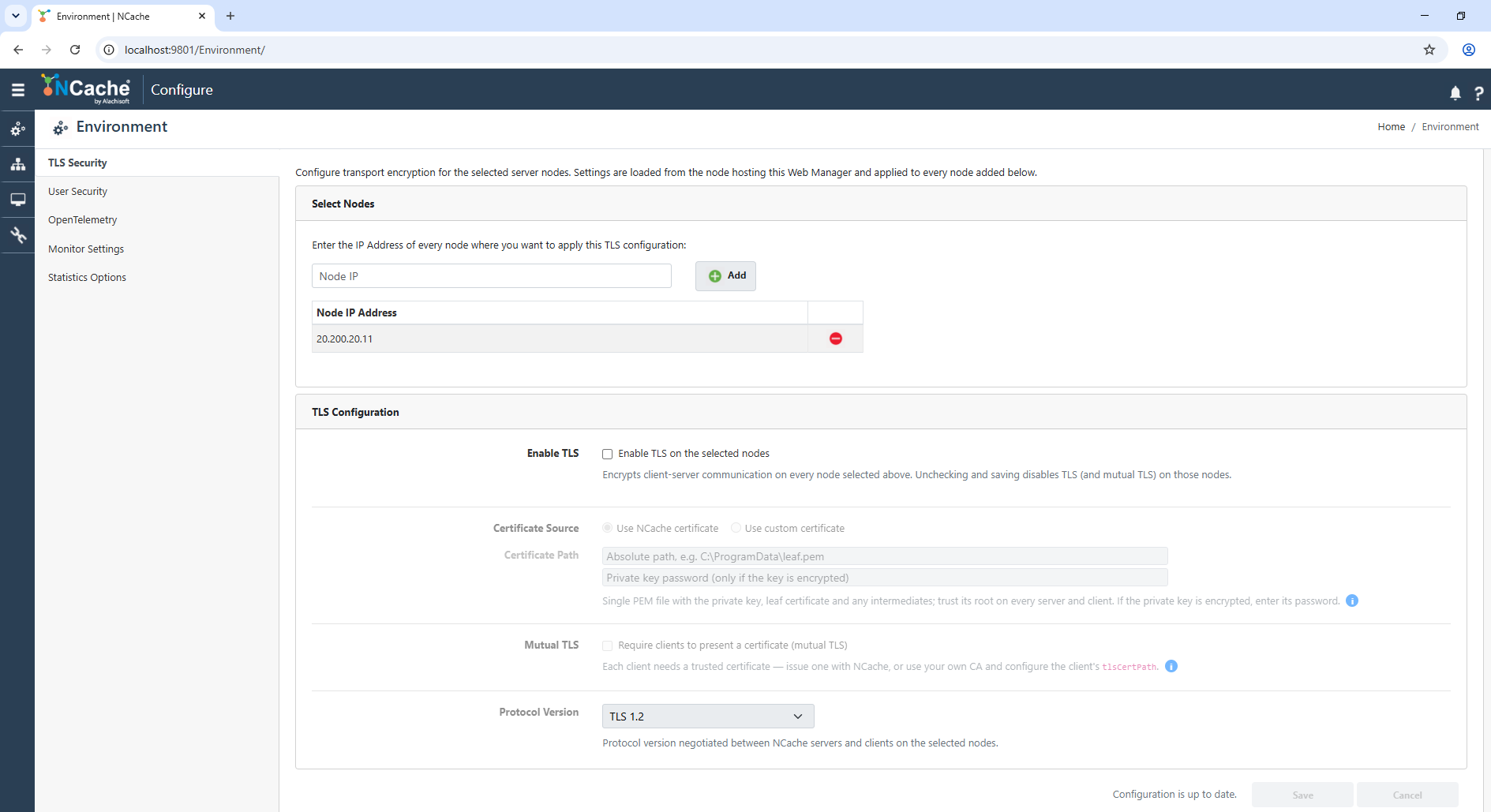
After adding the required nodes and enabling TLS, configure the certificate source using one of the following options.
Configure TLS Using NCache-Provided Certificates
Use this option when you want NCache to generate, sign, store, and renew the server certificates automatically. No certificate path is required because NCache manages the certificate on each selected server node.
- Under Certificate Source, select Use NCache certificate.
- NCache generates a unique key pair and CSR on each selected node, obtains the node-specific leaf certificate, and creates the local
leaf.pemfile. - If mutual TLS is also required for client connections, first configure the client certificate as described in Configure Mutual TLS, and then enable the mutual TLS option.
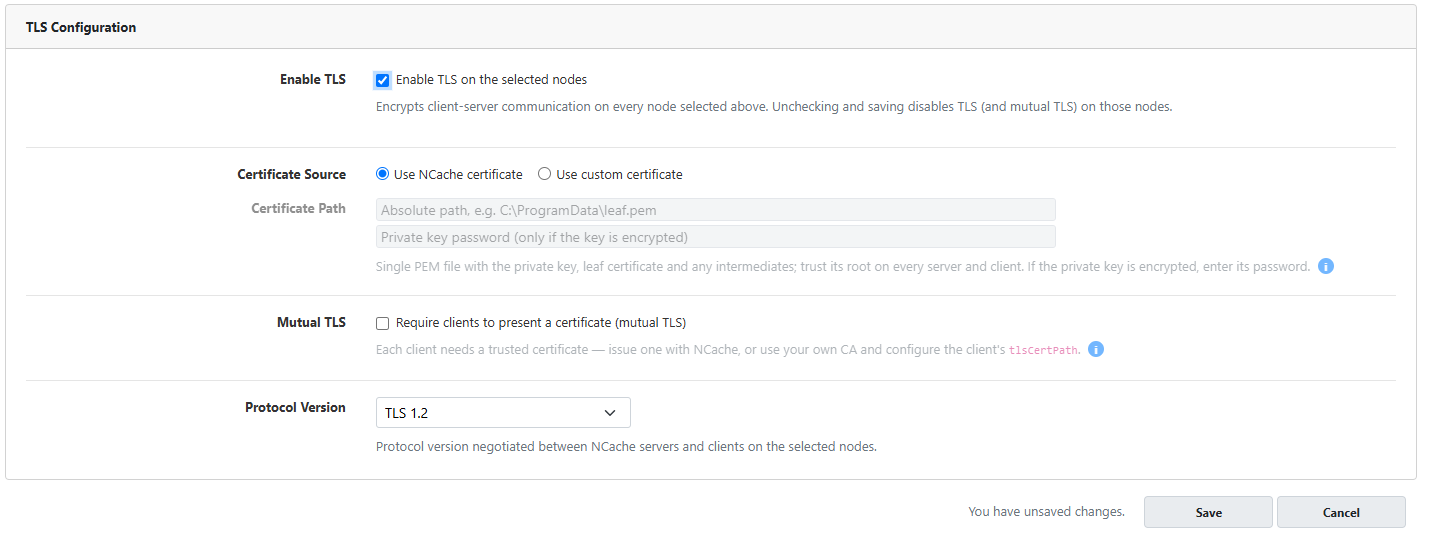
After TLS is enabled successfully, NCache creates leaf.pem on each selected node under the NCache certificate directory. If TLS is later disabled, the generated certificate file can remain on the machine and may be reused when TLS is enabled again.
Configure TLS Using Custom Certificates
Use the custom certificate option when you want NCache to use a certificate issued by your organization's Certificate Authority (CA). Provide a single PEM file containing the private key, leaf certificate, and any Intermediate certificates in that order, and make sure the configured certificate path is available on every selected server node. NCache must also be able to trust the Root CA that issued the certificate. You can install the Root CA certificate in the operating system's trusted certificate store, such as Trusted Root Certification Authorities on Windows or the system CA trust store on Linux, or place it in the same directory as the custom certificate.
- Under Certificate Source, select Use custom certificate. The Certificate Path field and private-key password field become available.
- Enter the absolute path of the PEM file in the Certificate Path field.
- If its private key is encrypted, enter the password in the Private key password field below the certificate path. Leave this field empty for an unencrypted private key.
- Make sure the same path exists and is accessible on every selected server node.
- Verify that the PEM file contains the private key, leaf certificate, and Intermediate certificate or certificates in that order.
- Ensure that the corresponding Root CA certificate is installed in the operating system's trust store or placed in the same directory as the custom certificate.
- If mutual TLS is also required for client connections, configure the client certificate as described in Configure Mutual TLS, and then enable the mutual TLS option.
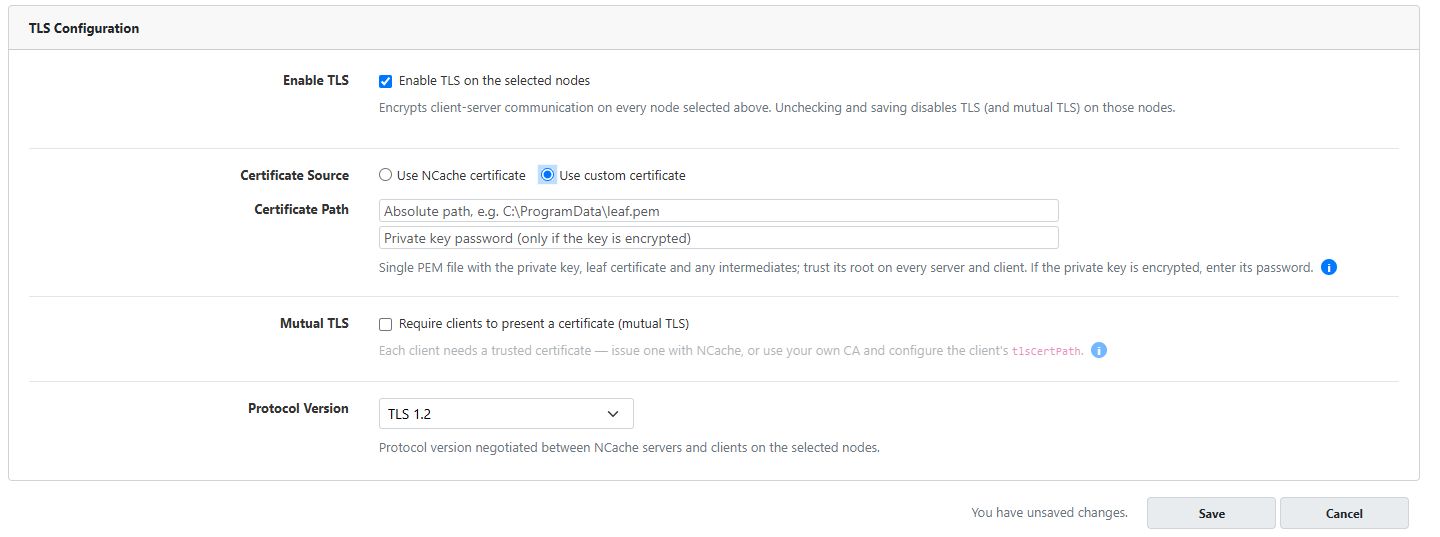
Important
Protect the private key in the custom PEM file and restrict access to the account that runs the corresponding NCache process. An encrypted key requires the correct password to load. A missing or incorrect password causes certificate loading to fail; passwords are not included in error messages or logs. The password is saved with the custom certificate settings in tls.ncconf and cleared when you switch to an NCache-provided certificate. Protect exported TLS configurations because they include the configured password.
Configure Mutual TLS
Mutual TLS requires connecting clients to present a valid client certificate in addition to validating the server certificate. Configure the client certificate first using one of the following options, then enable the mutual TLS option for the required server nodes through the NCache Management Center.
Option 1: Use an NCache-Generated Client Certificate
NCache provides the New-NCacheTlsCertificate PowerShell cmdlet to generate an Alachisoft-signed client certificate. Run the cmdlet on the machine where the client application runs so that the private key is generated and retained locally on that machine.
New-NCacheTlsCertificate -Server <server> -Path <full-file-path.pem>
For example:
New-NCacheTlsCertificate -Server 20.200.20.11 -Path C:\certs\client.pem
The -Path parameter specifies where the generated certificate is stored. The -Server parameter is mandatory and specifies the registered NCache server used to obtain the required registration information, regardless of whether the cmdlet is executed on a server or client machine. The -Path parameter specifies the location where the generated client certificate is saved.
If the target file already exists and you want to issue a new client certificate, use the -Force parameter:
New-NCacheTlsCertificate -Server 20.200.20.11 -Path C:\certs\client.pem -Force
After successful generation, the client PEM file is created at the specified location. The private key remains on the client machine and is not sent outside the system.
Option 2: Use a Certificate Issued by Your Own CA
You can also use a client certificate issued by your organization's Certificate Authority (CA). Obtain the client certificate through your organization's certificate-management process and keep the resulting PEM file on the machine where the client application runs.
For this option, make sure that every NCache server trusts the Root CA that issued the client certificate. Restrict access to the PEM file so that only the account running the client application can access its private key.
After obtaining the client certificate through either option, set tlsCertPath in the ncache section of the client application's appsettings.json to the certificate path. For .NET Core / modern .NET, use a PEM file. .NET Framework clients also support PFX certificates. If the certificate's private key is encrypted, or a PFX file is password-protected, supply tlsCertPassword; otherwise omit it. These values can also be set through ConnectionOptions.TLSCertPath and ConnectionOptions.TLSCertPassword, which take precedence over the application configuration.
Install the issuing Root CA certificate in the operating-system trust store on the machine running the ASP.NET Core or .NET Framework application. The server must also trust the client certificate's issuing Root CA. Restrict access to the certificate and its private key to the client application account.
{
  "ncache": {
    "tlsCertPath": "C:\\certs\\client.pem",
    "tlsCertPassword": "your-client-key-password"
  }
}
For an unencrypted PEM file, omit tlsCertPassword from the example. The PEM certificate generated by New-NCacheTlsCertificate contains an unencrypted private key.
Once the client certificate has been generated or obtained and configured in the client application, return to the TLS Security page and select Require clients to present a certificate (mutual TLS).
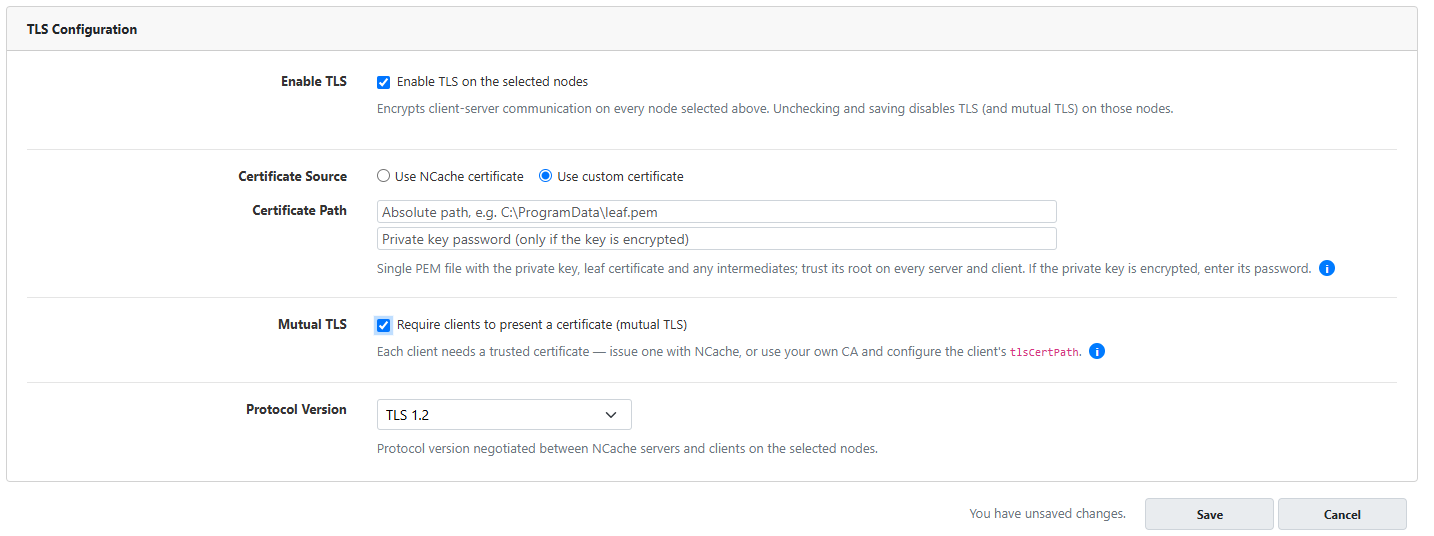
After configuring the required certificate source and mutual TLS settings, complete the TLS configuration as follows:
- From the Protocol Version drop-down list, select TLS 1.2 to use TLS 1.2 exclusively, TLS 1.3 to use TLS 1.3 exclusively, or Auto to allow the operating system to negotiate the highest mutually supported TLS version.
- Click Save to apply the configuration to all nodes listed in the Select Nodes section.
- When the configuration is applied successfully, verify the success notification displayed by the NCache Management Center.
- Restart the applicable Cache process, Bridge service, and Execution service so that they use the updated TLS configuration. The NCache Service does not require a restart.
- If mutual TLS is enabled, restart the client application or client process after configuring the client certificate so that it loads the updated certificate configuration.
Note
The mutual TLS option controls client certificate authentication for applicable client connections. Inter-node certificate authentication is handled automatically by NCache and does not require a separate client certificate configuration.
Configure TLS and Mutual TLS Using PowerShell
You can also configure TLS or Mutual TLS through PowerShell by using the Enable-NCacheTLS cmdlet. It can enable TLS on the local NCache server or on one or more remote server nodes, and supports NCache-provided certificates, custom certificates, and mutual TLS.
Enable TLS Using NCache-Provided Certificates
Run Enable-NCacheTLS without specifying a custom certificate path to use NCache-provided server certificates. On successful configuration, each target server node generates its own key pair and obtains its own leaf certificate.
To enable TLS on the local NCache server, run:
Enable-NCacheTLS
To enable TLS on multiple remote nodes, specify the server IP addresses:
Enable-NCacheTLS -Node "20.200.20.11,20.200.20.12"
If NCache security is enabled on the remote servers, provide the required credentials:
Enable-NCacheTLS -Node "20.200.20.11,20.200.20.12" -Credentials (Get-Credential)
To specify TLS 1.3 explicitly, use -ProtocolVersion tls13, as shown below. Use tls12 for TLS 1.2 or auto to negotiate the highest mutually supported TLS version:
Enable-NCacheTLS -Node "20.200.20.11,20.200.20.12" -ProtocolVersion tls13
Enable TLS Using Custom Certificates
Use Enable-NCacheTLS with -CustomCertificatePath when the server should use a certificate supplied by your organization. The PEM file must contain the private key, leaf certificate, and any Intermediate certificates in that order, and the specified path must be valid on every target node.
To configure a custom certificate on the local server, run:
Enable-NCacheTLS -CustomCertificatePath "C:\certs\ncache-chain.pem"
For an encrypted server private key, include -CustomCertificatePassword with the certificate path:
Enable-NCacheTLS -Node "20.200.20.11" `
                 -CustomCertificatePath "C:\certs\server.pem" `
                 -CustomCertificatePassword "your-server-key-password"
To configure the same custom certificate on multiple remote nodes, run:
Enable-NCacheTLS -Node "20.200.20.11,20.200.20.12" `
                 -CustomCertificatePath "C:\certs\ncache-chain.pem"
Before enabling TLS, ensure that the corresponding Root CA certificate is installed in the operating system's trust store or placed in the same directory as the custom certificate.
Configure Mutual TLS Using PowerShell
Before enabling mutual TLS, generate or obtain the client certificate using one of the options described in Configure Mutual TLS. To generate an NCache-signed client certificate, use the New-NCacheTlsCertificate cmdlet on the machine where the client application runs. Then configure tlsCertPath in the ncache section of the client's appsettings.json and ensure that the required Root CAs are trusted.
To enable mutual TLS with NCache-provided server certificates, run:
Enable-NCacheTLS -Node "20.200.20.11,20.200.20.12" -UseMutualTls
To enable mutual TLS while using a custom server certificate, run:
Enable-NCacheTLS -Node "20.200.20.11,20.200.20.12" `
                 -CustomCertificatePath "C:\certs\ncache-chain.pem" `
                 -UseMutualTls
When running a TLS management cmdlet from a machine without an NCache server installation against a server already requiring mutual TLS, specify -TlsCertPath and, if the client PEM private key is encrypted, -TlsCertPassword. These parameters authenticate the command-running machine; they are separate from -CustomCertificatePath and -CustomCertificatePassword, which configure the server certificate.
After Enable-NCacheTLS completes successfully, restart the applicable Cache process, Bridge service, and Execution service. If mutual TLS is enabled, restart the client application so that it loads the configured client certificate. The NCache Service does not require a restart.
Disable TLS Using PowerShell
Use the Disable-NCacheTLS cmdlet to disable TLS on the local NCache server or on one or more remote server nodes.
To disable TLS on the local server, run:
Disable-NCacheTLS
To disable TLS on multiple remote nodes, run:
Disable-NCacheTLS -Node "20.200.20.11,20.200.20.12"
If NCache security is enabled on the remote nodes, provide the required credentials:
Disable-NCacheTLS -Node "20.200.20.11,20.200.20.12" -Credentials (Get-Credential)
Disabling TLS does not necessarily delete previously generated certificate files, so an existing leaf.pem can remain on the server after TLS has been disabled. For complete syntax and parameter details, refer to Disable-NCacheTLS.
TLS Configuration File
NCache stores the TLS configuration in the tls.ncconf file located at:
- Windows:
%NCHOME%\config\tls.ncconf - Linux:
/opt/ncache/config/tls.ncconf
The tls.ncconf file specifies whether TLS and mutual TLS are enabled, the path of a custom certificate and its private-key password when applicable, and the TLS protocol version. For example, when TLS is enabled using an NCache-provided certificate without mutual TLS, the configuration appears as follows:
<tls-info>
    <enable>true</enable>
    <use-mutual-tls>false</use-mutual-tls>
    <custom-certificate-path></custom-certificate-path>
    <protocol-version>tls12</protocol-version>
    <password></password>
</tls-info>
The elements in the configuration specify the following:
<enable>specifies whether TLS is enabled.<use-mutual-tls>specifies whether connecting clients are required to present a certificate for mutual TLS.<custom-certificate-path>specifies the absolute path of the custom PEM certificate. This element remains empty when an NCache-provided certificate is used.<protocol-version>specifies the TLS protocol version. Supported values aretls12for TLS 1.2,tls13for TLS 1.3, andautoto negotiate the highest mutually supported TLS version.<password>specifies the password for the private key in a custom PEM certificate when that key is password-protected. Leave this element empty when no password is required.
When a custom certificate is used, custom-certificate-path contains the absolute path of the PEM file. Set <password> only if its private key is password-protected. The following example uses an encrypted key:
<tls-info>
    <enable>true</enable>
    <use-mutual-tls>false</use-mutual-tls>
    <custom-certificate-path>C:\certs\ncache-chain.pem</custom-certificate-path>
    <password>your-server-key-password</password>
    <protocol-version>tls12</protocol-version>
</tls-info>
When mutual TLS is enabled, use-mutual-tls is set to true:
<tls-info>
    <enable>true</enable>
    <use-mutual-tls>true</use-mutual-tls>
    <custom-certificate-path></custom-certificate-path>
    <protocol-version>tls12</protocol-version>
    <password></password>
</tls-info>
When TLS is disabled, enable is set to false:
<tls-info>
    <enable>false</enable>
    <use-mutual-tls>false</use-mutual-tls>
    <custom-certificate-path></custom-certificate-path>
    <protocol-version></protocol-version>
    <password></password>
</tls-info>
For complete configuration tag descriptions, see TLS Config (tls.ncconf).
Verify TLS Connectivity
After applying TLS and restarting the processes that require a restart, verify that an NCache client can connect to the cache successfully. You can use the Test-Stress PowerShell cmdlet against a running cache to verify client connectivity.
Test-Stress -CacheName defaultCache
If mutual TLS is enabled, make sure the client certificate is configured in the application, the certificate file is accessible to the application account, and the required Root CAs are trusted before verifying connectivity. A failed connection at this stage commonly indicates an incorrect certificate path, certificate trust issue, or a process that has not yet been restarted with the updated TLS configuration.
Troubleshooting
If TLS connectivity fails, verify the configuration systematically. The current TLS model depends on valid PEM files, certificate trust, correct server and client configuration, and connectivity to the NCache certificate-signing service when NCache-provided certificates are used.
- Confirm that every participating server node was added to the TLS configuration and received the intended settings.
- For NCache-provided certificates, verify that the server can reach the NCache certificate-signing service and that the NCache license information required for certificate signing is valid.
- Verify that
leaf.pemexists on each server node after NCache-provided TLS is enabled and that the relevant NCache process can access the file. - For custom certificates, verify that the configured PEM path exists on every selected server node and that the PEM contains the private key, leaf certificate, and Intermediate certificates in the required order.
- Ensure that the corresponding Root CA certificate is installed in the operating system's trust store or placed in the same directory as the custom certificate.
- If the custom server certificate uses an encrypted private key, verify that the
passwordelement intls.ncconfmatches the key password. - If mutual TLS is enabled, verify that every connecting client has a valid client certificate, that
tlsCertPathpoints to the correct PEM or supported .NET Framework PFX file, and that the application account can access the file and its private key. - Verify that the server trusts the client certificate's issuing Root CA and that the client trusts the server certificate's issuing Root CA.
- Restart the affected Cache process, Bridge service, and Execution service after enabling or changing TLS. The NCache Service does not require a restart.
- If an NCache-provided certificate is not renewed successfully, verify connectivity to the signing service and review the relevant TLS logs for certificate renewal failures.
See Also
Enable-NCacheTLS
Disable-NCacheTLS
New-NCacheTlsCertificate
TLS Config (tls.ncconf)
Configure Security for Cache
Configure Encryption for Cache
