Get NCache Alerts on Slack
Stay on top of your caching infrastructure without constantly checking dashboards. With NCache alerts delivered directly to Slack, your team can get real-time notifications about critical events, performance issues, and system health—right where collaboration already happens. This integration helps you respond faster, reduce downtime, and keep everyone aligned by bringing actionable insights into a shared communication channel. Whether it’s node failures, cache synchronization issues, or resource thresholds being exceeded, Slack alerts ensure you never miss what matters most.
Prerequisites
Before you start, make sure you have:
- NCache is installed.
- Administrative access to your NCache servers.
- A Slack workspace where you can install apps.
- Permission to create or manage apps in Slack (or access to someone who can).
- Network connectivity from your NCache servers to Slack (outbound HTTPS allowed).
Step 1: Create a Slack Incoming Webhook
This sets up the URL that acts as the endpoint where your system will send alert data to Slack.
- Go to your Slack workspace and open Apps.
- Search for Incoming Webhooks and add it.
- Choose or create the channel where alerts should be posted (
#ncache-alerts). - Click Add Incoming Webhook.
- Copy the generated Webhook URL (which will be something like, "https://hooks.slack.com/services/T00000000/B00000000/XXXXXXXXXXXXXXXX").
- In order to verify the Webhook is working run the following .ps1 script:
$webhook = "https://hooks.slack.com/services/T00000000/B00000000/XXXXXXXXXXXXXXXX"

$body = @{
    text = "NCache Slack integration is working"
} | ConvertTo-Json

Invoke-RestMethod -Uri $webhook -Method Post -Body $body -ContentType 'application/json'
Note
The $webhook provided is a placeholder, please replace it with yours.
NCache does not directly integrate with Slack. For Windows, you will instead use a PowerShell script triggered by Windows Event Logs (via Task Scheduler) to send alerts to Slack. And for Linux, you will use a script to read the NCache logs available through /opt/ncache/log-files/eventlogs/eventlogs.txt for the events you require.
Step 2: Decide What Alerts You Want from NCache
In NCache, alerts are tied to specific events and thresholds. Common ones include:
- Cache node joined/left
- Cache stopped or restarted
- High CPU or memory usage
- Network or connectivity issues
- Cache synchronization or replication failures
Think about signal vs. noise—start with critical alerts and expand later. This page uses the CacheStart event with Event ID 1000 and source NCache.
Important
You can learn more about NCache Event ID's from the NCache Administrators Guide.
Step 3: Create a Simple Slack Alert Script
Create a PowerShell script file, for example: C:\NCache\Scripts\Send-NCacheAlert.ps1. The following script retrieves the most recent matching event from the Windows Event Log. In high-frequency environments, you may need to refine this logic to avoid duplicate or mismatched alerts.
$event = Get-WinEvent -FilterHashtable @{
    LogName = 'Application'
    ProviderName = 'NCache'
    Id = 1000
} -MaxEvents 1

$eventId = $event.Id
$messageText = $event.Message

# Extract cache name safely
if ($messageText -match '"([^"]+)"\s+started successfully')
{
    $cacheName = $matches[1]
}
else
{
    $cacheName = "Unknown Cache"
}

$node = $env:COMPUTERNAME

$webhook = "https://hooks.slack.com/services/T00000000/B00000000/XXXXXXXXXXXXXXXX"

$message = @"
NCache Alert
Cache: $cacheName
Node: $node
Event: Cache Started (Event ID $eventId)
Details: $messageText
Time: $(Get-Date)
"@

$payload = @{
    text = $message
} | ConvertTo-Json

Invoke-RestMethod -Uri $webhook -Method Post -Body $payload -ContentType "application/json"
Note
Your ProviderName will change if you want to a notification based on an event with a NCache Service, NCacheBridgeServer, NCache Bridge, NBridgeSvc, or LoaderService source. Similarly, the message pattern (e.g., "started successfully") you are searching for, will also change.
Step 4: Set Up A Trigger
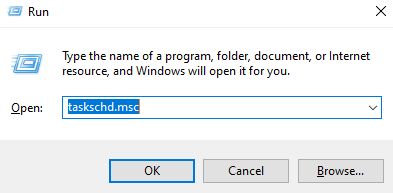
- Press Windows + R, then type "taskschd.msc", and press Enter.
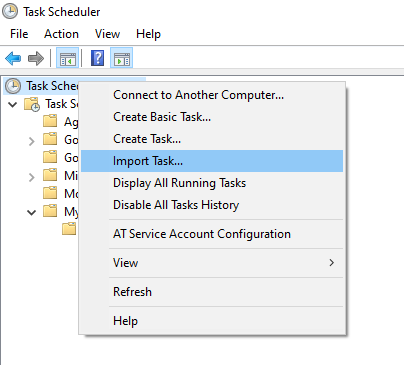
- Create a new task using Task Scheduler.
Warning
Do NOT use “Create Basic Task” (it doesn’t support event filtering properly).
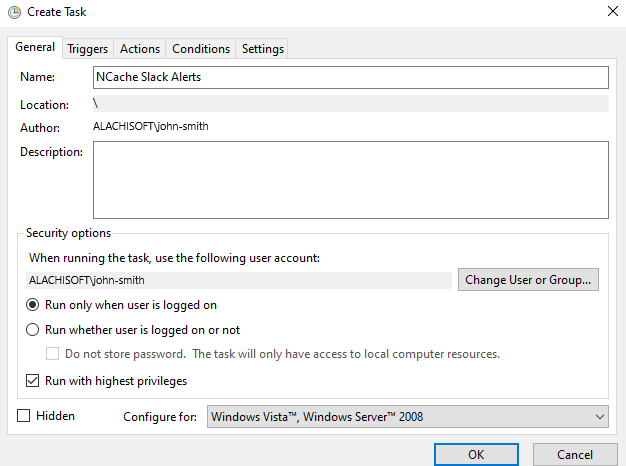
- In the resulting Task Scheduler prompt, Set the Task Name, enable "Run whether user is logged on or not" and "Run with highest privileges".
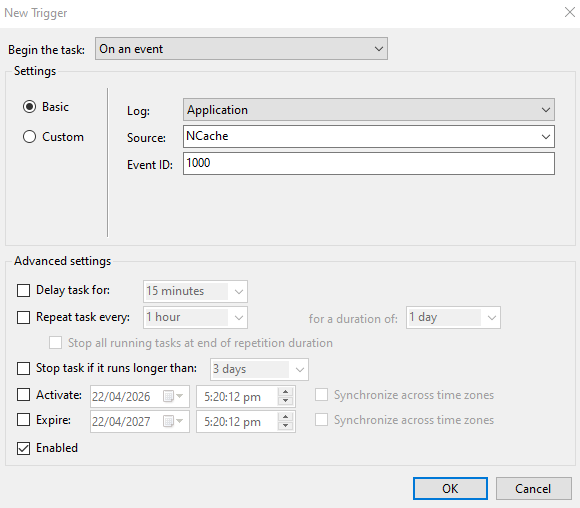
- In the Triggers Tab, click on New....
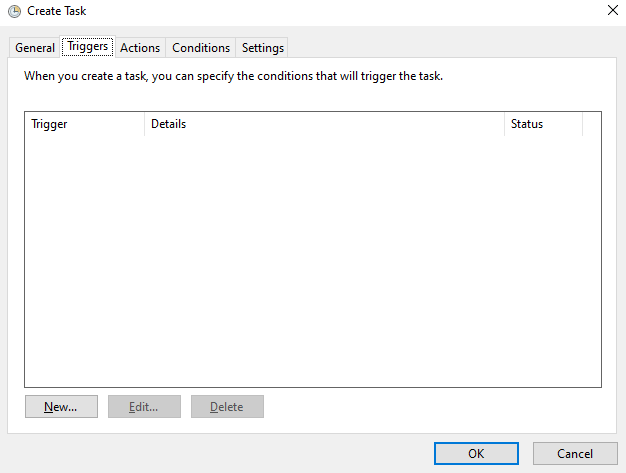
- In the resulting window, choose to begin the task on an event, set the Log to Application, choose the Source you require, and enter the appropriate Event ID. And click on OK.
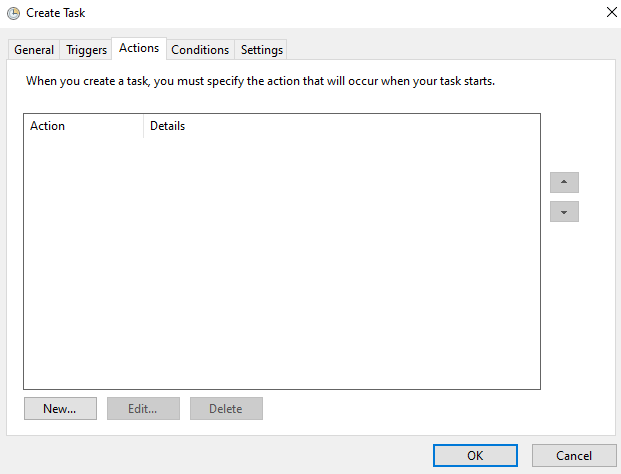
- In the Actions Tab, click on New....
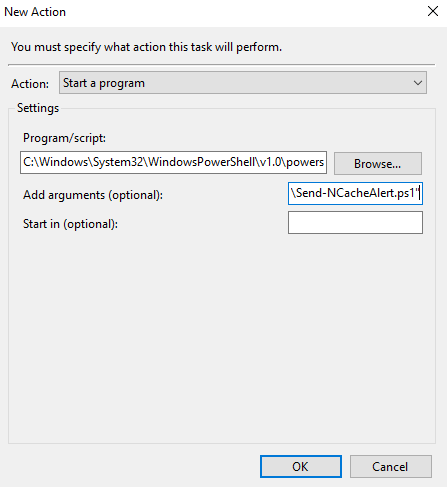
- In the resulting window, make sure the Action: is set to "Start a program". Choose to start the PowerShell application at
%SystemRoot%\System32\WindowsPowerShell\v1.0\powershell.exe, using Browse. To execute your script add the following arguments, and click on OK.
-ExecutionPolicy Bypass -File "C:\NCache\Scripts\Send-NCacheAlert.ps1"
Note
The -File provided is a placeholder, please replace it with yours.
Tip
In the Conditions Tab, you can enable “Start only if on AC power”, which is recommended for servers.
- In the Settings Tab, enable "Allow task to be run on demand" and "Run task as soon as possible after a missed start".
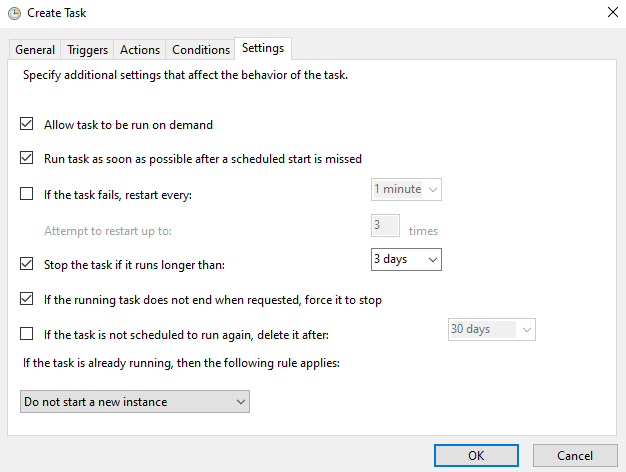
Once the triggers, actions, and settings have been set, click OK.
In order to verify, the task has been created successfully, run the following PowerShell command.
Get-ScheduledTask -TaskName "NCache Slack Alerts"

Now, if the event you chose occurs you will get a message on slack.

