Security Configuration
NCache security on Azure has two main parts:
TLS encryption: It encrypts communication between NCache clients and servers.
Node-level security: Node level security helps you control which users can administer NCache servers and caches.
This section guides you through enabling TLS (Transport Layer Security) and node-level security for the NCache servers deployed on Azure.
Important
For best results, configure security before scaling up the VMSS. If security is enabled after servers are already running, it will only be applied to newly created instances. Existing instances will not be updated automatically. Therefore, it is recommended to:
- Scale down the Azure VMSS to 0 instances.
- Apply the security (TLS or NCache security) configurations.
- Then scale up the deployment.
Enable TLS
TLS ensures secure communication between NCache servers and clients. To enable TLS, NCache provides a custom script via GitHub that you can modify and execute within your environment. Follow the steps below to apply the script:
Navigate to Resource Group: In the Azure portal, navigate to and open the Resource Group where your NCache application is deployed.
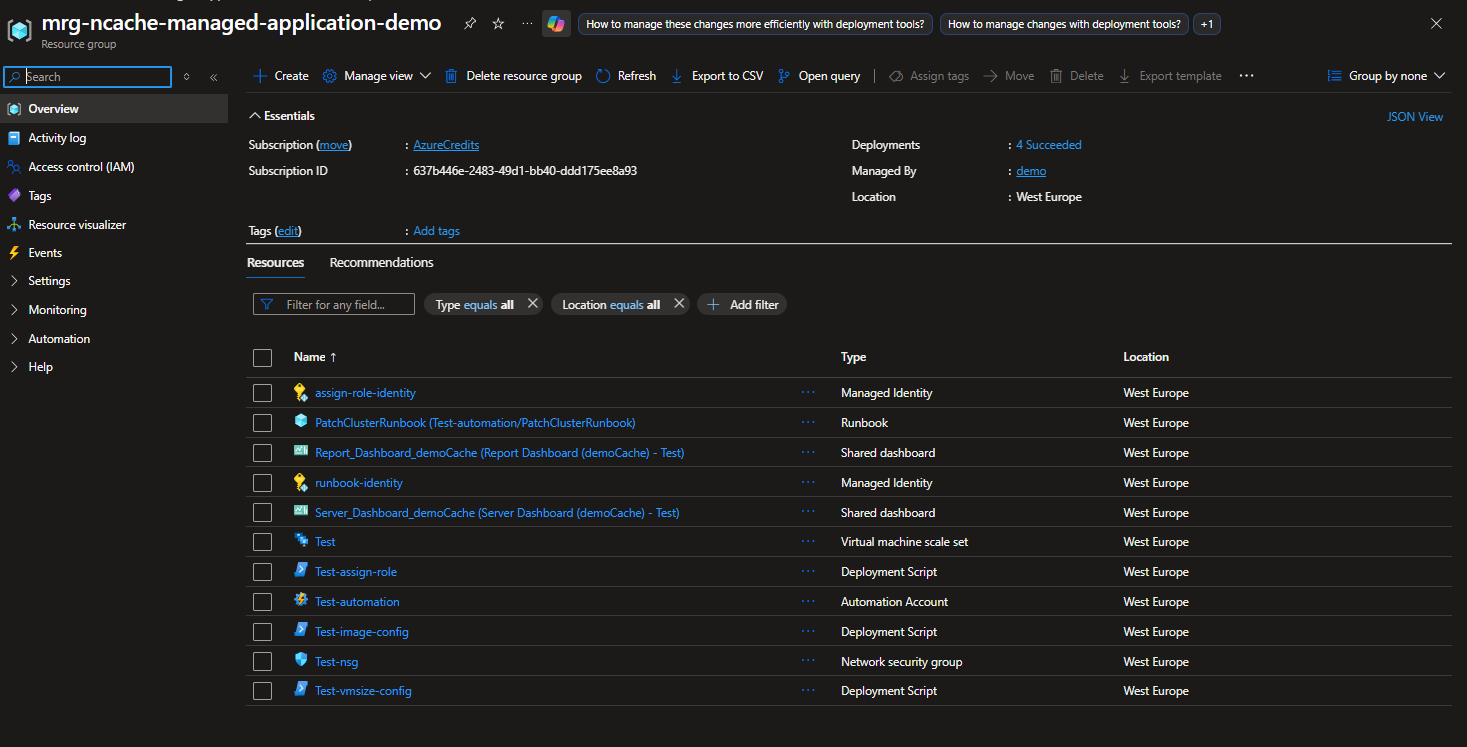
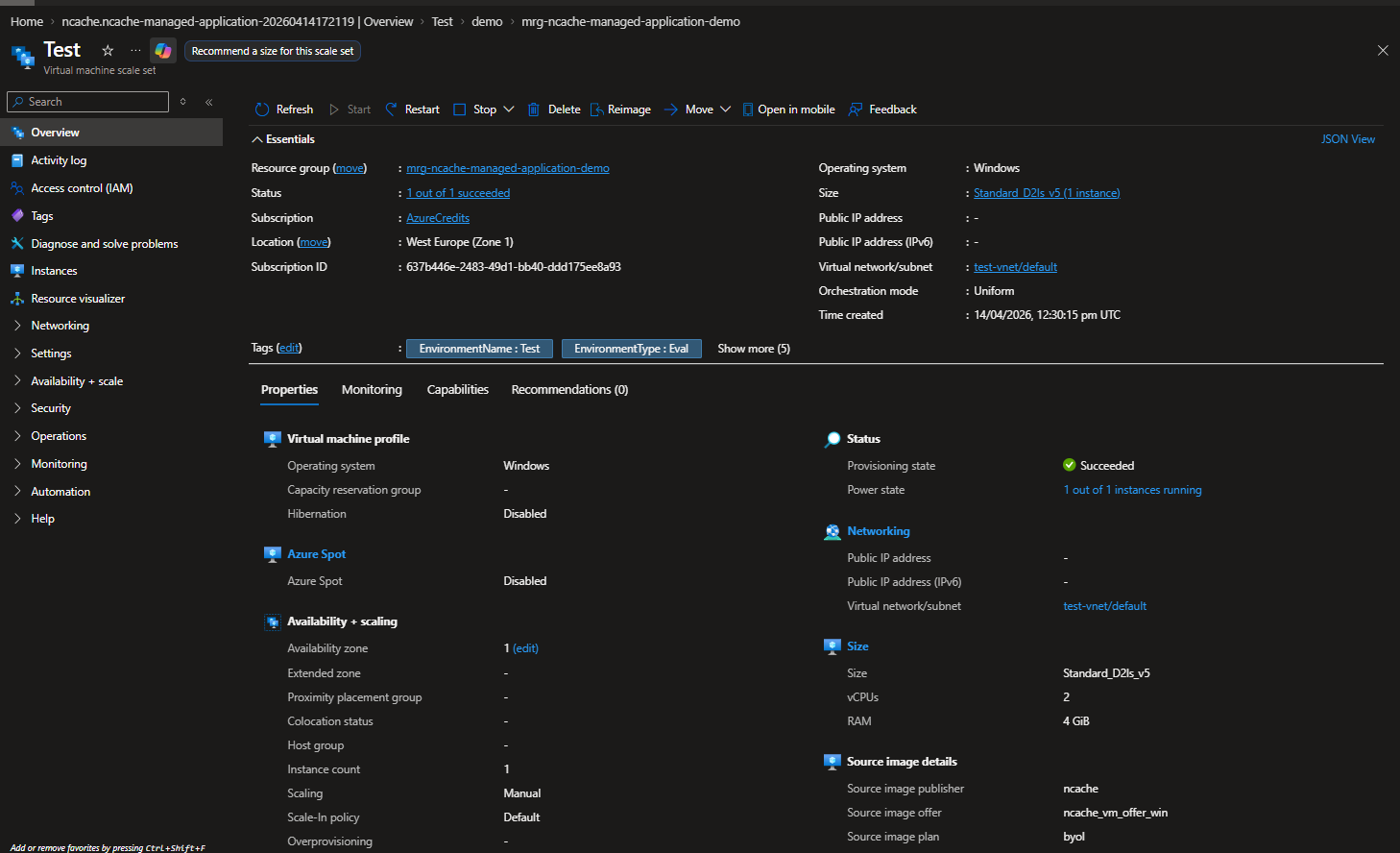
Configure Settings: Open the Virtual Machine Scale Set (VMSS) associated with your cluster. In the left-hand menu, locate and expand the Settings section.
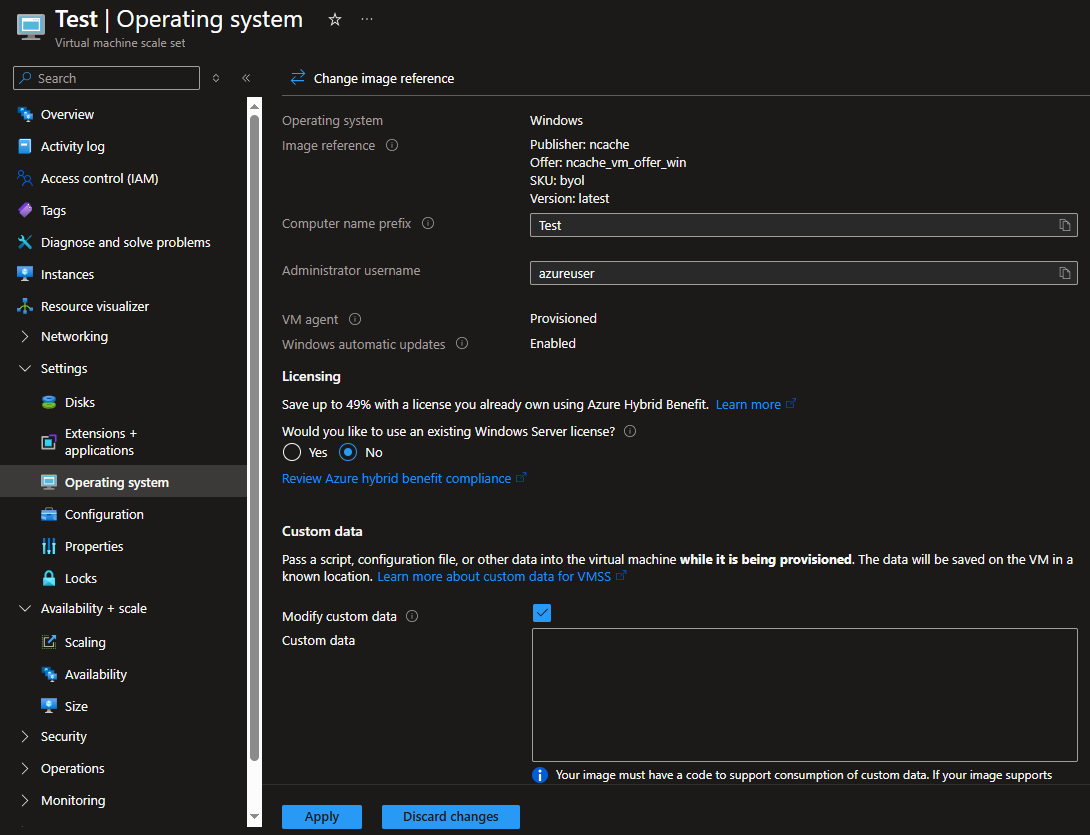
Script for TLS Certificate Installation: Select Operating System from the settings menu. On the resulting screen, check the Modify Custom Data box and paste the following security script, into the Custom Data block and click Apply.
Note
The CustomData script does not transmit certificate details or sensitive information to NCache or any external systems. These commands are executed locally by the Azure VM agent on each node within the Scale Set during the provisioning or extension update process.
# This script installs the client and root CA certificates for NCache and enables TLS for NCache communication.
# Note: You need to have the NCache PowerShell module installed to run this script.
# You also need to have the certificate files (root CA certificate and client certificate in pfx format) saved in a location accessible to the script, and provide the correct paths, password, CN and thumbprint in the variables below before running the script.

# VARIABLES (PLEASE UPDATE THESE VARIABLES BEFORE RUNNING THE SCRIPT)
# copy your root repo where you have saved the cert files (rootCA.crt and cert.pfx)
$rootRepoUri = "YOUR_ROOT_REPO_URI"
# copy your cert names, password, CN and thumbprint here
$certUri = "$rootRepoUri/rootCA.crt"
$certFilePath = "C:\rootCA.crt"
$pfxUri = "$rootRepoUri/cert.pfx"
$pfxFilePath = "C:\cert.pfx"
$certPasscode = "YOUR_CERT_PASSWORD"
$certCN = "YOUR_CERT_CN"
$serverThumbprint = "YOUR_CERT_THUMBPRINT"

$logFile = "C:\NCacheCertificateInstallation.txt"

function Write-Log {
    param(
        [Parameter(Mandatory = $true, Position = 0)][string]$Message,
        [ValidateSet("INFO", "WARN", "ERROR", "SUCCESS", "DEBUG")][string]$Level = "INFO"
    )

    $timestamp = Get-Date -Format "yyyy-MM-dd HH:mm:ss.fff"
    $levelPadded = $Level.PadRight(7)
    $logLine = "$timestamp  [$levelPadded]  $Message"

    # Write to file (append)
    $logLine | Out-File -FilePath $logFile -Encoding UTF8 -Append -Force

    # Also output to console with color (optional but helpful)
    switch ($Level) {
        "ERROR" { Write-Host $logLine -ForegroundColor Red }
        "WARN" { Write-Host $logLine -ForegroundColor Yellow }
        "SUCCESS" { Write-Host $logLine -ForegroundColor Green }
        "DEBUG" { Write-Host $logLine -ForegroundColor Gray }
        default { Write-Host $logLine -ForegroundColor White }
    }
}

function Install-NCacheCertificate {
    param (
        [Parameter(Mandatory = $true)][string]$PfxFilePath,
        [Parameter(Mandatory = $true)][string]$CertFilePath,
        [Parameter(Mandatory = $true)][string]$CertPasscode
    )
    try {
        # Install root CA certificate
        if (Test-Path $CertFilePath) {
            Write-Log "Installing root CA certificate from $CertFilePath"
            Import-Certificate -FilePath $CertFilePath -CertStoreLocation Cert:\LocalMachine\Root | Out-Null
            Write-Log "Root CA certificate installed successfully"
        }
        else {
            Write-Log "Root CA certificate file not found at $CertFilePath"
        }

        # Install client certificate
        if (Test-Path $PfxFilePath) {
            Write-Log "Installing client certificate from $PfxFilePath"
            $pfxPassword = ConvertTo-SecureString -String $CertPasscode -AsPlainText -Force
            Import-PfxCertificate -FilePath $PfxFilePath -CertStoreLocation Cert:\LocalMachine\My -Password $pfxPassword | Out-Null
            Write-Log "Client certificate installed successfully"
        }
        else {
            Write-Log "Client certificate file not found at $PfxFilePath" -Level "ERROR"
        }
    }
    catch {
        Write-Log "Error occurred while installing NCache certificate: $($_.Exception.Message)" -Level "ERROR"
    }
    finally {
        if (Test-Path $CertFilePath) {
            Remove-Item $CertFilePath -Force -ErrorAction SilentlyContinue
        }
        if (Test-Path $PfxFilePath) {
            Remove-Item $PfxFilePath -Force -ErrorAction SilentlyContinue
        }
    }
}

function Enable-NCacheCertificate {
    param (
        [Parameter(Mandatory = $true)][string]$NodeIp,
        [Parameter(Mandatory = $true)][string]$CertificateCN,
        [Parameter(Mandatory = $true)][string]$ServerThumbprint
    )

    try {
        Enable-NCacheTLS -Node $NodeIp -ServerCertificateCN $CertificateCN -ServerCertificateThumbprint $ServerThumbprint -ServerToServerCommunication -ClientServerCommunication

        Write-Log "TLS enabled for NCache"
    }
    catch {
        Write-Log "Error occured while enabling TLS for NCache: $($_.Exception.Message)" -Level "ERROR"
    }
}

# saving cert file
Invoke-WebRequest -Uri $certUri -OutFile $certFilePath -UseBasicParsing

# saving pfx file
Invoke-WebRequest -Uri $pfxUri -OutFile $pfxFilePath -UseBasicParsing

# install cert on windows
Install-NCacheCertificate -PfxFilePath $pfxFilePath -CertFilePath $certFilePath -CertPasscode $certPasscode

# the following script needs to be executed on the node separately after installing NCache now (after running 2-azureInstaller-ScriptTest.ps1 on the node)
# since this requires ncache to be installed and the test script donot have NCache preinstalled (this should work uncommented after the env is spinned from our custom image)
$serviceName = "ncachesvc"
$service = Get-Service -Name $serviceName -ErrorAction SilentlyContinue
if ($service) {
    Import-Module "C:\Program Files\NCache\bin\tools\ncacheps\ncacheps.psd1"

    # enable TLS for NCache
    $localNodeIp = Get-NetRoute -DestinationPrefix "0.0.0.0/0" | Sort-Object RouteMetric | Select-Object -First 1 | Get-NetIPAddress | Where-Object { $_.AddressFamily -eq 'IPv4' } | Select-Object -ExpandProperty IPAddress

    $MaxRetries = 10
    $DelaySeconds = 10
    for ($i = 1; $i -le $MaxRetries; $i++) {
        try {
            Enable-NCacheTLS -Node $localNodeIp -ServerCertificateCN $certCN -ServerCertificateThumbprint $serverThumbprint -ServerToServerCommunication
        }
        catch {
            Write-Log "Attempt ($i/$MaxRetries) failed: $($_.Exception.Message)" -Level "ERROR"
            if ($i -lt $MaxRetries) {
                Start-Sleep -Seconds ($DelaySeconds * $i)  # Exponential backoff
            }
            else {
                Write-Log "Operation failed after $MaxRetries attempts: $($_.Exception.Message)" -Level "ERROR"
                throw
            }
        }
    }

    # restart NCache service to apply TLS settings
    Stop-Service -Name $serviceName -Force -ErrorAction Stop
    Start-Sleep -Seconds 5
    Start-Service -Name $serviceName -ErrorAction Stop
}
Certificate Installation: It downloads a root CA and a client PFX certificate from a user-provided repository and installs them into the local machine's certificate store.
Enabling TLS: It utilizes the Enable-NCacheTLS command to bind the certificates to the NCache service for server-to-server communication.
Service Restart: It automatically restarts the NCache service (ncachesvc) to apply the new security settings.
The above script would be pasted in the Custom Data box shown in the image below. This script ensures that all data transferred between NCache clients and servers is encrypted using Transport Layer Security (TLS).
Enable NCache Security
Node-level security controls administrative access to NCache servers by defining authorized users (Node Administrators) who can perform cache management operations such as creating, modifying, and removing caches. The process to enable node-level security is the same as enabling TLS, with the only difference being the script used.
Follow the same steps as described in Enable TLS to open and modify the Custom Data box and paste the following enable-security.ps1 and click Apply.
# This script automates the process of joining a Windows machine to a domain and then configuring NCache security by adding a specified domain user or group with admin permissions to NCache. The script is designed to be run on a machine that is not yet part of the domain, and it will handle the domain join process as well as the post-reboot configuration needed for NCache security setup. The script includes error handling and logging to provide feedback on the operations being performed.
# Note: You need to have the NCache PowerShell module installed to run this script.
# You also need to have the necessary permissions to join the machine to the domain and to add users/groups to NCache with admin permissions. Additionally, ensure that the machine can communicate with the domain controller and that the provided credentials are correct.

# Define the necessary variables for domain join and NCache security configuration. You need to replace the placeholder values with actual values before running the script.
# ================================
# DOMAIN / ENTRA DS SETTINGS
# ================================

$domainName = "ad.alachisoft.com"

# IMPORTANT:
# Use the Entra DS user whose password was reset AFTER enabling Domain Services
$domainAdminPassword = "pass123"

# Use UPN format for Entra DS
$domainUser = "john_smith"

# Entra Domain Services DNS IP
$dnsServer = "10.0.1.4"

# LDAP Distinguished Name (VERY IMPORTANT)
# Since you are using a USER not GROUP:
$UserOrGroupDN = "CN=john_smith,OU=AADDC Users,DC=ad,DC=alachisoft,DC=com"

# LDAPS FQDN
$LdapServerFQDN = "ad.alachisoft.com"

$LdapPort = 636

$LdapCertUri = "https://your_certificate_storage.com/ClientLDAPs.cert"

# Local download path
$LdapCertPath = "C:\ClientLDAPs.cer"

# Get the local node IP address to use for NCache configuration later
$localNodeIp = (Get-NetRoute -DestinationPrefix "0.0.0.0/0" | Sort-Object RouteMetric | Select-Object -First 1 | Get-NetIPAddress | Where-Object { $_.AddressFamily -eq 'IPv4' } | Select-Object -ExpandProperty IPAddress)
$interfaceAlias = (Get-NetRoute -DestinationPrefix "0.0.0.0/0" |
    Sort-Object RouteMetric |
    Select-Object -First 1 |
    Get-NetAdapter).Name

$logFile = "C:\NCacheSecuritySetup.txt"
$maxAttempts = 6
Start-Sleep -Seconds 30

function Write-Log {
    param(
        [Parameter(Mandatory = $true, Position = 0)][string]$Message,
        [ValidateSet("INFO", "WARN", "ERROR", "SUCCESS", "DEBUG")][string]$Level = "INFO"
    )

    $timestamp = Get-Date -Format "yyyy-MM-dd HH:mm:ss.fff"
    $levelPadded = $Level.PadRight(7)
    $logLine = "$timestamp  [$levelPadded]  $Message"

    # Write to file (append)
    $logLine | Out-File -FilePath $logFile -Encoding UTF8 -Append -Force

    # Also output to console with color (optional but helpful)
    switch ($Level) {
        "ERROR" { Write-Host $logLine -ForegroundColor Red }
        "WARN" { Write-Host $logLine -ForegroundColor Yellow }
        "SUCCESS" { Write-Host $logLine -ForegroundColor Green }
        "DEBUG" { Write-Host $logLine -ForegroundColor Gray }
        default { Write-Host $logLine -ForegroundColor White }
    }
}

function Set-TaskScheduler {
    param (
        [Parameter(Mandatory = $true)][string]$TaskName,
        [Parameter(Mandatory = $true)][string]$FilePath,
        [Parameter(Mandatory = $false)][switch]$AtStartup
    )

    try {
        $action = New-ScheduledTaskAction `
            -Execute "powershell.exe" `
            -Argument "-NoProfile -ExecutionPolicy Bypass -File `"$FilePath`""

        if ($AtStartup) {
            $trigger = New-ScheduledTaskTrigger -AtStartup
        }

        $settings = New-ScheduledTaskSettingsSet `
            -StartWhenAvailable `
            -AllowStartIfOnBatteries `
            -DontStopIfGoingOnBatteries `
            -RestartCount 3 `
            -RestartInterval (New-TimeSpan -Minutes 1)

        Register-ScheduledTask `
            -TaskName $TaskName `
            -Action $action `
            -Trigger $trigger `
            -Settings $settings `
            -RunLevel Highest `
            -User "SYSTEM" `
            -Force

        Write-Log "$TaskName task scheduled at startup successfully (no parameters needed)"
    }
    catch {
        Write-Log "Failed to set $TaskName task: $($_.Exception.Message)" -Level "ERROR"
    }
}

# CREATE POST-REBOOT SCRIPT FILE (TO BE EXECUTED AFTER REBOOT TO COMPLETE NCache SECURITY SETUP)
$postRebootScriptPath = "C:\Enable-NCacheSecurityPostReboot.ps1"
$scriptContent = @"
# POST-REBOOT NCache SECURITY SETUP
`$NodeIp = '$localNodeIp'
`$NCacheUserOrGroupName = '$domainUser'
`$domainName = '$domainName'
`$UserOrGroupDN = '$UserOrGroupDN'
`$DomainController = '$LdapServerFQDN'
`$DomainControllerPort = '$LdapPort'
`$LdapCertUri = '$LdapCertUri'
`$LdapCertPath = '$LdapCertPath'
`$AdminUsername = '$domainUser'
`$AdminPassword = '$domainAdminPassword'

`$logFile = '$logFile'

. "C:\Program Files\NCache\bin\resources\commonFunctions.ps1"
. "C:\Program Files\NCache\bin\resources\platformCommon.ps1"

function Add-DomainUserToLocalAdmins {
    param (
        [Parameter(Mandatory = `$true)][string]`$DomainName,
        [Parameter(Mandatory = `$true)][string]`$DomainUser
    )
    try {
        `$fullDomainUser = "`$DomainName\`$DomainUser"

        # Check if the domain can be resolved before attempting to add the user to local admins
        if (Resolve-DnsName -Name `$DomainName -ErrorAction SilentlyContinue) {
            Write-Log "Domain `$DomainName resolved successfully" -Level INFO -LogFile `$logFile
        }

        # Add the specified domain user to the local Administrators group
        Write-Log "Adding `$fullDomainUser to local Administrators group" -Level INFO -LogFile `$logFile
        `$currentMembers = Get-LocalGroupMember -Group "Administrators" | Where-Object { `$_.Name -eq `$fullDomainUser }

        # Only add the user if they are not already a member of the local Administrators group
        if (-not `$currentMembers) {
            Add-LocalGroupMember -Group "Administrators" -Member `$fullDomainUser -ErrorAction Stop
            Write-Log "`$fullDomainUser added to local Administrators successfully" -Level INFO -LogFile `$logFile
        }
        else {
            Write-Log "`$fullDomainUser already exists in local Administrators group" -Level "WARN" -LogFile `$logFile
        }
    }
    catch {
        Write-Log "Error adding `$DomainUser to Administrators: `$(`$_.Exception.Message)" -Level "ERROR" -LogFile `$logFile
    }
}

function Install-LDAPSCertificate {
    param (
        [string]`$CertUri,
        [string]`$CertPath
    )

    try {
        Write-Log "Downloading LDAPS certificate from `$CertUri" -Level INFO -LogFile `$logFile
        Invoke-WebRequest -Uri `$CertUri -OutFile `$CertPath -UseBasicParsing

        Write-Log "Installing LDAPS Root CA certificate" -Level INFO -LogFile `$logFile
        Import-Certificate -FilePath `$CertPath -CertStoreLocation Cert:\LocalMachine\Root | Out-Null

        Write-Log "LDAPS certificate installed successfully" -Level INFO -LogFile `$logFile
    }
    catch {
        Write-Log "Error installing LDAPS certificate: `$(`$_.Exception.Message)" -Level "ERROR" -LogFile `$logFile
        throw
    }
}

function Add-MachineToNCacheCluster {
    param (
        [pscredential]`$Credentials
    )

    `$maxAttempts = 6
    `$attempt = 0
    while (`$attempt -lt `$maxAttempts) {
        try {
            `$localNodeIp = Get-LocalIpAddress
            `$NodeIps = Get-ClusterServerIPs | ForEach-Object { `$_.properties.ipConfigurations | ForEach-Object { `$_.properties.privateIPAddress } }

            break
        }
        catch {
            if (`$attempt -eq `$maxAttempts) {
                throw
            }

            Write-Log "Fetching IPs failed: `$(`$_.Exception.Message)Retrying in 10s..." -Level WARN -LogFile `$logFile
            Start-Sleep -Seconds 10
            `$attempt++
        }
    }

    # Remove the local node from the list (in case it's included)
    `$existingNodes = `$NodeIps | Where-Object { `$_ -ne `$localNodeIp }

    if (`$existingNodes.Count -eq 0) {
        throw "No other nodes available to join the cluster."
    }

    Write-Log "Local IP: `$localNodeIp, Cluster IPs: `$(`$existingNodes -join ',')" -Level DEBUG -LogFile `$logFile

    `$attempt3 = 0
    while (`$attempt3 -lt `$maxAttempts) {
        try {
        Write-Log "Credentials provided for cluster join, attempting to add node with credentials" -Level INFO -LogFile `$logFile
            Add-VMCaches -NewNodeIP `$localNodeIp -ExistingNodeIPs `$existingNodes -Credentials `$Credentials -LogFile `$logFile

            break
        }
        catch {
            if (`$attempt3 -eq `$maxAttempts) {
                throw
            }

            Write-Log "Cluster creation failed: `$(`$_.Exception.Message)Retrying in 10s..." -Level ERROR -LogFile `$logFile
            Start-Sleep -Seconds 10
            `$attempt3++
        }
    }
}

try {
    # 1.1 Install-LDAPSCertificate
    Install-LDAPSCertificate -CertUri `$LdapCertUri -CertPath `$LdapCertPath

    # Add DomainUser to local Administrators
    Add-DomainUserToLocalAdmins -DomainName `$domainName -DomainUser `$NCacheUserOrGroupName
    Start-Sleep -Seconds 5

    # Prepare admin credentials for NCache operations
    `$password = ConvertTo-SecureString `$AdminPassword -AsPlainText -Force
    `$adminCred = New-Object System.Management.Automation.PSCredential (`$AdminUsername, `$password)
    Write-Log "NCache admin credentials prepared for `$AdminUsername" -Level INFO -LogFile `$logFile

    # Import NCache PowerShell module
    `$ncacheModulePath = "C:\Program Files\NCache\bin\tools\ncacheps\ncacheps.psd1"
    if (Test-Path `$ncacheModulePath) {
        Import-Module `$ncacheModulePath -Force
        Write-Log "NCache PowerShell module loaded" -Level INFO -LogFile `$logFile
    }
    else {
        throw "NCache PowerShell module not found at `$ncacheModulePath"
    }

    # Add NCache User/Group with Admin permissions
    Write-Log "Adding NCache group '`$NCacheUserOrGroupName' with Admin access to server `$NodeIp" -Level INFO -LogFile `$logFile

    `$MaxRetries = 10
    `$DelaySeconds = 10
    for (`$i = 1; `$i -le `$MaxRetries; `$i++) {
        try {
            Add-NCacheUserOrGroup -Server `$NodeIp -AccessLevel Admin -AdminCredentials `$adminCred -UserOrGroupName `$NCacheUserOrGroupName -UserOrGroupDN `$UserOrGroupDN -DomainController `$DomainController -DomainControllerPort `$DomainControllerPort -EnableSecurity Yes  -ErrorAction Stop
            Write-Log "SUCCESS: NCache group '`$NCacheUserOrGroupName' added with Admin access" -Level INFO -LogFile `$logFile
            break
        }
        catch {
            Write-Log "Attempt (`$i/`$MaxRetries) failed: `$(`$_.Exception.Message)" -Level "ERROR" -LogFile `$logFile
            if (`$i -lt `$MaxRetries) {
                Start-Sleep -Seconds (`$DelaySeconds * `$i)  # Exponential backoff
            }
            else {
                Write-Log "Operation failed after `$MaxRetries attempts: `$(`$_.Exception.Message)" -Level "ERROR" -LogFile `$logFile
                throw
            }
        }
    }

    try {

        Write-Log "Launching NCache cluster creation script in separate process" -Level INFO -LogFile `$logFile

        Add-MachineToNCacheCluster -Credentials `$adminCred

        Write-Log "SUCCESS: NCache cluster creation process started successfully" -Level INFO -LogFile `$logFile

        }
    catch {

        Write-Log "Failed to launch cluster creation script: `$(`$_.Exception.Message)"  -Level "ERROR" -LogFile `$logFile
    }

    # Cleanup - Delete this script after successful execution
    Start-Sleep -Seconds 2
    Unregister-ScheduledTask -TaskName "NCacheSecurityPostReboot" -Confirm:`$false -ErrorAction SilentlyContinue
    Write-Log "NCacheSecurityPostReboot scheduled task removed" -Level "INFO" -LogFile `$securitylogs
    Remove-Item `$MyInvocation.MyCommand.Path -Force -ErrorAction SilentlyContinue
    Write-Log "Post-reboot script self-deleted after success" -Level INFO -LogFile `$logFile
}
catch {
    Write-Log "ERROR in NCache security setup: `$(`$_.Exception.Message)" -Level "ERROR" -LogFile `$logFile
    Write-Log "Full error details: `$(`$_.Exception | Format-List -Force | Out-String)" -Level "ERROR" -LogFile `$logFile
}
"@

# Write post-reboot script to file
Out-File -FilePath $postRebootScriptPath -InputObject $scriptContent -Encoding UTF8 -Force
Write-Log "Post-reboot script created at $postRebootScriptPath with hardcoded values"

# 1. SCHEDULE POST-REBOOT TASK
Set-TaskScheduler -TaskName "NCacheSecurityPostReboot" -FilePath $postRebootScriptPath -AtStartup

Start-Sleep -Seconds 5

Restart-Computer -Force
This script automates the post-domain-join configuration required to enable NCache Node-Level Security on an Azure VMSS instance. It is intended to run after the server has been joined to the Active Directory domain, such as through the Azure Domain Join Extension.
Since NCache security configuration requires the domain identity to be available after restart, the script executes the configuration in two phases:
Phase 1: Pre-Reboot Preparation
In this phase, the script sets up the required files and scheduled task so the NCache security configuration can continue after the machine restarts.
Post-Reboot Script Generation: The script creates a secondary PowerShell script,
C:\Enable-NCacheSecurityPostReboot.ps1, which contains the NCache security configuration logic.Task Scheduling for Persistence: The script registers a Windows Scheduled Task named
NCacheSecurityPostRebootto run the generated script at system startup.System Restart: The script restarts the machine so that the post-reboot configuration can run after the domain environment is available.
Phase 2: Post-Reboot NCache Security Configuration
After the machine restarts, the scheduled task runs the generated post-reboot script and completes the NCache security setup.
LDAP Certificate Installation: The script downloads and installs the LDAP certificate required for secure LDAP communication.
Local Administrator Configuration: The specified domain user is added to the local Administrators group if it is not already present.
NCache PowerShell Module Initialization: The script imports the NCache PowerShell module from the NCache installation directory.
NCache Security Authorization: The script executes the
Add-NCacheUserOrGroupcmdlet to add the specified domain user or group as an NCache administrator and enable security on the node.Cluster Configuration: The script attempts to add the local machine to the NCache cluster by using the configured credentials.
Cleanup: After the post-reboot execution, the script removes the scheduled task and deletes the temporary post-reboot script file.
Execute Extension Script
After pasting the required script (TLS or Security) into the Custom Data field, you must run the following automation script on your local machine. This script adds the required Azure extensions to the VMSS and executes the configured script on each VMSS instance. The Domain Join Extension joins the instances to the specified Active Directory domain, and the Custom Script Extension executes the PowerShell script generated from the VMSS custom data.
Execute
Connect-AzAccount: Before running the script, execute theConnect-AzAccountcmdlet in your PowerShell session to sign in to your Azure account.Execute the Script: After signing in, run the
add-CustomScriptExtension.ps1script from your local machine to add the required extensions to the VMSS.# This script adds both Custom Script Extension and Domain Join Extension to a VMSS # The Custom Script runs first, then the domain join happens # Note: You need to have the Azure PowerShell module installed and be logged in to your Azure account param( [string]$ResourceGroup, [string]$VMSSName, [string]$Domain, [string]$User, [string]$Password, [string]$OUPath = "" ) # Validate required inputs if (-not $ResourceGroup) { $ResourceGroup = Read-Host "Enter Managed Resource Group name" } if (-not $VMSSName) { $VMSSName = Read-Host "Enter VMSS name" } if (-not $Domain) { $Domain = Read-Host "Enter Domain Name (e.g., ad.alachisoft.com)" } if (-not $User) { $User = Read-Host "Enter Domain Join Username (e.g., DOMAIN\username)" } if (-not $Password) { $Password = Read-Host "Enter Domain Join Password" } if (-not $OUPath) { $OUPath = Read-Host "Enter OU Path (optional, press Enter to skip)" } Write-Host "" Write-Host "=============================================" -ForegroundColor Cyan Write-Host " Adding Extensions to VMSS" -ForegroundColor Cyan Write-Host "=============================================" -ForegroundColor Cyan Write-Host "Resource Group: $ResourceGroup" Write-Host "VMSS Name: $VMSSName" Write-Host "Domain: $Domain" Write-Host "User: $User" Write-Host "OU Path: $OUPath" Write-Host "=============================================" -ForegroundColor Cyan Write-Host "" $confirm = Read-Host "Proceed? (Y/N)" if ($confirm -ne "Y" -and $confirm -ne "y") { Write-Host "Operation cancelled." -ForegroundColor Yellow return } # Get the VMSS object Write-Host "Getting VMSS..." -ForegroundColor Yellow $vmss = Get-AzVmss -ResourceGroupName $ResourceGroup -VMScaleSetName $VMSSName if (-not $vmss) { Write-Host "VMSS not found. Please check the Resource Group and VMSS name." -ForegroundColor Red return } Write-Host "VMSS found: $($vmss.Name)" -ForegroundColor Green Write-Host "" # ======================================================================== # EXTENSION 1: Domain Join Extension # ======================================================================== Write-Host "Step 1: Adding Domain Join Extension..." -ForegroundColor Yellow $domainSettings = @{ "Name" = $Domain "User" = $User "Restart" = "false" "Options" = 3 } if (-not [string]::IsNullOrWhiteSpace($OUPath)) { $domainSettings["OUPath"] = $OUPath } $protectedSettings = @{ "Password" = $Password } Add-AzVmssExtension ` -VirtualMachineScaleSet $vmss ` -Publisher "Microsoft.Compute" ` -Type "JsonADDomainExtension" ` -TypeHandlerVersion 1.3 ` -Name "vmssjoindomain" ` -Setting $domainSettings ` -ProtectedSetting $protectedSettings ` -AutoUpgradeMinorVersion $true Write-Host "Custom Script Extension added (will run Second) " -ForegroundColor Green Write-Host "" # ======================================================================== # EXTENSION 2: Custom Script Extension # ======================================================================== Write-Host "Step 2: Adding Custom Script Extension..." -ForegroundColor Yellow Add-AzVmssExtension ` -VirtualMachineScaleSet $vmss ` -Name "CustomScript" ` -Publisher "Microsoft.Compute" ` -Type "CustomScriptExtension" ` -TypeHandlerVersion "1.10" ` -Setting @{ "commandToExecute" = 'powershell.exe -ExecutionPolicy Unrestricted -NoProfile -NonInteractive -Command "Copy-Item -Path C:\AzureData\CustomData.bin -Destination C:\AzureData\CustomScript.ps1; & C:\AzureData\CustomScript.ps1"' } ` -ProvisionAfterExtension @("vmssjoindomain") Write-Host "Custom Script Extension added" -ForegroundColor Green Write-Host "" # ======================================================================== # Update the VMSS with both extensions # ======================================================================== Write-Host "Step 3: Updating VMSS (this may take a few minutes)..." -ForegroundColor Yellow Update-AzVmss -ResourceGroupName $ResourceGroup -Name $VMSSName -VirtualMachineScaleSet $vmss Write-Host "" Write-Host "=============================================" -ForegroundColor Cyan Write-Host " Extensions Added Successfully" -ForegroundColor Cyan Write-Host "=============================================" -ForegroundColor Cyan Write-Host "" Write-Host "Extension execution order:" -ForegroundColor White Write-Host " 1. vmssjoindomain (joins domain)" -ForegroundColor Gray Write-Host " 2. CustomScript (runs CustomData.bin and restarts)" -ForegroundColor Gray Write-Host "" Write-Host "For NEW instances: Both extensions will run automatically" -ForegroundColor Green Write-Host "" Write-Host "For EXISTING instances, run:" -ForegroundColor Cyan Write-Host "az vmss update-instances --resource-group $ResourceGroup --name $VMSSName --instance-ids *" -ForegroundColor White Write-Host "" # Clear sensitive data $Password = $null
This script automates the prerequisite environment configuration required for a successful NCache Cloud deployment as follows:
Targeting the VMSS: The script prompts for the Managed Resource Group name and VMSS name to identify the NCache Cloud VMSS that should receive the configuration.
Domain Join Configuration: The script first adds the
JsonADDomainExtensionto the VMSS. This extension joins the VMSS instances to the specified Active Directory domain by using the provided domain, domain user credentials, and optional OU path.Custom Script Execution: After the domain join extension is configured, the script adds the
CustomScriptExtensionto the VMSS. This extension copies the data stored in Azure asCustomData.bintoCustomScript.ps1and executes it on the VMSS instances. TheCustomScriptExtensionis configured to run after the domain join extension by using theProvisionAfterExtensionsetting.VMSS Model Update: The
Update-AzVmsscommand applies the updated extension configuration to the VMSS model. New VMSS instances will run both extensions automatically. To apply these extensions to existing instances, run theaz vmss update-instancescommand shown at the end of the script.
After execution, the chosen security features will be active on your NCache instance.
