Connecting the Client to NCache Cloud
NCache Cloud deploys cache cluster nodes on Linux virtual machines managed by an Amazon Auto Scaling Group (ASG) provisioned via AWS CloudFormation. Each host VM runs an isolated NCache Docker container within your private Virtual Private Cloud (VPC).
Since the cluster nodes reside in a private subnet, administrative tools and test utilities must be executed from a jumpbox or test virtual machine deployed inside the same VPC (or a peered VPC) with network connectivity to ncache-subnet.
Follow these step-by-step instructions to connect to your jumpbox, import the NCache PowerShell module, run the stress test tool, and monitor the cluster statistics.
Step 1: Access the Private Environment
Because your NCache Cloud cluster nodes reside in a private subnet without public IP addresses, you must execute administrative commands and test tools from an internal network location. Choose one of the following connection methods:
Option A: Connect Directly via Browser (Recommended)
AWS Systems Manager (SSM) Session Manager provides secure, browser-based connectivity to instances using AWS IAM-based authentication without requiring open inbound ports or SSH keys:
In the AWS Management Console, navigate to the EC2 Console, select your target cluster host instance, and click Connect.
Under the In web browser tab, select SSM Session Manager and click Connect.
Once connected to the remote terminal shell, elevate privileges and access the running NCache container:
sudo -i
docker exec -it ncache-instance pwsh
Option B: Connect via an Internal Jumpbox / Test VM
If you prefer using a dedicated client machine or jumpbox deployed within the same VPC (or a peered VPC), follow the steps below.
Before running tests from your jumpbox, ensure the following are configured:
NCache Client Tools: The NCache client or remote management tools must be installed on the jumpbox machine so the PowerShell module (
NCachePS) is available.DNS Resolution: The jumpbox must be configured to resolve the VPC's Route 53 Private Hosted Zone (e.g.,
<environment>.ncache), allowing it to map the endpoint name to the private cache node IPs.
Steps to Connect via an Internal Jumpbox / Test VM
Ensure your private SSH key (.pem) has restricted read permissions:
chmod 400 "demo-key-pair1.pem"Establish the SSH session using the instance's private IP address:
ssh -i "demo-key-pair1.pem" root@10.0.1.155
Step 2: Open PowerShell and Import the NCache Module
Open a PowerShell console on your jumpbox and import the NCache PowerShell module to access administrative caching cmdlets.
Import-Module 'C:\Program Files\NCache\bin\tools\ncacheps\ncacheps.dll'
Step 3: Locate Your Private Endpoint
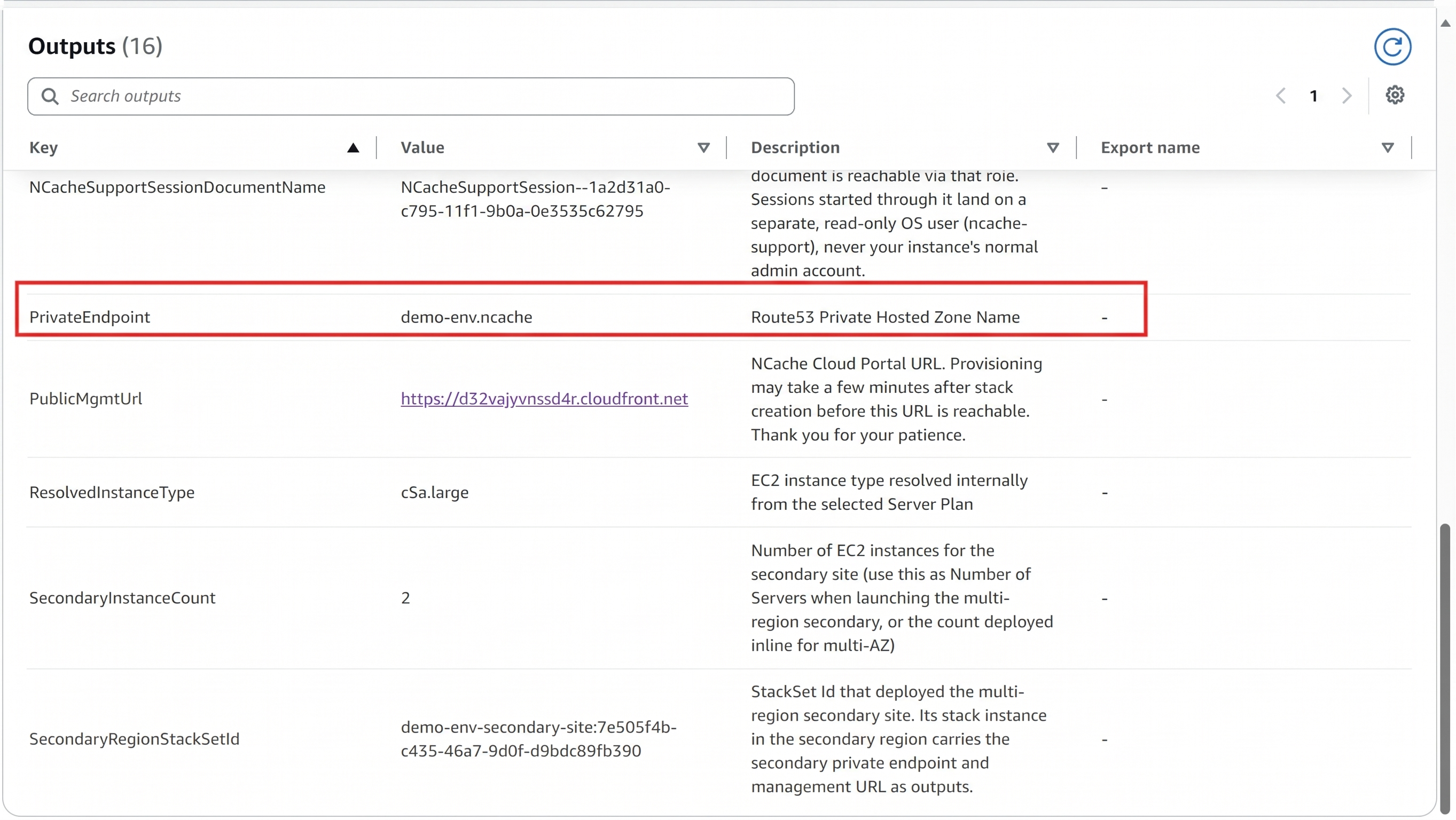
Before running tests or connecting applications, you need your unique private endpoint:
In the AWS CloudFormation Console, open your deployed stack and select the Outputs tab.
Locate the
PrivateEndpointvalue (e.g.,demo-env.ncache).
Step 4: Execute the Test-Stress
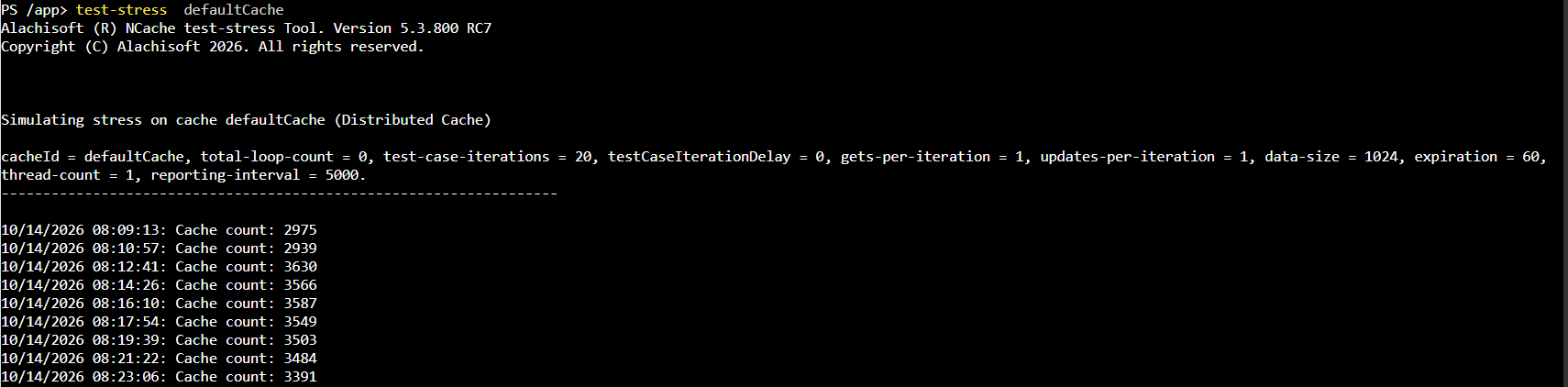
Run Test-Stress from your PowerShell console, pointing it explicitly to your private client endpoint and port (9800), along with your cache name:
Test-Stress -Server demo-env.ncache:9800 -CacheName defaultCache
Important
You can only use the Test-Stress and Add-TestData commands. Standard management tools from outside your private network cannot be used.
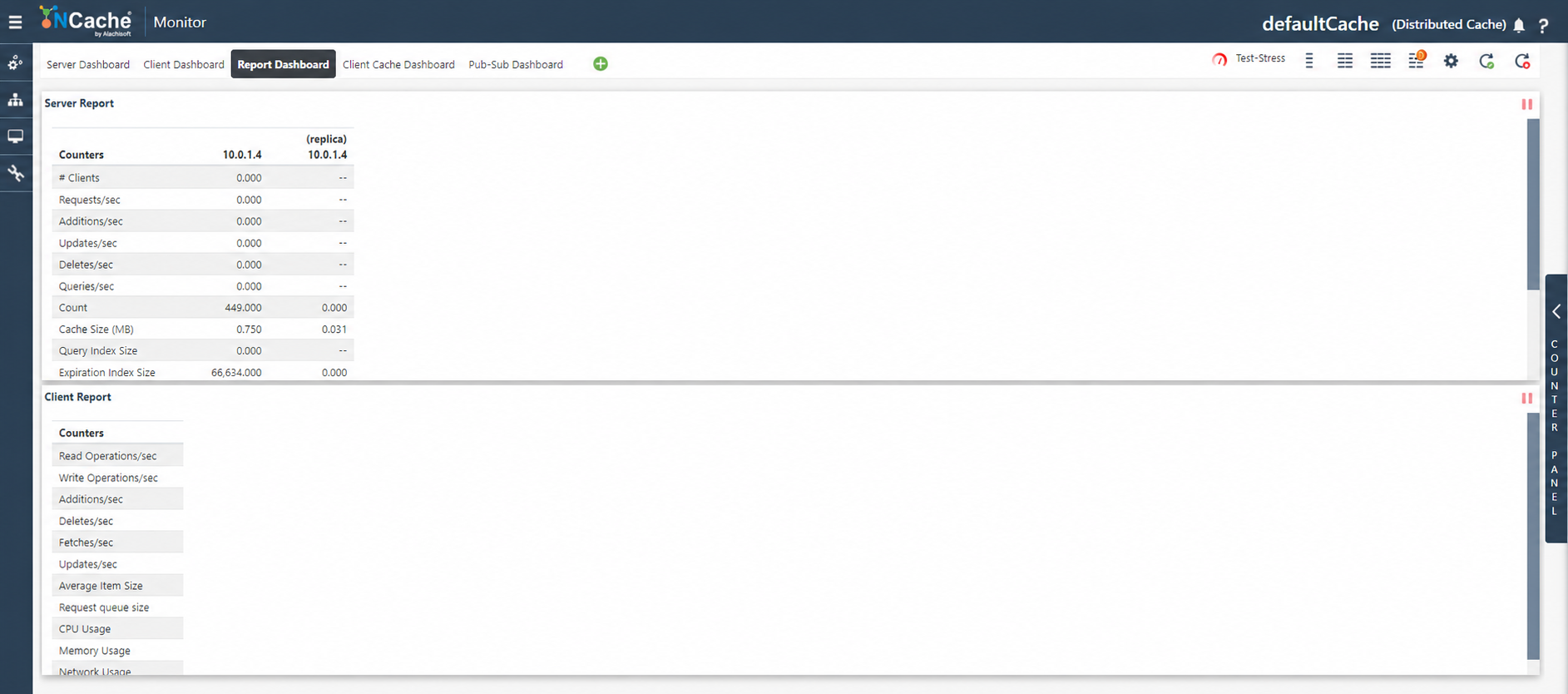
Step 5: View Real-Time Statistics in the NCache Cloud Portal
Open the NCache Cloud Portal or Management Center via your public management endpoint in a web browser to view real-time statistics and throughput metrics as generated by the test workload.
Step 6: Connecting Client Applications (.NET, Java, Node.js, Python)
To connect your production client applications to NCache Cloud, ensure your project has the appropriate NCache client package installed (such as the Alachisoft.NCache.Client NuGet package for .NET). Then, specify your cache name and bind to the private client endpoint (port 9800) using connection options or properties.
.NET
To initialize and connect to your cache from a .NET application, instantiate a CacheConnectionOptions object, add your private client endpoint server and port, and retrieve the cache instance using the CacheManager.
// Specify cache name and private client endpoint
string cacheName = "defaultCache";
CacheConnectionOptions options = new CacheConnectionOptions();
options.AddServer("demo-env.ncache", 9800); // Private client endpoint

// Initialize cache
ICache cache = CacheManager.GetCache(cacheName, options);
Java
To connect from a Java application, configure the CacheConnectionOptions with the server information object pointing to your private client endpoint and initialize the cache.
String cacheName = "defaultCache";
CacheConnectionOptions options = new CacheConnectionOptions();
options.servers.add(new ServerInfo("demo-env.ncache", 9800));

Cache cache = NCache.initializeCache(cacheName, options);
Python
To connect from a Python application, instantiate the connection options, add your private client endpoint server details, and fetch the cache instance.
cache_name = "defaultCache"
options = ncache.CacheConnectionOptions()
options.add_server("demo-env.ncache", 9800)

cache = ncache.CacheManager.get_cache(cache_name, options)
Node.js
To connect from a Node.js application, pass an options object containing your server IP and port configuration into the client manager method.
var cacheName = "defaultCache";
var options = {
    servers: [{ ip: "demo-env.ncache", port: 9800 }]
};

ncache.CacheManager.getCache(cacheName, options, function(err, cache) {
    if(err) throw err;
    // Perform operations
});
Understanding Endpoints and Management Boundaries
Your NCache deployment exposes two primary management endpoints and a dedicated client data channel:
Private Client Endpoint (port 9800): The internal data channel (e.g.,
<environment>.ncache:9800) used by client applications and testing utilities to perform cache read/write operations.Private Management Endpoint (port 9801): Used for internal cluster management commands and monitoring probes.
Public Management Endpoint: The secure AWS CloudFront web distribution URL used exclusively to access the NCache Cloud Portal and Management Center from authorized external networks.
