Connect to EC2 Host Instances
NCache Cloud deploys cache cluster nodes on Linux virtual machines managed by an Amazon Auto Scaling Group (ASG) and provisioned via AWS CloudFormation. Each host VM runs an isolated NCache Docker container.
To maintain security, individual EC2 instances are never assigned public IP addresses, even if public access is enabled during deployment. A single public IP or CloudFront endpoint is provisioned exclusively at the load balancer and distribution tiers to route traffic to the NCache management portal. Because the host VMs are isolated within your virtual private cloud, direct SSH access from the public internet is disabled.
To manage, troubleshoot, or inspect the container host environment, you can connect to an EC2 host instance using either AWS Systems Manager (SSM) Session Manager or an internal SSH connection (via a jumpbox or peered network where the host machine is in the same VPC).
Navigating to EC2 Host Instances
Follow these steps in the AWS Management Console to locate your cluster instances and access connection details:
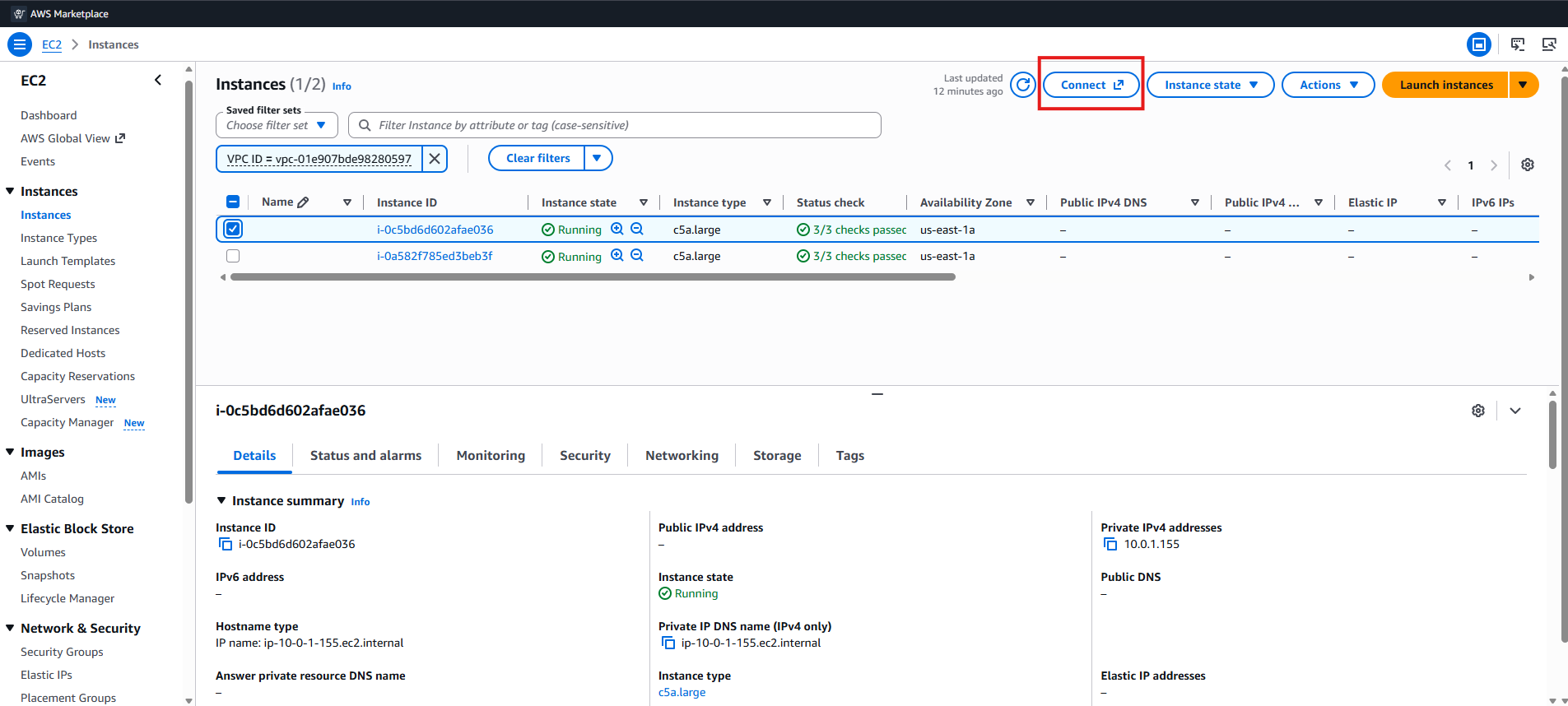
Open EC2 Instances: Navigate to the EC2 Console, and click Instances in the left navigation menu.
Choose Target Node: Select the specific NCache cluster host instance you want to access (e.g., your primary or replica node).
Open Connection Options: Click the Connect button at the top of the console to open the connection options view.
Understanding Host Network Security and Public IP Handling
Before connecting, keep the following architectural points in mind:
No Public IPs on Instances: EC2 host instances reside strictly within a dedicated private subnet (ncache-subnet). In the instance overview, the Public IPv4 address field is blank, while an internal Private IP address is assigned.
Load Balancer Isolation: The public endpoints associated with the deployment belong strictly to the AWS Load Balancer and CloudFront distribution to serve management portal requests; they do not map SSH ports directly to the nodes.
Container Isolation: When connecting to a host instance, you are accessing the underlying Linux Host VM. The NCache cache server processes operate inside Docker containers running within this host.
Connection Methods
Method 1: Connect via Browser (In web browser)
When accessing instances directly through the AWS Management Console (In web browser), AWS provides four distinct connection options depending on your network setup:
EC2 Instance Connect: Designed for instances in public subnets with public IP addresses using AWS-managed temporary SSH keys. (Note: This option is unavailable for NCache Cloud cluster nodes because they reside in private subnets without public IP addresses).
EC2 Instance Connect Endpoint: Routes secure traffic to instances in private subnets through a managed VPC endpoint using temporary SSH keys.
SSM Session Manager (Recommended): Uses AWS IAM-based authentication to connect securely to instances without requiring SSH keys, bastion hosts, or open inbound ports.
EC2 Serial Console: Directly accesses an instance's serial port for troubleshooting boot, network, or OS-level failures without requiring network connectivity (requires account-level enablement).
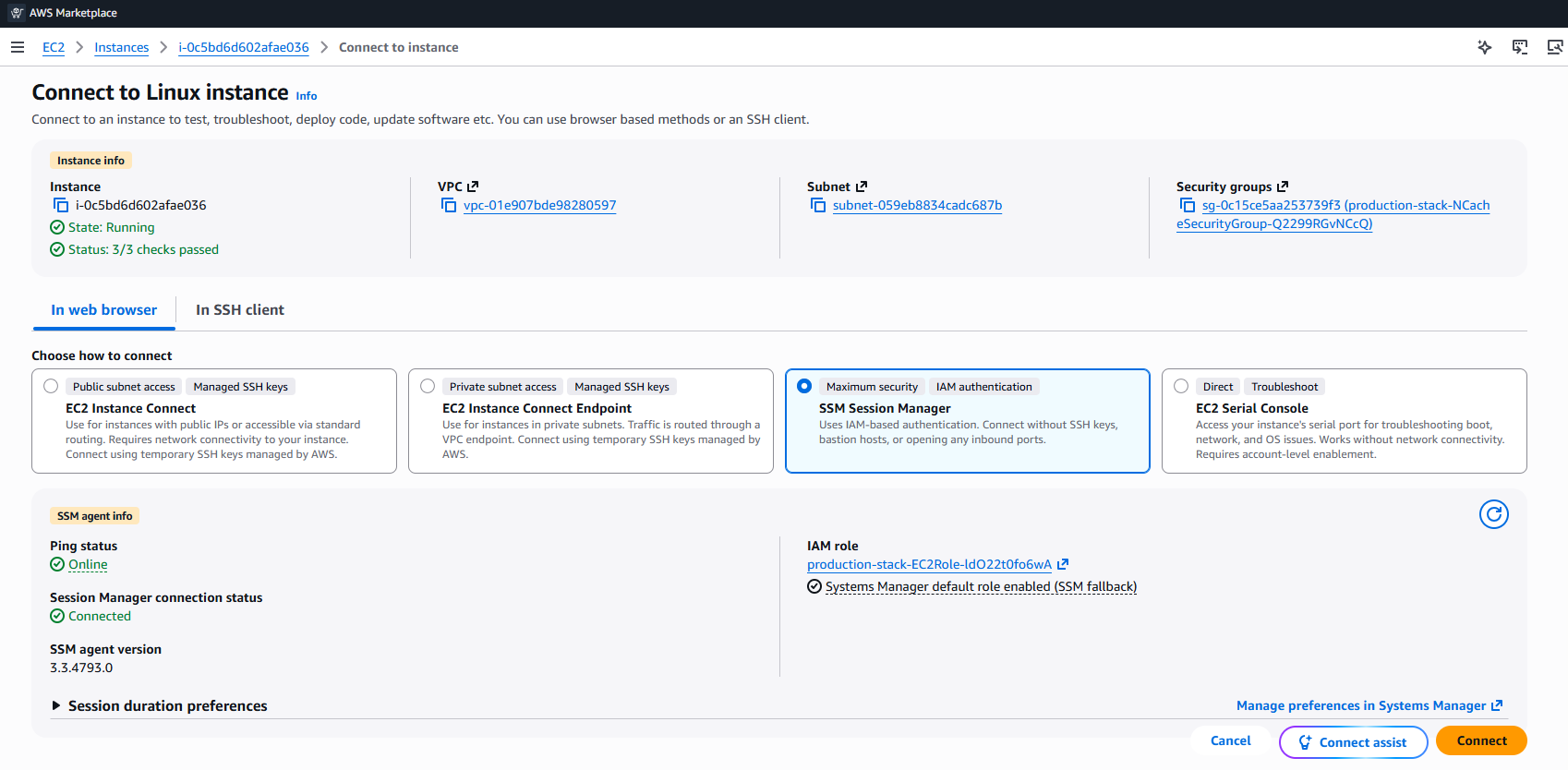
We will be proceeding with SSM Session Manager.
SSM Session Manager
In the Connect panel for your selected instance, ensure you are on the "In web browser" tab and select SSM Session Manager.
Click the Connect button. A secure, interactive shell session will launch directly in your browser tab as the ncache-support or ec2-user.
From this prompt ($), you can now run administrative commands to inspect the host environment, verify container status, or manage NCache.
Gain root administrative privileges to interact with system services and Docker containers.

Execute a PowerShell interactive session inside the running NCache container.
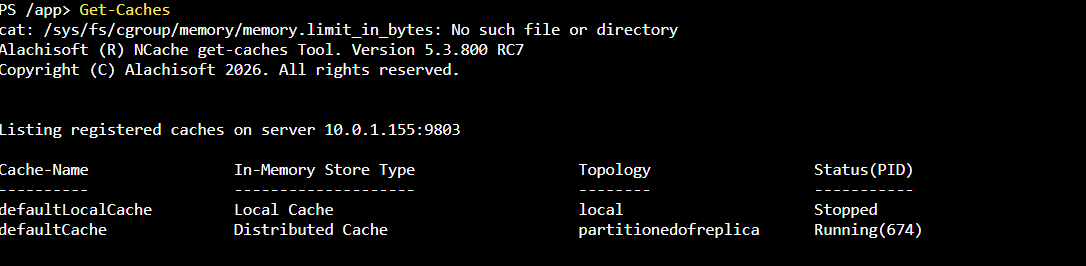
For instance, run the following cmdlet to list all configured caches and verify their current operational state.
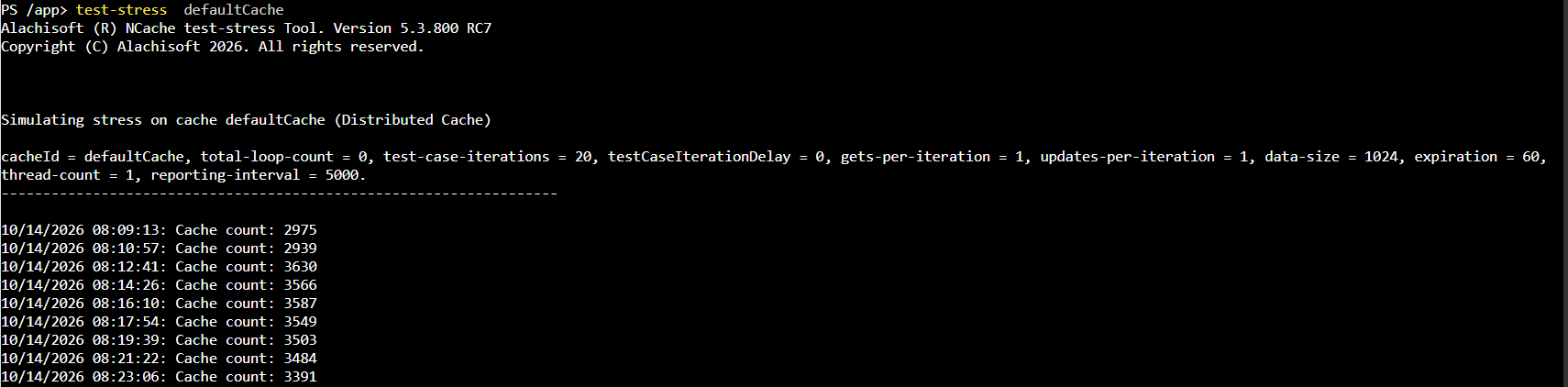
- You can execute Test-Stress either directly from the NCache Management Center or from inside a VM or application server located within the same VPC (over port 22 / internal routing), as external internet access is restricted.
Method 2: Connect via SSH Client (Using Private IP)
To connect using SSH, the host machine should be in the same VPC. Since the instance lacks a public IP, SSH connections must originate from within the same VPC, a peered VPC, or via an established VPN connection.
Prerequisites
A Linux or Windows jumpbox VM deployed inside the same VPC (or a peered VPC) with network connectivity to ncache-subnet.
The private SSH key (.pem) matching the public key specified during deployment.
Steps to Connect via SSH
In the Connect panel for your selected instance, ensure you are on the In SSH client tab to view your specific private key permissions and SSH connection string.
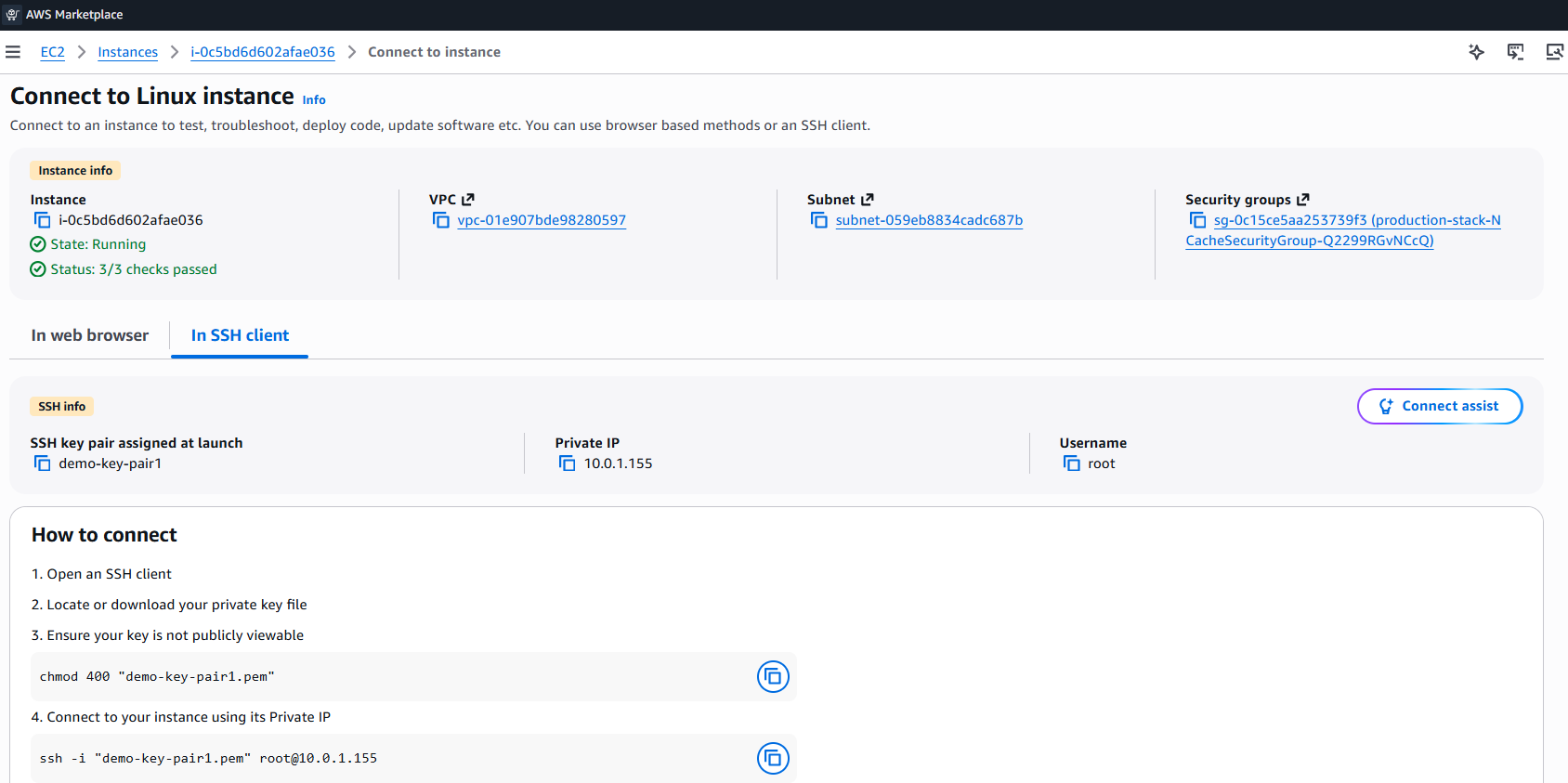
- Open your terminal where your private key (demo-key-pair1.pem) is located, and set restricted read permissions.
chmod 400 "demo-key-pair1.pem"
Run ls -l demo-key-pair1.pem and verify that the file permissions display as
-r--------.Execute the SSH command using the instance's private IP address as displayed in the AWS console:
ssh -i "demo-key-pair1.pem" root@10.0.1.155
Confirm that the SSH handshake completes successfully and the remote host shell prompt appears.
Once logged into the host shell, open an interactive PowerShell session inside the running NCache container.
