Cloud Environment
The Cloud Environment section provides a unified view of your active cloud deployment. While platform-specific references (such as Managed Resource Groups on Azure or CloudFormation Stacks on AWS) adapt to your deployment, the core dashboard layout, site topologies, and scaling controls function identically across both environments.
This page discusses the NCache Cloud Portal's environment information for both Azure and AWS.
Environment - Azure
The Environment - Azure panel summarizes the top-level metadata of your managed application

Environment Name: The unique identifier assigned to your deployment during initial setup (e.g.,
demo-app).Marketplace Plan: The billing and provisioning tier currently active (e.g., Free Trial, Hourly, or BYOL).
Environment Type: The deployment classification (e.g., Production).
Email Address: The email address you registered with.
Subscription ID: The target Azure Subscription hosting the deployment.
Managed Resource Group: The internal resource group auto-created by Azure to contain the underlying infrastructure (such as VMSS, Load Balancers, and Front Door profiles).
NCache Version: The installed NCache server release version (e.g.,
5.3.8).Location / Region: The primary Azure geographical region hosting the resources (e.g.,
eastus).Creation Date: The UTC timestamp indicating when the deployment was provisioned.
TLS: The current status (Enabled or Disabled) of cluster transport layer security.
Environment - AWS
The Environment - AWS panel summarizes the top-level metadata of your AWS CloudFormation stack deployment:

Environment Name: The unique identifier assigned to your deployment during initial setup (e.g.,
demo-env).Environment Type: The deployment classification (e.g.,
Production).Email Address: The administrator email registered with the deployment.
Account ID: The target AWS Account ID hosting the deployment.
CloudFormation Stack: The name of the CloudFormation stack managing your infrastructure components (e.g.,
production-stack).Auto Scaling Group: The Amazon Auto Scaling Group managing your cluster instances (e.g.,
demo-env).NCache Version: The installed NCache server release version (e.g.,
5.3.800).Location / Region: The primary AWS region hosting the resources (e.g.,
us-east-1).Creation Date: The UTC timestamp indicating when the deployment was provisioned (e.g.,
10/13/2026 11:23 UTC).TLS: The current status (Enabled or Disabled) of cluster transport layer security.
Global Actions
Located in the upper-right corner of the Cloud Environment view, these controls manage cluster-wide states and scaling capacity:
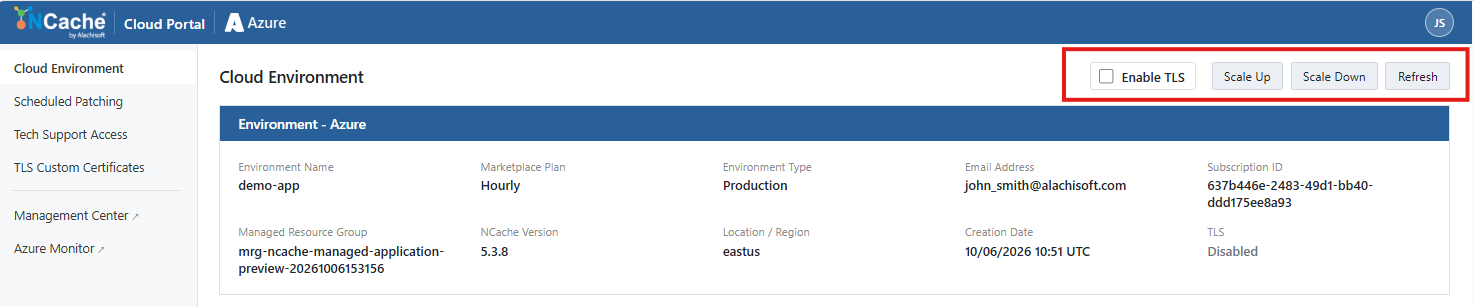
TLS:
Servers present a certificate, and clients verify it. Clients do not require a certificate of their own.
By default, NCache applies its built-in TLS certificate. If your organization requires certificates from its own certificate authority (CA), upload your custom PEM certificate files via the TLS Custom Certificates page before enabling this setting.
Mutual TLS:
- Servers require a certificate from every cache client, chained to a root trusted by the servers.
Important
- Cache clients that cannot present a trusted certificate will be refused once the rollout finishes.
- No root CA certificate is required when using NCache's default TLS certificate. If you are using custom TLS certificates, ensure you upload the corresponding root CA certificate from the TLS Custom Certificates page.
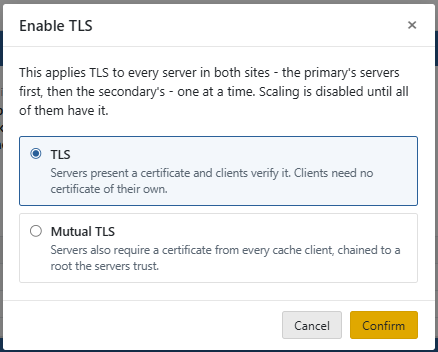
Click Confirm to begin the cluster-wide rollout, or Cancel to abort.
Add Server (Scale Up)
Initiates a horizontal scale-up operation to increase cluster capacity by provisioning an additional node:
- Click Add Server. You'll receive the following prompt to confirm.
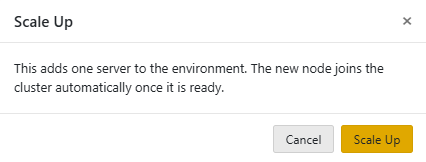
- A top progress banner indicates that scaling is underway.
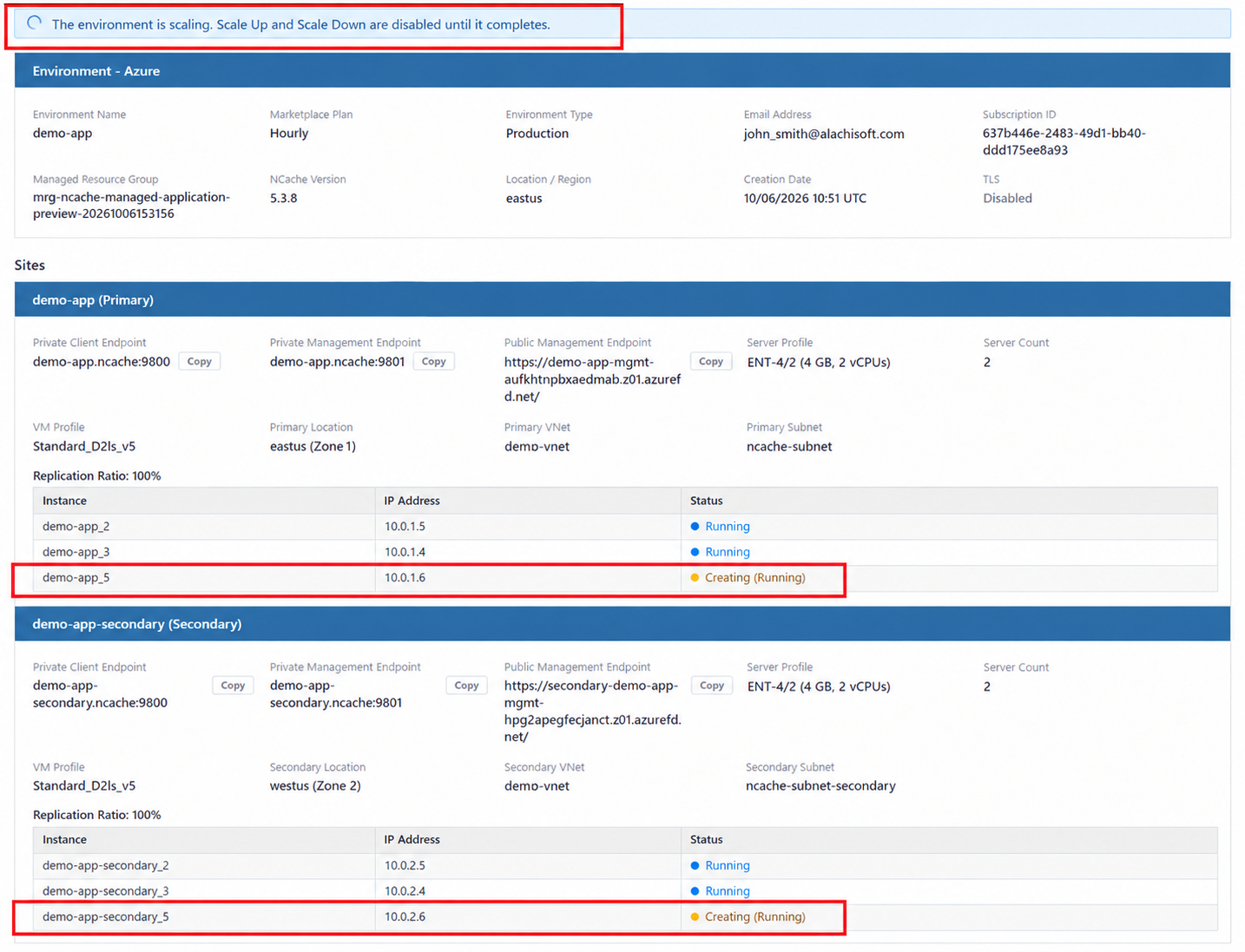
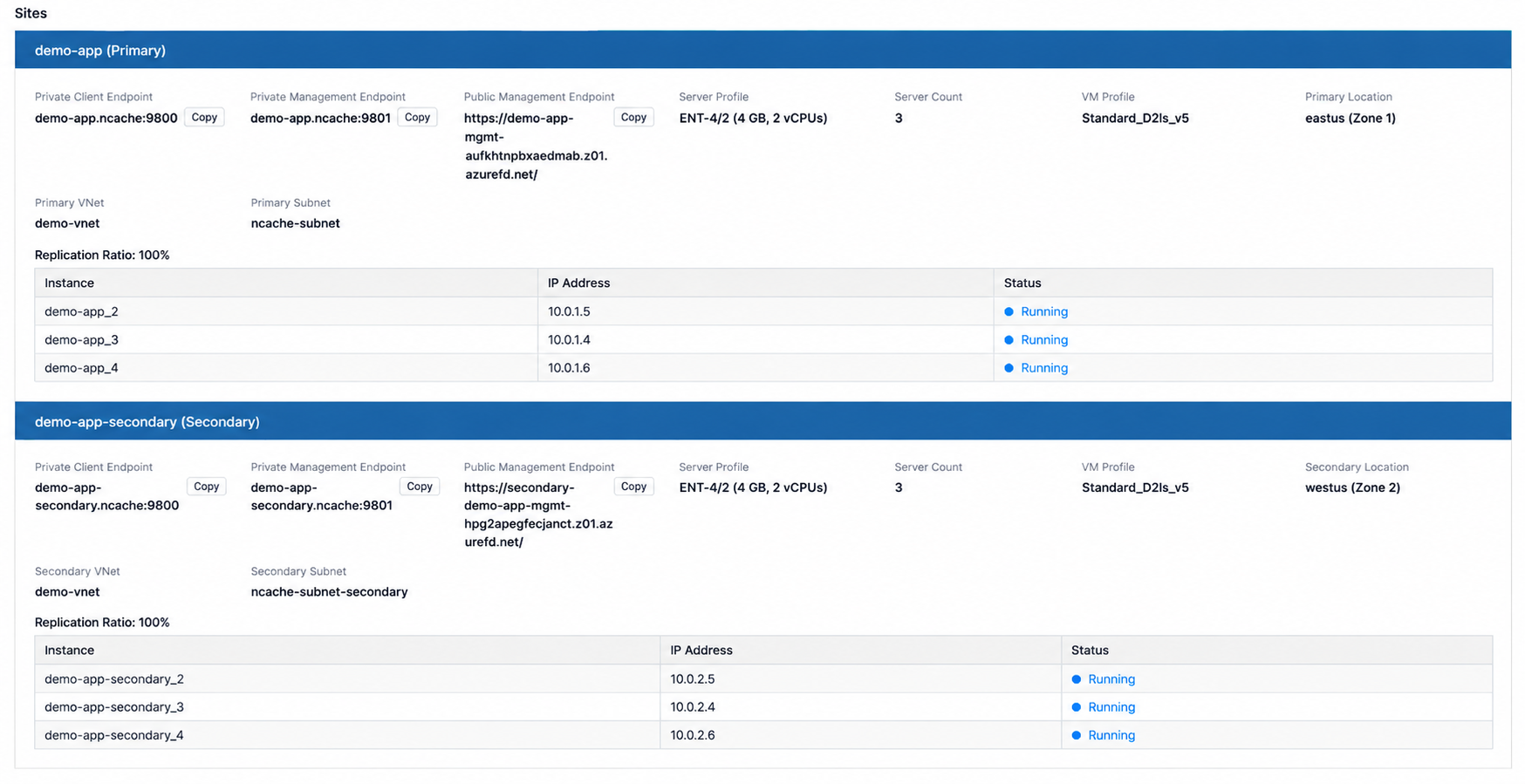
The cloud platform automatically provisions a new host instance (Azure VMSS or AWS ASG), pulls the NCache Docker image, starts the service, and seamlessly joins the node to the active cluster without downtime.
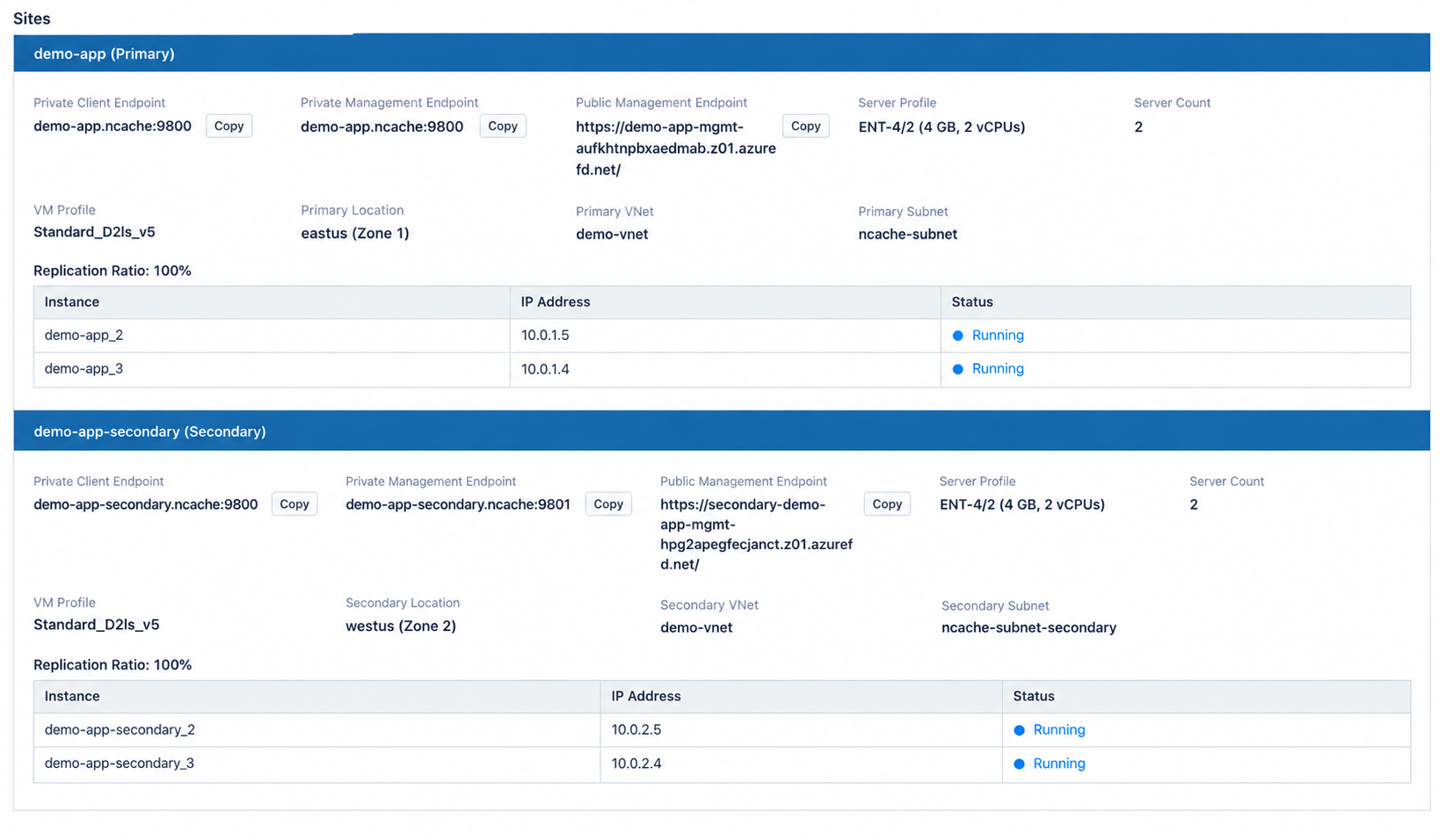
Once provisioning completes, the newly added node automatically appears in the instance table.
Remove Server (Scale Down)
Initiates a horizontal scale-down operation to decrease cluster size:
- Click Remove Server. You'll receive the following prompt to confirm.
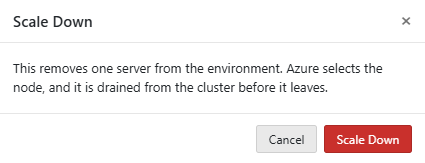
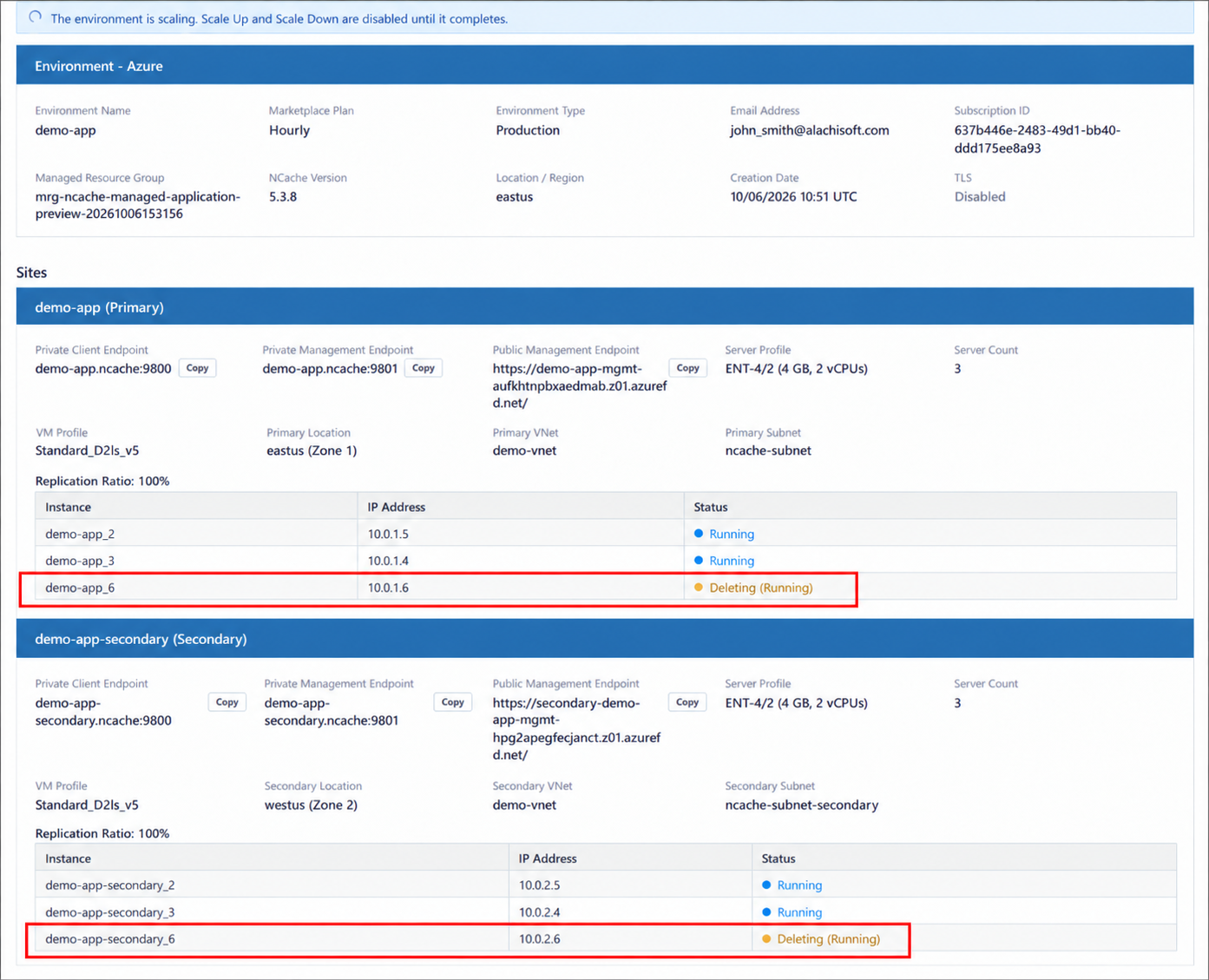
- A top progress banner indicates that scaling is underway. During this operation, both the Add Server and Remove Server buttons are temporarily disabled until the process completes.
Important
Data Safety and State Transfer: Before the node is deprovisioned, NCache performs an automated, graceful state transfer, migrating all active and replica data partitions to the remaining cluster nodes to prevent data loss.
- Deprovisioning: Because instance removal is orchestrated at the scaling group level (Azure VMSS or AWS ASG), you cannot select a specific node by name to delete. The platform automatically chooses which instance to deprovision based on standard scale set or Auto Scaling Group deletion logic.
Refresh
Polls the Azure Resource Manager and the underlying scale set to update node states, IP addresses, and operational metrics in real time.
Sites (Site Topology and Connectivity Endpoints)
The Sites section displays the connectivity endpoints, infrastructure profiles, and individual node tables for each deployed site in your cluster.
In single-site setups, only the Primary site panel is displayed (e.g.,
demo-app (Primary)).In multi-zone or multi-region geo-replicated deployments, an additional Secondary site panel appears directly underneath (e.g.,
demo-app-secondary (Secondary)).
Each site block contains the following information in Azure and AWS:
Microsoft Azure Endpoints and Infrastructure
The following displays the primary and secondary site topologies, virtual network configurations, and active node status for an Azure Virtual Machine Scale Set (VMSS) deployment.
Endpoints:
Private Client Endpoint: The internal connection endpoint (e.g.,
demo-app.ncache:9800) used by client applications running within the virtual network to perform cache read/write operations.Private Management Endpoint: The internal endpoint (e.g.,
demo-app.ncache:9801) used for internal management commands, monitoring probes, and API operations.Public Management Endpoint: The secure Azure Front Door HTTPS address (e.g.,
https://demo-app-mgmt-aufkhthpbxaedmab.z01.azurefd.net/ClusteredCaches) used to access the NCache Cloud Portal and Management Center from authorized external networks without exposing backend VMs.
Infrastructure Profile:
Server Profile: The compute and memory tier allocated per node (e.g.,
ENT-4/2 (4 GB, 2 vCPUs)).Server Count: The total number of active VMs allocated to this specific site (e.g.,
2).VM Profile: The Azure VM series and SKU powering the scale set (e.g.,
Standard_D2ls_v5).Location: The geographical region and availability zone hosting the nodes (Primary Location e.g.,
eastus (Zone 1); Secondary Location e.g.,westus (Zone 2)).VNet: The Virtual Network hosting this site's deployment (e.g.,
demo-vnet).Subnet: The dedicated subnet allocated to the cache nodes (e.g.,
ncache-subnet).Replication Ratio: The provisioned capacity ratio between primary and secondary sites (e.g.,
100%).
Instance Listing:
Instance: The unique node identifier within the scale set (e.g.,
demo-app_2,demo-app_3for Primary, ordemo-app-secondary_2for Secondary).IP Address: The private IP address assigned to each VM node within its respective subnet (e.g.,
10.0.1.5,10.0.1.4).Status: The operational state of the instance, indicated by an active status (Running).
Amazon Web Services (AWS) Endpoints and Infrastructure
The following illustrates the active site layouts, VPC details, and EC2 instance listings for an AWS CloudFormation and Auto Scaling Group (ASG) deployment.
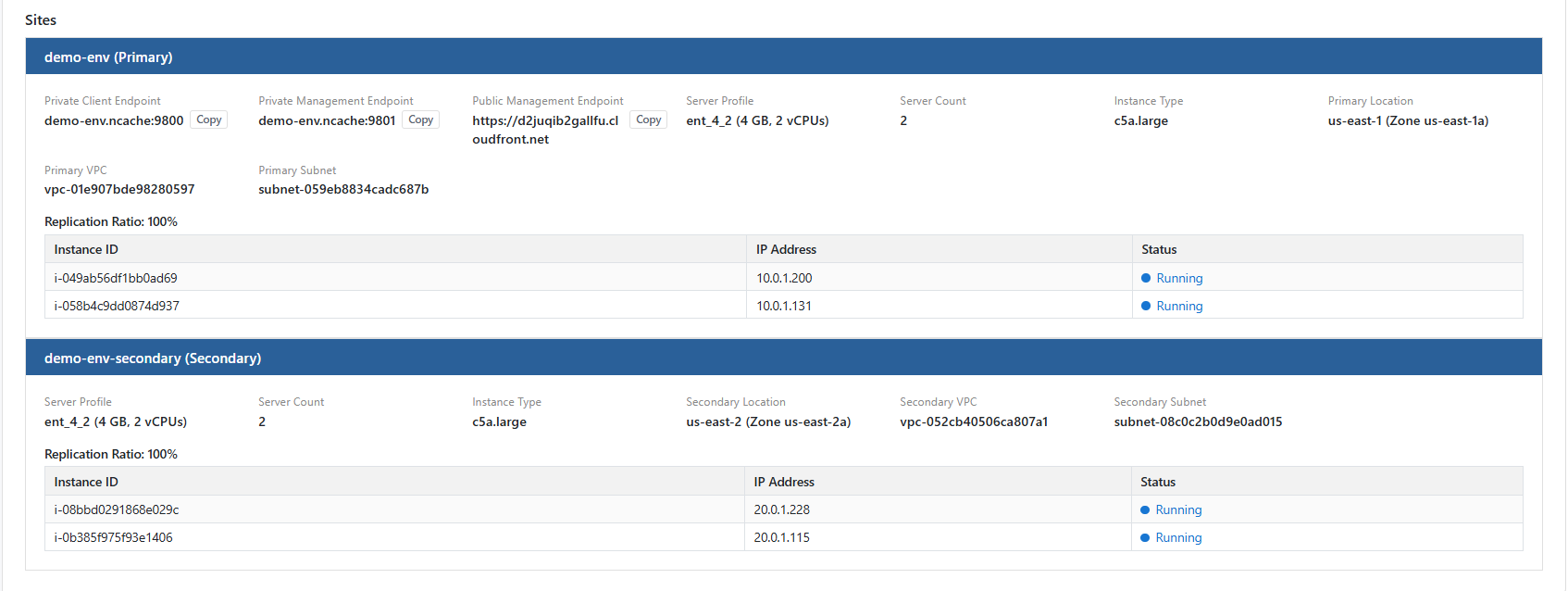
Endpoints:
Private Client Endpoint: The internal connection endpoint (e.g.,
demo-env.ncache:9800) used by client applications running within the virtual network to perform cache read/write operations.Private Management Endpoint: The internal endpoint (e.g.,
demo-env.ncache:9801) used for internal management commands, monitoring probes, and API operations.Public Management Endpoint: The secure AWS CloudFront web distribution URL (e.g.,
https://d2juqib2gallfu.cloudfront.net) used to access the NCache Cloud Portal and Management Center from authorized external networks without exposing backend instances.
Infrastructure Profile:
Server Profile: The compute and memory tier allocated per node (e.g.,
ent_4_2 (4 GB, 2 vCPUs)).Server Count: The total number of active EC2 instances allocated to this specific site (e.g.,
2).Instance Type: The EC2 instance type powering the cluster (e.g.,
c5a.large).Location: The geographical region and availability zone hosting the nodes (Primary Location e.g.,
us-east-1 (Zone us-east-1a); Secondary Location e.g.,us-east-2 (Zone us-east-2a)).VPC: The Virtual Private Cloud hosting this site's deployment (e.g.,
vpc-01e907bde98280597).Subnet: The dedicated subnet allocated to the cache nodes (e.g.,
subnet-059eb834cadc687b).Replication Ratio: The provisioned capacity ratio between primary and secondary sites (e.g.,
100%).
Instance Listing:
Instance ID: The unique EC2 node identifier within the Auto Scaling Group (e.g.,
i-049ab56df1bb0ad69,i-058b4c9dd0874d937for Primary).IP Address: The private IP address assigned to each instance within its respective subnet (e.g.,
10.0.1.200,10.0.1.131).Status: The operational state of the instance, indicated by an active status (Running).
