Tech Support Access
The Tech Support Access page enables controlled, time-bound access for the NCache Technical Support team (the publisher) to troubleshoot issues within your cloud deployment environment. Support access governance adapts automatically to your active cloud platform (Azure or AWS).
Tech Support Access in Azure
For Azure deployments, support access governance depends on whether JIT access was enabled during deployment:
Enabled (Yes): Support operations are governed by Azure Managed Application Just-In-Time (JIT) access policies, ensuring access is restricted to temporary, auditable, and time-bound windows that automatically expire.
Disabled (No): Support engineers retain permanent, continuous access without requiring individual session approvals.
Granting Support Access in Azure
From the NCache Cloud Portal left navigation menu, select Tech Support Access.

The Grant Support Access section allows you to initiate and configure JIT access workflows:
NCache technical support engineers can request access to your managed VMSS cluster during troubleshooting sessions.
Every request must either be manually approved or automatically validated based on your preset Azure JIT policy.
Permissions apply exclusively to the managed NCache cluster - never to your client applications or broader virtual network.
Access automatically revokes once the session duration expires.
Click Open just-in-time access page to navigate directly to the Azure Portal configuration interface.
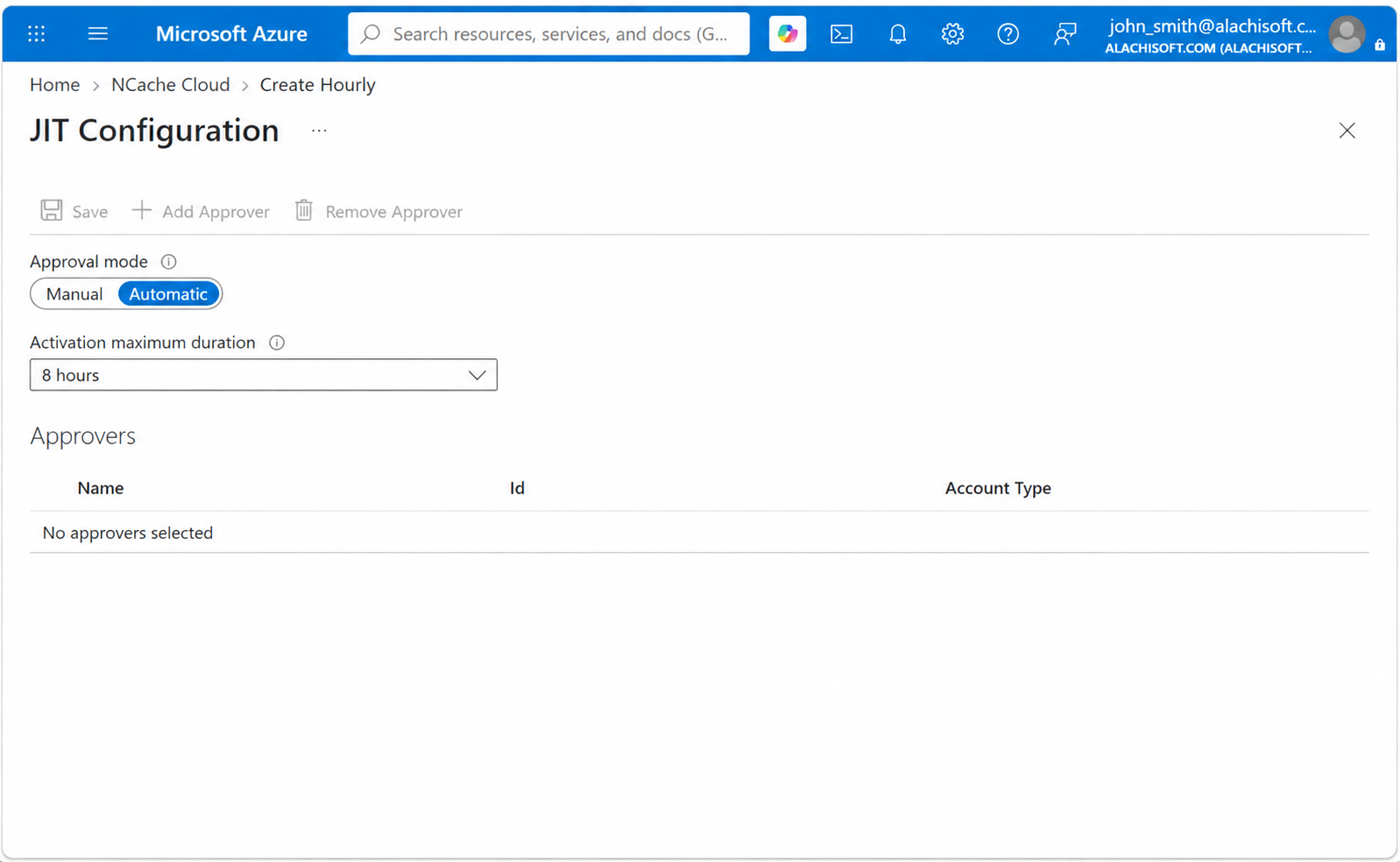
Configuring JIT Access in the Azure Portal
Clicking the button redirects you to your managed application's JIT Configuration (preview) menu under Settings in the Azure Portal.
Approval Mode
Configure how incoming support access requests are evaluated:
Automatic: Incoming support requests within the defined policy are approved automatically without requiring an administrator's manual intervention.
Manual: Every support access request triggers an approval notification that must be explicitly reviewed and approved by a designated approver before access is granted.
Activation Maximum Duration
Defines the maximum time limit for an active support session (e.g., 2 hours). Once this window lapses, Azure automatically terminates the session and revokes elevated permissions.
Approvers
When Manual approval mode is selected, configure the identities authorized to grant or decline support requests:
Add Approver: Click to select authorized enterprise users or security groups from Microsoft Entra ID.
Remove Approver: Revoke approval authority from an assigned user or group.
Approver Details: Displays the assigned approver's Name, principal Id, and Account Type.
After modifying your settings, click Save in the top action bar to persist your configuration.
Tech Support Access in AWS
For AWS deployments, AWS Tech Support provides temporary, on-demand JIT access that can be enabled or disabled at any time directly from the portal.
- From the NCache Cloud Portal left navigation menu, select Tech Support Access.
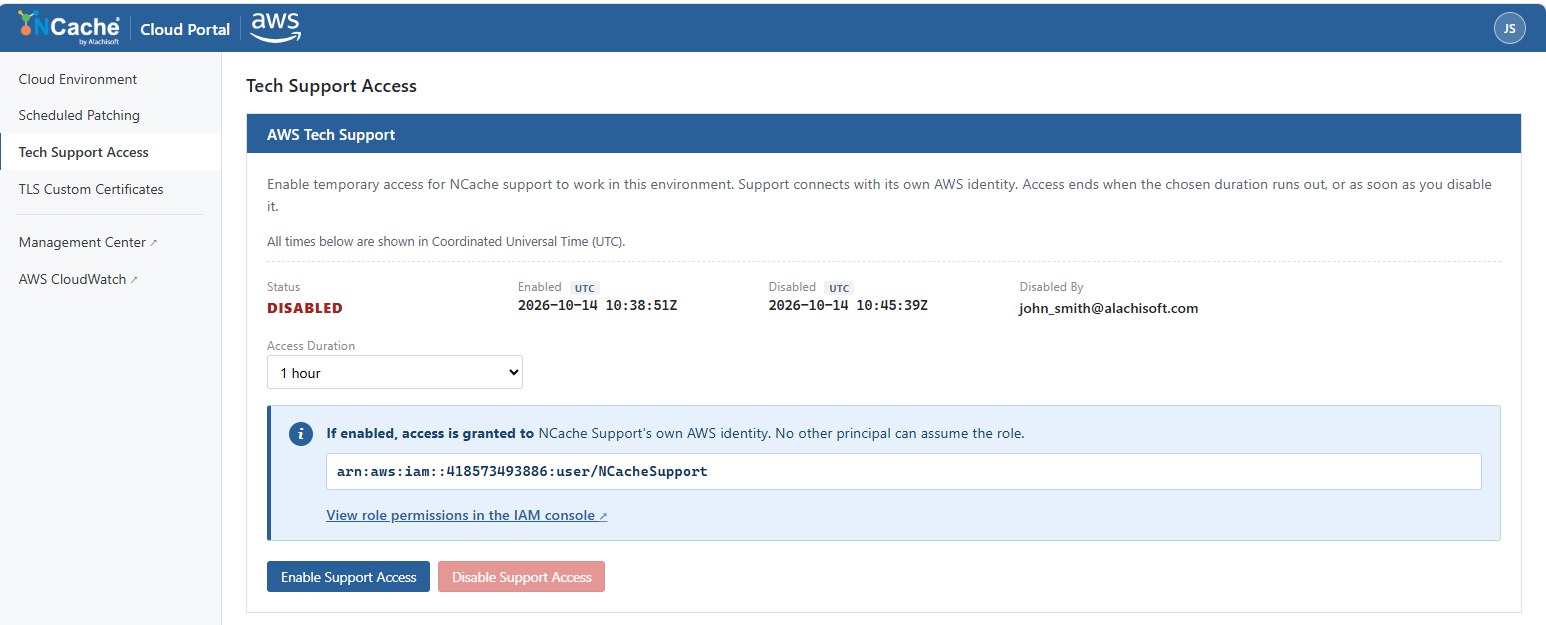
Choose your desired session duration from the dropdown (options include 1 hour, 2 hours, or 4 hours).
Click Enable Support Access. Once enabled, the status updates to ENABLED, displaying the exact UTC start time, expiration time, and remaining countdown duration.
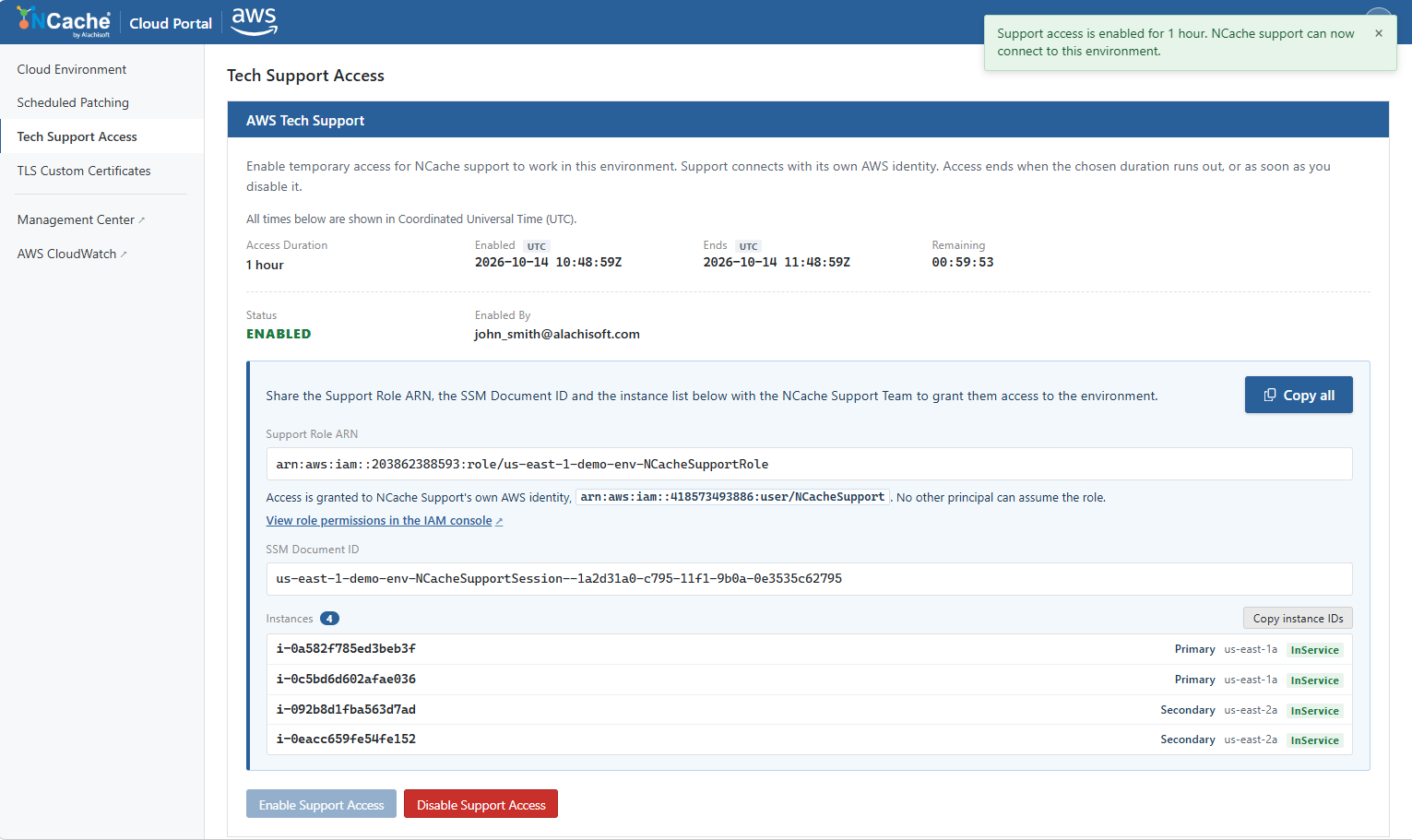
- You can click Disable Support Access at any point to immediately revoke support privileges, upon which the status updates to DISABLED.
Sharing Connection Details with Support
When support access is enabled, the portal generates and displays the specific security artifacts required for NCache support engineers to connect using their designated AWS identity (arn:aws:iam::418573493886:user/NCacheSupport):
Support Role ARN: The narrowly-scoped IAM role in your account that NCache Support assumes (e.g., arn:aws:iam::203862388593:role/us-east-1-demo-env-NCacheSupportRole). It avoids root or admin credentials, granting access exclusively to the managed environment.
SSM Document ID: The specific AWS Systems Manager (SSM) document used to initiate a secure session connecting to a read-only OS user (ncache-support).
Instances: A complete itemized table of active cluster instances (Primary and Secondary), showing their Instance IDs, roles, availability zones, and running states (InService).
Note
Click the Copy all button to copy the Support Role ARN, SSM Document ID, and instance list, and share these details with the NCache Support Team via email so they can initiate the troubleshooting session from the publisher account using AWS CloudShell.
Session Expiry and Instance Replacement
Duration Expiry: If the access duration expires, support access terminates automatically. To start a new session, simply enable Tech Support again in the portal. Nothing needs to be re-sent, as Support retains the exact same IAM role and SSM document name.
Instance Replacement Exception: If cluster instances were replaced in the meantime, you must provide the new instance IDs to support, because the support role deliberately lacks permission to look up or list instances independently.
