Configure Group Managed Service Account (gMSA)
Group Managed Service Account (gMSA) is a specialized type of Windows Active Directory (AD) account, provided by Microsoft, designed to solve the "credentials problem" for services, application pools, and tasks and provides the ability to delegate the management to Windows operating system, as detailed below. Instead of manually entering credentials or keeping them in configuration files, NCache enables cache users (not for node administrators) to securely connect to the cache using a gMSA identity.
Important
Group Managed Service Account (gMSA) is supported in NCache 5.3.7 and above.
Why use Group Managed Service Account
Group Managed Service Account minimizes the administrative overhead of a service account by allowing Windows to handle password management for these gMSA accounts. In a server farm or a Network Load Balanced solution, authentication protocols requiring mutual authentication demand that all service instances use the same principal. Instead of depending on an administrator to manually sync passwords across several nodes, the Windows operating system uses a gMSA to manage the account password by Key Distribution Service (KDS), which securely manages and distributes cryptographic keys for Kerberos authentication in Active Directory environments at the domain controller level.
Automatic Password Management: In order to keep services safe without the need for administrator intervention, Active Directory automatically creates and rotates complex passwords for gMSAs, usually every 30 days.
Multi-Server Support: The ability of gMSAs to be used by several servers within a domain makes them perfect for web farms and NCache clusters.
Kerberos Authentication: gMSAs natively support Kerberos authentication, allowing secure service authentication without exposing passwords.
Zero Manual Rotation: Eliminates service outages caused by expired passwords or human error during rotation.
Scalability: A single gMSA can be used across a web farm or NCache cluster, with Active Directory managing which specific servers are authorized to retrieve the password.
How it Works: The Kerberos Mechanism
Traditional service accounts are vulnerable because their passwords reside in memory or configuration files. In contrast, a gMSA password is a 240-byte complex value that is automatically generated and managed by Active Directory and is never known by human administrators. The Key Distribution Service (KDS) is used by the Active Directory to securely generate and manage gMSA passwords. Authentication is then performed using Kerberos through the Key Distribution Center (KDC).
Request: When a member server (e.g., an NCache node) needs to authenticate using a gMSA, it first retrieves the current gMSA password from Active Directory. It then uses the gMSA credentials to request a Kerberos ticket from the Kerberos Key Distribution Center (KDC) running on the Domain Controller (DC).
Validation: To confirm whether that particular machine is permitted to access the account, the DC looks at the
PrincipalsAllowedToRetrieveManagedPasswordattribute, which indicates which security principals, such as users or groups, are permitted to retrieve the managed password for gMSA. The request is denied if the Computer Account of the requesting server is not specifically included in this group.Secure Retrieval: Once validated, the DC retrieves and provides the current managed password and encrypts it using the member server's own computer account credentials. Because the member server is already part of the domain, it uses its existing trust relationship to decrypt and rotate the password locally in protected memory.
Token Generation: After the member server retrieves the gMSA password from Active Directory, it uses the gMSA credentials to request a Kerberos ticket (A network authentication protocol that uses tickets to allow nodes communicating over a non-secure network to prove their identity to one another in a secure manner) from the Kerberos Key Distribution Center (KDC) running on the Domain Controller (DC). The KDC issues the Kerberos ticket for the gMSA identity, which is then used to authenticate to the NCache cluster. The gMSA password is automatically managed by Active Directory, ensuring secure communication without requiring manual password management.
Since only authorized computers can retrieve the account password, there is no risk of a human user or an unauthorized application stealing the password.
How to Configure gMSA Authentication in NCache
To use gMSA with NCache, you must first authorize the account within the NCache management framework. This process assumes a gMSA account has already been created and installed on your servers. If you have not yet created a gMSA account in Active Directory, refer to the Setup gMSA in Active Directory section.
Step 1: Configure the LDAP Domain Controller in NCache
NCache uses LDAP-integrated security to authenticate and authorize users against Active Directory. Before adding any gMSA cache users, the LDAP domain controller must be configured in NCache.
- Open NCache Management Center at http://localhost:9801 or
<server-ip>:9801. - Go to Settings (top right).
- Enter Domain Controller details: Domain Controller, Port, Search Base, and optionally Secondary Domain Controller (enable SSL if needed).
- Click Verify and log in with valid credentials to confirm the settings.

- Click on Save to save your domain controller settings.
To learn more about the Domain Controller settings, please see security configuration section.
Step 2: Enable Node-level Security
Once the LDAP domain controller is configured, secure each NCache server node by enabling Node-level Security and assigning authorized users or groups.
- Open NCache Management Center -> Settings -> Node-Level Security.
- Enter the server node IP and click Fetch Details.
- Select the checkbox Enable Security. Next, specify the Users or Groups that should have permission to perform operations on the nodes. Click Save.
To learn more about securing a cache node, please see Cache Node Security section.
After configuring one node, you'll be prompted to apply the same settings to all cluster nodes Homogeneous Security Settings. Enter all node IPs and save to ensure consistent security across the cluster.
Step 3: Add the gMSA Account as a Cache User
A cache user has access to cache data operations but does not have node-level admin rights. Follow the steps below to add a gMSA account as a cache user. Please note that the gMSA account must already exist in Active Directory (as explained in Phase 1) and be installed on the NCache server (as explained in Phase 2) before proceeding with the steps below:
Important
NCache does not use gMSA for any node administrator and all node administrators continue to use the current Active Directory user credentials.
Using the NCache Management Center
- In the NCache Management Center, click on Clustered Caches based on the cache to which you need to add the gMSA user. Against the cache name, click on View Details.
- This opens up the detailed configuration page for the cache. Go to the Advanced Settings tab and click on Security and Encryption in the left bar.
- In the Security section, add User or Group from your domain controller. For gMSA accounts, ensure that you use the $ sign at the end of your account name (e.g., user1gmsa$). Please note that you cannot add cache users or groups before enabling node security on all cache servers as explained in Enable Node-level Security section.
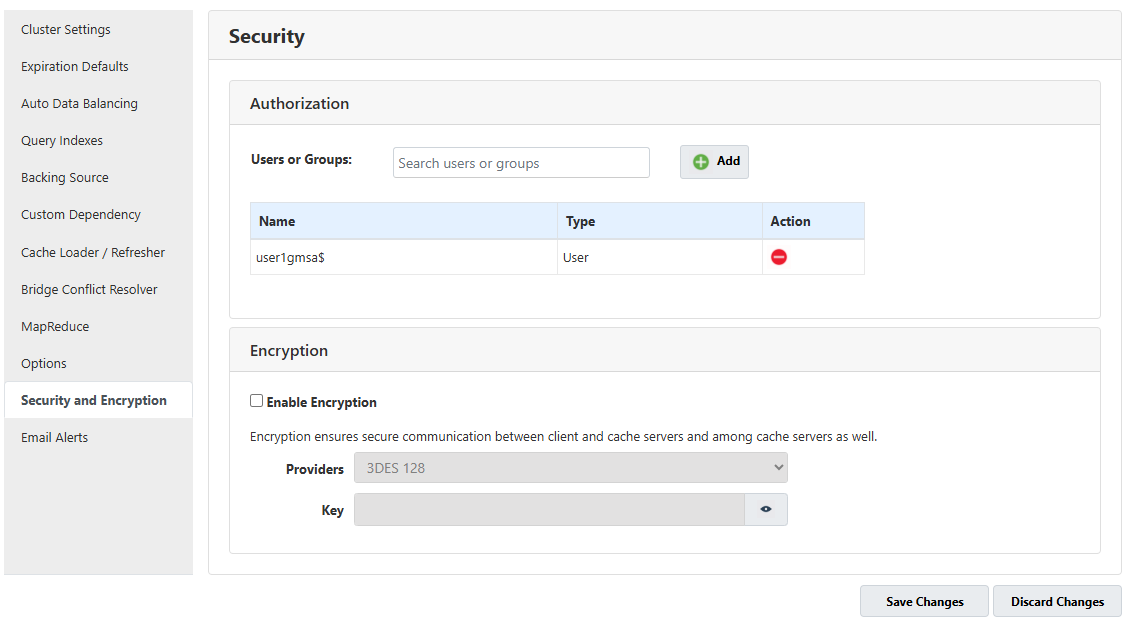
- Click on Save Changes.
Using PowerShell (Add-NCacheUserOrGroup)
The Add-NCacheUserOrGroup cmdlet also supports gMSA accounts (if the provided user name is a gMSA) where NCache queries LDAP to detect the account type and records it accordingly. The following command adds the gMSA user 'user1gmsa$' on the specified NCache server.
Important
Please note that you need to enable node security beforehand to set up gMSA user or group through the Add-NCacheUserOrGroup command.
Add-NCacheUserOrGroup -Server 20.200.20.11 -AccessLevel Cache -CacheName defaultCache \
                      -AdminCredentials(Get-Credential john_smith) -UserOrGroupName user1gmsa$ \
                      -UserOrGroupDN "CN=user1gmsa,CN=Managed Service Accounts,DC=example,DC=com" \
                      -DomainController 20.200.23.100
Manually Editing NCache Configuration
After adding a gMSA cache user and enabling gMSA authentication on the client node, both the cache and client configuration files reflect these changes. These changes can be applied either through the NCache Management Center or by manually editing the respective configuration files.
In config.ncconf, the gMSA account is automatically added under the <security> section
....
<security>
    <gmsa-user id="user1gmsa$" dn="CN=user1gmsa,CN=Managed Service Accounts,DC=example,DC=com"/>
</security>
...
Meanwhile, client.ncconf includes a gmsa enable="True" tag. This flag indicates the NCache Client SDK to perform gMSA Kerberos authentication where no manual credentials are needed. By default, the gmsa enable tag is set to False and can be enabled either manually in client.ncconf or automatically through the NCache Management Center.
<cache id="defaultCache" client-cache-id="" client-cache-syncmode="optimistic" skip-client-cache-if-unavailable="True" reconnect-client-cache-interval="10" default-readthru-provider="" default-writethru-provider=""
load-balance="False" enable-client-logs="False" log-level="error">
    <server name="20.200.20.11"/>
    <security>
        <gmsa enable="True"/>
    </security>
</cache>
Once the changes are made, restart the NCache Service and NCache's Cache processes for the changes to take effect.
Important
Please note that for a single client, you can enable either standard security or gMSA authentication, but not both simultaneously.
Setting Up a gMSA Account in Active Directory
To configure gMSA for NCache, you must complete two distinct phases. First, you need to create and configure the account in Active Directory (AD) on the Domain Controller, where its permissions and identity are defined. Then, configure each NCache server (node) to use this account so they can automatically retrieve it from AD and securely authenticate and communicate with each other without needing manual password management.
Phase 1: Domain Controller Setup
All commands listed below must be executed on the Domain Controller with Domain Admin privileges. Run these commands in PowerShell.
Step 1: Initialize the KDS Root Key
The KDS Root Key is a cryptographic root key that is required for gMSA password generation and distribution in Active Directory. Please note that this key only needs to be created once per domain. If your domain already uses gMSA accounts, most likely this key already exists. Please check before creating a new one.
# Check if KDS Root Key Already Exists
# Run on Domain Controller
Get-KdsRootKey
If no key is returned, create one using the command below. The -EffectiveTime parameter with -10 hours makes the key immediately effective bypassing the default 10-hour propagation delay, suitable for new deployments.
# Creates the KDS Root Key effective immediately
Add-KdsRootKey -EffectiveTime ((Get-Date).AddHours(-10))
Step 2: Identify the Principal Member Server(s)
You need to specify which computers are authorized to retrieve the gMSA password. This is the NCache server (and optionally the NCache client host if it will run code using the gMSA identity).
# Define the domain member server that will use the gMSA (e.g., "SVR01$")
# Replace 'SVR01' with the actual NetBIOS name of your NCache server
$MemberServer = "SVR01$"
Step 3: Create gMSA account
Create a gMSA account in Active Directory. This account can be used as a cache user, as a group member mapped to a cache user group, or as the NCache Service identity.
# Replace 'user1gmsa' with your preferred gMSA account name
# Replace 'domain.local' with your actual domain FQDN
New-ADServiceAccount -Name "user1gmsa" -DNSHostName "user1gmsa.domain.local" -PrincipalsAllowedToRetrieveManagedPassword $MemberServer -Enabled $true
To verify that your account was created, run the following command:
Get-ADServiceAccount -Identity "user1gmsa" -Properties
Phase 2: Domain Member Server Commands
Once the gMSA is provisioned in Active Directory, you must perform these steps on every machine that will use the gMSA, typically the NCache server or the application client host. Run these commands in PowerShell.
Step 1: Install RSAT Active Directory PowerShell Module
Installing and testing the gMSA account on the member server requires the Active Directory PowerShell Module. To manage a gMSA, your member server needs to understand Active Directory commands. By default, a standard Windows server does not have these "instructions" built-in. Install only the RSAT-AD-PowerShell module, meaning you only need to install the tools needed to run Active Directory commands, not the full Active Directory server role.
# Installs the Active Directory PowerShell module only
# Does not install the full AD Domain Services role
Install-WindowsFeature RSAT-AD-PowerShell
To verify the installation, run the following command:
Get-WindowsFeature RSAT-AD-PowerShell
Step 2: Install the gMSA on Local Machine
The following command registers the gMSA account on the local computer, allowing it to retrieve the managed password from the KDS. Please note that this step must be done for every server that will use this gMSA.
# Replace 'user1gmsa' with the gMSA account name you created
# Do not include the $ suffix here
Install-ADServiceAccount -Identity "user1gmsa"
Important
If this command fails with an access denied error, you need to verify that the machine's computer account ($MemberServer) was included in the -PrincipalsAllowedToRetrieveManagedPassword parameter when the gMSA was created on the Domain Controller.
Step 3: Verify the gMSA is Working
You need to run a test command to ensure that your newly created gMSA account can be successfully retrieved and used on this machine. This command MUST return True before proceeding.
Test-ADServiceAccount -Identity "user1gmsa"
If this command returns False, re-check the Principal authorization on DC.
See Also
Configure Encryption for Cache
Configure SSL/TLS Encryption in NCache
