Data integrity is the most basic building block of providing security and protecting sensitive data from theft or breach. To prevent data tampering, client-server applications use the TLS (Transport Level Security) protocol to communicate across networks. TLS is responsible for exchanging keys, encrypting data, and authenticating message integrity, hence, establishing a secure connection.
NCache is an in-memory distributed caching solution that fully supports encryption through SSL/TLS between client and server for secure network connections. It supports TLS 1.2 and lets you enable SSL/TLS encryption with just a series of simple steps and no code change. This blog briefly explains how to enable SSL/TLS between your server and client using NCache.
Key Takeaways
Data Integrity Compliance: NCache SSL/TLS ensures your distributed data meets strict security standards like PCI-DSS and HIPAA by preventing unauthorized data tampering.
Infrastructure Flexibility: Supports hybrid environments by offering native certificate management for both Windows-based servers and Linux/Docker deployments.
mTLS Capability: Beyond standard encryption, NCache supports Mutual TLS (mTLS) to verify the identity of both the client and the server for maximum security.
Performance Monitoring: Includes built-in diagnostic tools to validate that secure, high-stress transactional loads are performing optimally under encryption.
Why Use SSL/TLS in the First Place?
SSL/TLS allows for encrypted communication between the client and server. Encrypted data simply refers to a secure communication inaccessible to outside sources. Implementing TLS 1.2 is a core requirement for organizations aiming for PCI-DSS, HIPAA, or GDPR compliance when handling sensitive distributed data. For scenarios requiring high-level security, such as online money transactions where only the communicating parties need to share information, SSL/TLS encryption is essential. Read more about encryption in NCache in the blog Diving Deeper into Encryption.
TLS needs a certificate for communication between the server and the client called SSL/TLS handshake. This certificate holds the information needed to encrypt data between both parties. It contains a public key shared by the server, which the client uses to establish a connection. Matching the key ensures that only the connected parties can communicate, preventing third-party decryption. To understand this further, refer to the diagram below:
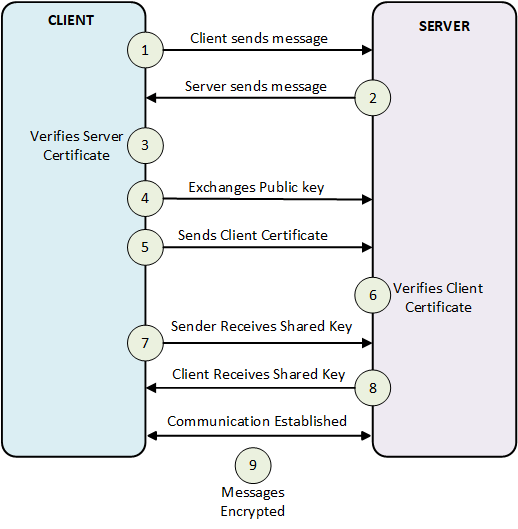
Figure 1: NCache SSL/TLS Handshake and Mutual Authentication
What are the Prerequisites to Enable SSL/TLS in NCache?
- You need to generate a self-signed certificate if you do not already have one. This approach is not recommended in production environments but can be used in testing environments. To create one, please refer to Generating Self-Signed Certificates.
- Make sure that the certificate you are using contains a private key.
- The private key must be exportable to all nodes, including the client machine.
- Make sure that you have no cache and client processes running.
Choosing Your Configuration Method
Before proceeding, identify the best approach for your environment:
- Use PowerShell (
Enable-NCacheTLS): Recommended for automated deployments and server environments where NCache is fully installed. - Use Manual Config (
tls.ncconf): Best for client-only machines or lightweight NuGet/Maven deployments where the full NCache service is not present.
NCache provides SSL/TLS encryption for both Windows and Linux. The step-wise process for both is explained below:
How to Configure SSL/TLS for NCache on Windows?
The Windows configuration for NCache SSL/TLS relies on the Microsoft Management Console (MMC) and the Windows Certificate Store to manage exportable private keys. Follow the steps below on the NCache server and the client machine to configure SSL/TLS encryption for NCache in Windows:
1- Log in to your machine.
2- Create or obtain a TLS certificate with an exportable private key. Certificates must be authorized by a Certificate Authority (CA). Ensure the Basic Constraints section specifies Subject Type=CA.
3- Import your certificate to the appropriate machine. (To learn how to import certificates in the local stores, refer to the Microsoft website).
4- Press Win + R, type MMC, and press Enter.
5- In MMC, go to the File menu, and click Add/Remove Snap-in. Select Certificates from the list and click Add.
6- Select an account type. Choose My user account, Service account, or Computer account based on where you want to place the certificate.
7- In the left pane of MMC, expand Certificates and navigate to Current User > Personal > Certificates. Locate the TLS certificate with Client Authentication as an Intended Purpose and double-click it.
8- In the Certificate Dialog Box, click the Details tab, find the Thumbprint, and copy the hexadecimal characters.
9- Click on the Subject property and copy what comes after CN=.
10- Ensure the NCache Service is running under the same user that imported the certificate.
11- Enable TLS with the saved certificate name and thumbprint (the following command will work only if you have NCache installed on your client machine):
|
1 |
Enable-NCacheTLS -Node "20.200.20.39,20.200.20.40" -CertificateName "Example" -CertificateThumbprint "596846ab6bdd9edb03cdfbdfa1aa7b0b05e744a6" -ClientServerCommunication -UseMutualTLSForClientToServer true |
Otherwise, you must manually enable TLS using the tls.ncconf file available via the NCache NuGet Packages in Windows, as follows:
|
1 2 3 4 5 6 7 |
<tls-info> <certificate-name>certificate-name</certificate-name> <certificate-thumbprint>your-thumbprint</certificate-thumbprint> <enable>false</enable> <enable-client-server-tls>false</enable-client-server-tls> <use-mutual-tls-for-client-to-server>false</use-mutual-tls-for-client-to-server> </tls-info> |
12- Restart the cache and client processes along with the NCache Service. Ensure the NCache Service runs under the same user that imported the certificate.
To learn about installing the TLS Certificate on a Windows machine, please see TLS Docs.
How to Configure SSL/TLS for NCache on Linux?
To install a TLS certificate on a Linux machine (using Ubuntu as an example), follow these steps to configure SSL/TLS encryption for NCache in Linux. Note that steps may vary for Fedora, Red Hat, etc.
1- Log in to your machine.
2- Create or obtain a TLS certificate with an exportable private key.
3- To employ TLS in NCache, you require a .pfx file. If you already have a .crt and .pem file (that you generate in step 2), here’s the process to generate the pfx file:
|
1 |
openssl pkcs12 -export -out ncachetest-certificate.pfx -inkey ncachetest-private-key.pem -in ncachetest-certificate.crt |
4- Retrieve and save the Thumbprint/Fingerprint along with the Certificate Name:
|
1 |
openssl x509 -noout -in ncachetest-certificate.crt -fingerprint -subject | sed 's/://g' |
5- Install the certificate on your server machines if Mutual TLS is enabled, as detailed in the NCache Administrator’s Guide.
6- To use the certificate with NCache, run the following command as a ncache user:
|
1 |
opt/ncache/bin/tools/install-pfxcertificate -filepath "/home/ncache/ncachetest-certificate.pfx" -password "YourPassword" |
7- Enable TLS with the saved certificate name and thumbprint. This command is exclusive to NCache.
|
1 |
enable-ncachetls -node "20.200.20.39,20.200.20.40" -certificatename "certificate-name" -certificatethumbprint "596846ab6bdd9edb03cdfbdfa1aa7b0b05e744a6" -clientservercommunication -usemutualtlsforclienttoserver true -pfxpath /home/ncache/ncachetest-certificate.pfx -pfxpassword YourPassword |
If NCache isn’t installed, manually enable TLS using the tls.ncconf file from NCache NuGet or Maven Packages, as follows:
|
1 2 3 4 5 6 7 8 9 10 11 |
<tls-info> <certificate-name>certificate-name</certificate-name> <certificate-thumbprint>your-thumbprint</certificate-thumbprint> <enable>false</enable> <enable-client-server-tls>false</enable-client-server-tls> <use-mutual-tls-for-client-to-server>false</use-mutual-tls-for-client-to-server> <!-- Following two parameters are required if you're running Java application from this machine. --> <pfx-path>/home/ncache/ncachetest-certificate.pfx</pfx-path> <pfx-password>YourPassword</pfx-password> </tls-info> |
For more information on certificate parameters, refer to the Certificate Elements section.
8- Restart the cache and client processes along with the NCache Service. Ensure the NCache Service runs under the same user that imported the certificate.
To learn about installing the TLS Certificate on a Linux machine, please see TLS Docs.
To avoid issues while enabling SSL/TLS encryption, please refer to the Troubleshooting section of the documentation to learn about common process issues.
Comparison of Windows and Linux SSL/TLS Configuration in NCache
| Feature | Windows Configuration | Linux Configuration |
|---|---|---|
| Primary Tool | Microsoft Management Console (MMC) | OpenSSL / Terminal |
| Certificate Store | Windows Certificate Store (Local/User) | File System / Path-based |
| Required Format | Certificate with Exportable Private Key | .pfx file (PKCS #12) |
| Command Line | PowerShell (Enable-NCacheTLS) | Shell Script (enable-ncachetls) |
| Automation | Full NCache Service installation | NuGet / Maven Packages |
Verify Successful Client Connection
NCache provides a rich set of PowerShell tools for management and client operations, for example, the Test-Stress tool. This tool simulates a heavy transactional load on a cache to monitor the NCache performance under stress, demonstrating a successful connection between the client and the NCache server. You can run this tool by running the following command:
|
1 |
Test-Stress -CacheName your-cache-name |
Conclusion
Implementing SSL/TLS encryption with NCache is not just a matter of security; it’s a proactive step towards safeguarding your sensitive data in an ever more risky environment. Whether you’re securing online transactions or enhancing data integrity across networks, NCache with its robust encryption capabilities is a seamless solution. Additionally, NCache offers many other features to enhance data security. For more information, check out the Security and Encryption features in NCache.
Frequently Asked Questions (FAQ)
Q: What specific certificate format is required for NCache on Linux?
A: For Linux environments, you must use a .pfx file. If you only have .crt and .pem files, you can convert them using the OpenSSL pkcs12 command provided in the guide.
Q: Is the NCache Service required to run under a specific user for SSL?
A: Yes. On Windows, the NCache Service must run under the same user account that imported the certificate into the Windows Certificate Store to ensure it has the necessary permissions to access the private key.
Q: How do I enable TLS if I am using NCache via NuGet or Maven instead of a full installation?
A: In lightweight deployments without the full NCache service, you must manually configure the tls.ncconf file, ensuring the <enable-client-server-tls> tag is set to true and the correct thumbprint is provided.
Q: What is the role of the Certificate Authority (CA) in this configuration?
A: For production environments, certificates must be authorized by a CA with the Basic Constraints section specifying “Subject Type=CA” to ensure the trust chain is valid between the client and the cache cluster.