When it comes to managing environments, there are two types of people in the world: those who love to type commands and those who love a GUI. NCache got both these factions covered. To monitor NCache and your deployed cache servers and bridge, you have management PowerShell tools for the typists and NCache Web Manager for those who prefer visuals.
Key Takeaways:
Dual Interface Environments: NCache supports two management execution methods, offering powerful PowerShell cmdlets for command-line scripting and an intuitive Web Manager GUI for visual administration.
Full Topology Coverage: Both management methods provide complete control over two core infrastructural elements: local/clustered cache servers and cross-region disaster recovery bridges for WAN replication.
Complete Lifecycle Controls: Administrators can seamlessly perform identical management workflows across both tools, including creating, starting, stopping, clearing data from, and completely removing caches or bridges.
Targeted Workflow Efficiencies: The PowerShell tools are designed for fast, automated command execution, while the web console provides an easier, friendlier interface for manual visual monitoring.
PowerShell Tools for NCache Management
Windows PowerShell and NCache go hand in hand owing to their native .NET nature. PowerShell provides you with a command-line platform and scripting languages, while NCache provides various powerful tools for automating cache management. What are these tools that I speak of? Let’s find out.
Manage Cache Through PowerShell Tools (CLI Configuration)
NCache provides various PowerShell cmdlets to manage your local and clustered caches. These cmdlets help you perform management operations that give you control over your caches. Let’s see some cmdlets for some of the basic cache operations.
Note: If NCache cmdlets are not recognized in your environment, manually import the provider module by executing the following path command in an elevated PowerShell session:
|
1 |
Import-Module '%NCHOME%\bin\tools\ncacheps\ncacheps.dll' |
The New-Cache Cmdlet
To manage a cache, you need to create a cache first. So, all command lovers, hear ye, the New-Cache cmdlet allows you to create a new cache on one or more server nodes. This is the command you are looking for:

Figure 1: Creating a distributed cluster cache via the NCache New-Cache PowerShell cmdlet.
The Start-Cache Cmdlet
After creating a cache, you need to start the created cache. The Start-Cache cmdlet, as the name suggests, starts cache against the registered user. You can simply start the cache on your local server by providing the name of your cache as a parameter with the Start-Cache tool like this:

Figure 2: Starting a clustered cache service using the NCache Start-Cache PowerShell cmdlet.
The Stop-Cache Cmdlet
Just like you have a tool to start cache on one or multiple caches, you have a tool to stop cache as well. The Stop-Cache cmdlet allows you to stop cache on any server that you want.

Figure 3: Stopping a clustered cache service using the NCache Stop-Cache PowerShell cmdlet.
The Clear-Cache Cmdlet
Following the above chain of deployment, what comes next is how you clear the contents of the cache. The Clear-Cache cmdlet allows you to remove all items currently present in the mentioned cache.

Figure 4: Purging all data from a cluster using the NCache Clear-Cache PowerShell cmdlet.
The Remove-Cache Cmdlet
When it’s time for you to remove a cache, you have the Remove-Cache cmdlet that removes the cache’s existence from your application, local machine, remote machine, everywhere. This is all it takes to perform such a drastic operation.

Figure 5: Unregistering and deleting a cluster configuration via the NCache Remove-Cache PowerShell cmdlet.
Manage Bridge Through PowerShell Tools
The bridge is the essence of a disaster recovery plan. A bridge for WAN replication not only saves you from hitting rock bottom (pun intended), but it also serves the purpose of deploying your application on geographically separated regions for a massive grid of customers. Are you starting to see the value a Bridge brings to the table? Now, let’s see how you can manage a treasure such as this.
NCache Management Reference Matrix
To help determine the best interface for your deployment pipeline, use this quick-reference matrix comparing command-line utilities with graphical management:
| Management Task | PowerShell Cmdlet | NCache Web Manager (GUI) |
|---|---|---|
| Creation / Provisioning | New-Cache / New-Bridge | Graphical wizard interface |
| Execution Controls | Start-Cache / Stop-Cache | Toolbar toggle buttons |
| Data Management | Clear-Cache / Remove-Cache | Visual empty/delete triggers |
| Deployment Fit | DevOps automation & CI/CD scripting | Live visual monitoring & ad-hoc changes |
The New-Bridge Cmdlet
NCache provides the New-Bridge cmdlet that, when executed, creates a bridge on one or more cache server nodes.

Figure 6: Creating a WAN replication bridge interface using the NCache New-Bridge PowerShell cmdlet.
The Start-Bridge Cmdlet
After creating a bridge, you can start it by executing the Start-Bridge command. This command, when executed, starts the bridge implementation on the server that you specify. If the command is executed successfully, you will be notified like this:

Figure 7: Initializing a WAN replication service instance using the NCache Start-Bridge PowerShell cmdlet.
The Stop-Bridge Cmdlet
In case you want to stop a bridge on a specific server for a while, NCache provides the Stop-Bridge cmdlet.

Figure 8: Halting a WAN replication bridge service instance using the NCache Stop-Bridge PowerShell cmdlet.
This stopped state is temporary, you can always start the bridge again and it will work the exact same way it did before.
The Remove-Bridge Cmdlet
The Remove-Bridge cmdlet, as the name suggests, removes bridge from the specified server. This command is for when you do not have a need for bridge on a specific server.

Figure 9: Completely removing a disaster recovery bridge topology using the NCache Remove-Bridge PowerShell cmdlet.
NCache Web Manager for NCache Management
To all those who would rather sit back and click buttons, NCache provides an NCache Web Manager that is the prettier web-based version of all the commands discussed above. What you have here is a platform to create and manage local caches, clustered caches, and bridges all through a simple, easy to understand .NET Core based UI. To sell my point, I will take you on a little tour discussing various cache and bridge management operations that you can perform using the NCache Web Manager.
Manage Cache Through NCache Web Manager
Managing a cache through commands is faster and let’s admit, it’s pretty cool. But managing a cache through NCache Web Manager is easier and friendlier. It is more convenient to be able to see via visuals, the management operations being performed on the caches. If that’s your cup of tea, then NCache has got you covered.
Create a Cache
First off, to start managing a cache, you need to create a cache. NCache Web Manager provides an easy way to create a new cache. Instead of boring you with the steps of how you do this magic trick, I’m going to show the process using a GIF.
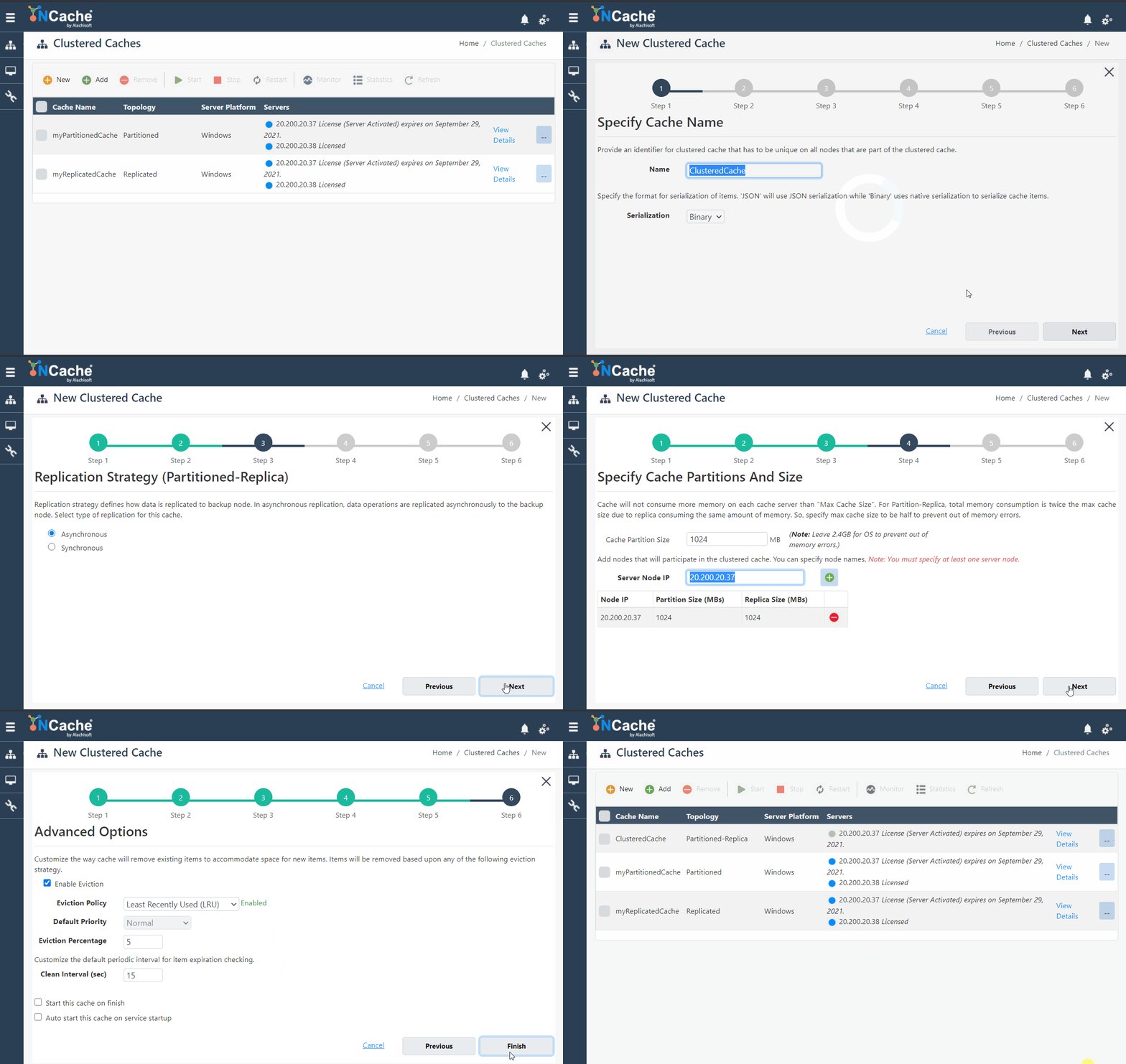
Figure 10: Create a New Cache using NCache Web Manager
Start a Cache
You are not going to get anything out of an idle cache unless you start it. Starting a cache using the NCache Web Manager is easier than creating it. There is less clicking of buttons, less navigation, and no typing. Here’s how you start a cache.
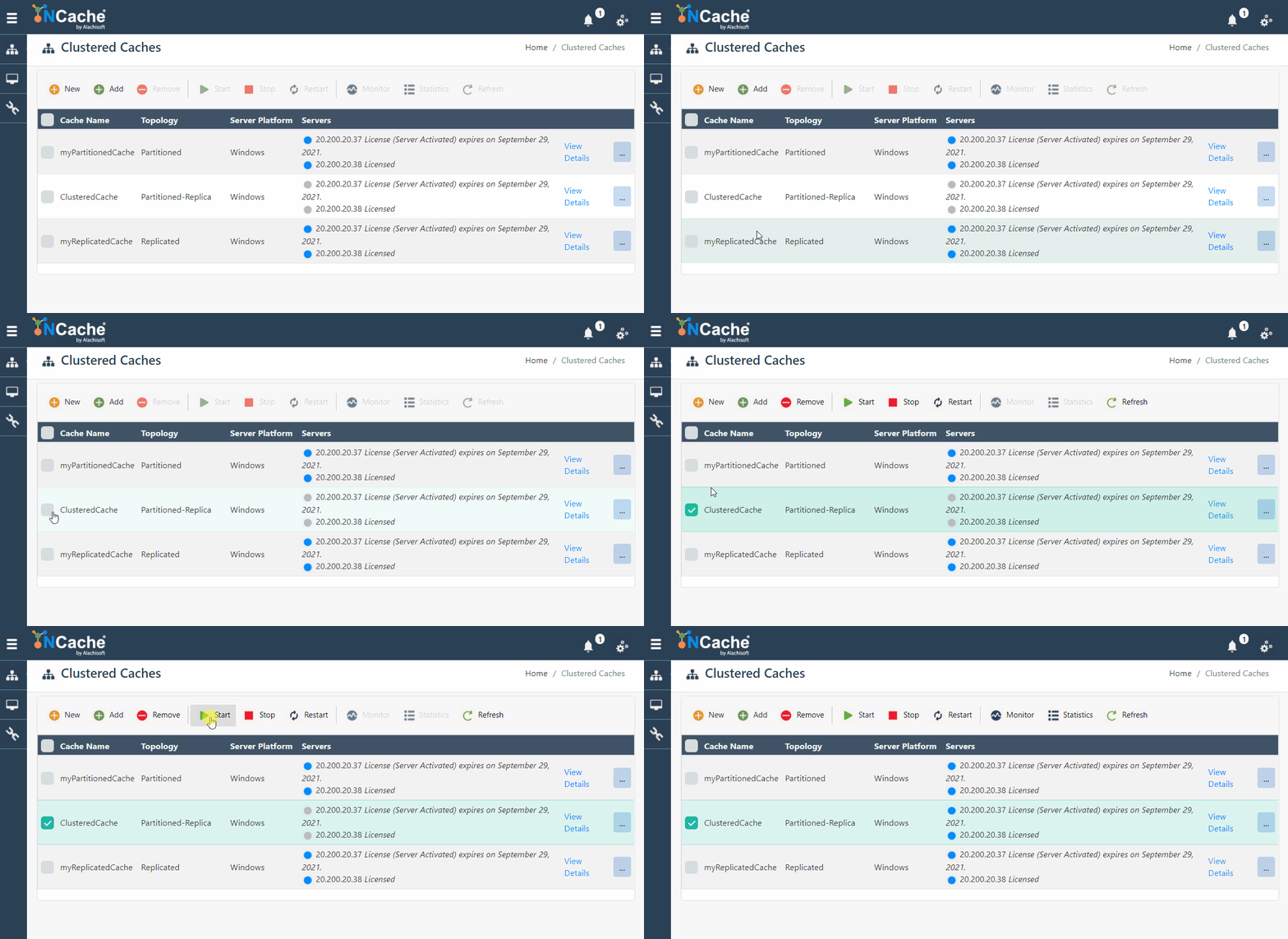
Figure 11: Start Cache using NCache Web Manager
Stop a Cache
Done with playing around with a cache? Want to give the cache a little break? NCache allows you to stop any cache you want, whenever you want it. The NCache Web Manager makes this process very simple for you. You select the cache cluster (or even a single node cache) that you want to stop cache service on, click on the Stop button, and voila! It’s done.
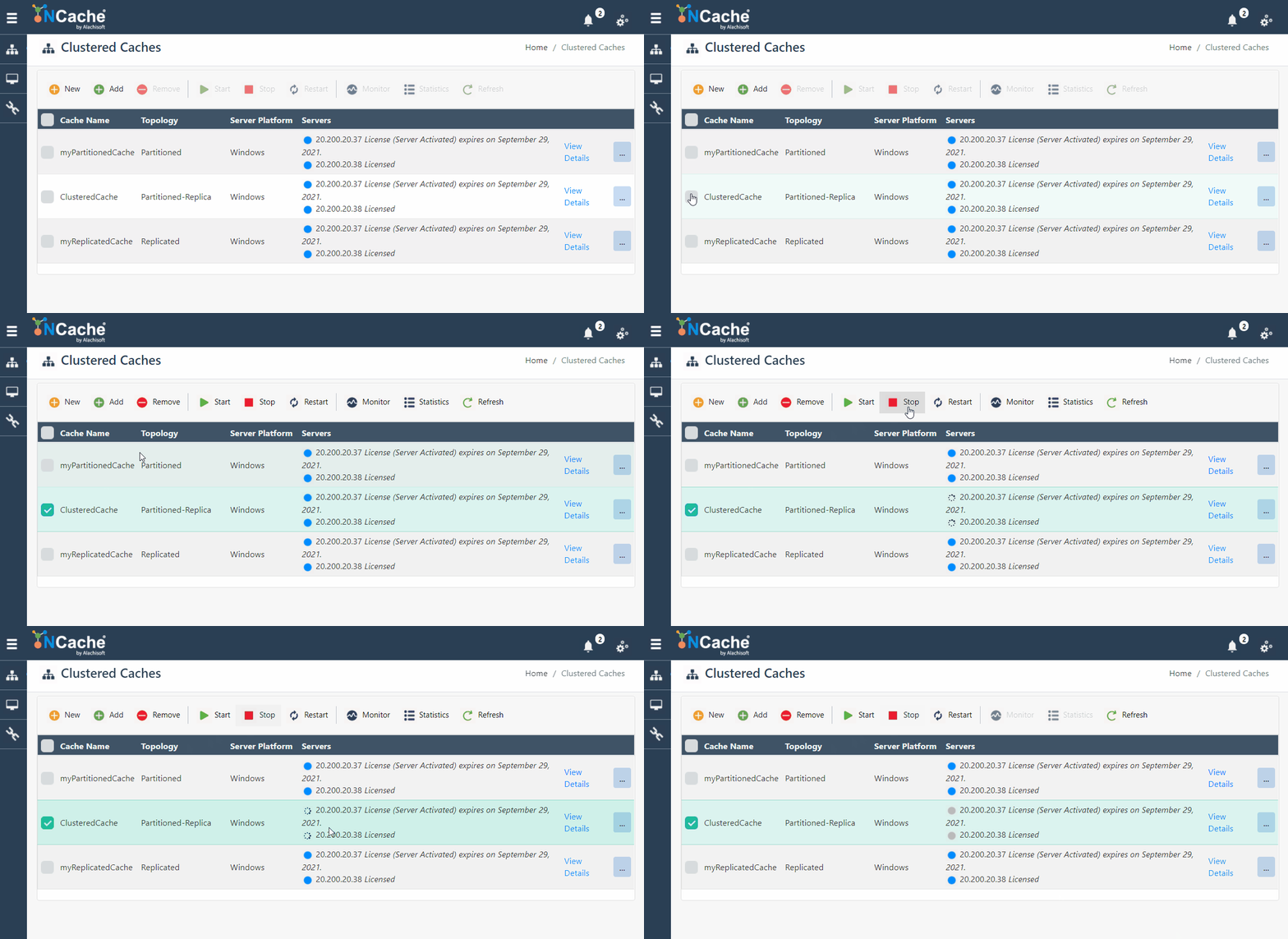
Figure 12: Stop Cache using NCache Web Manager
Clear a Cache
NCache Web Manager allows you clear all contents of the cache in case you want to start anew. Any keys, values, data structures, JSON objects, basically anything that the cache had stored for you will be removed once you clear the cache. The GIF here shows how the NCache Web Manager lets you clear all contents of the caches in a cache cluster.
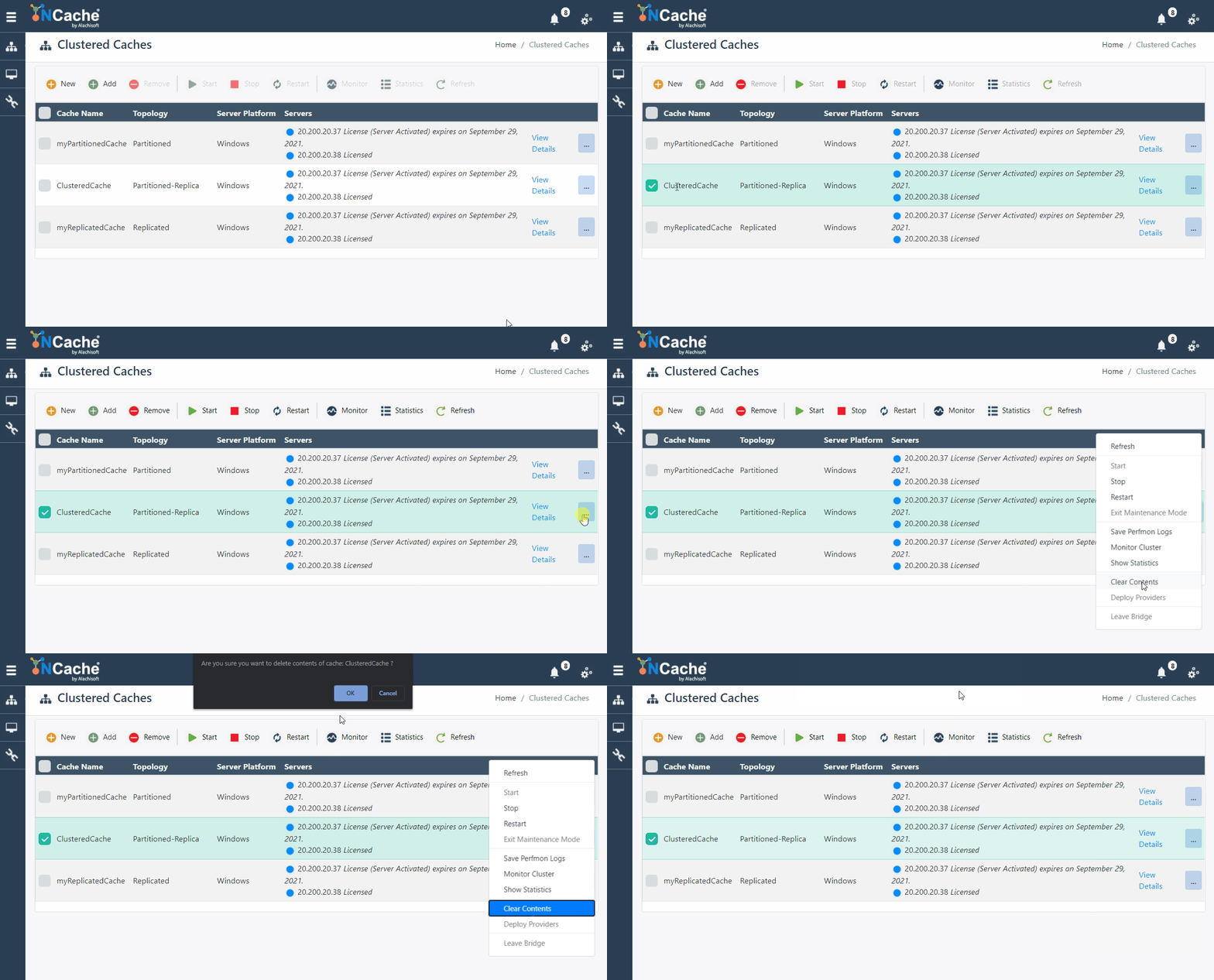
Figure 13: Clear Contents of a Cache using NCache Web Manager
Remove a Cache
I know. It sounds a bit harsh but sometimes the situation calls for you to say goodbye to the cache you created. But don’t worry, the NCache Web Manager makes this process easier for you, like ripping the band aid off. The GIF below shows how to remove a cache using the NCache Web Manager.
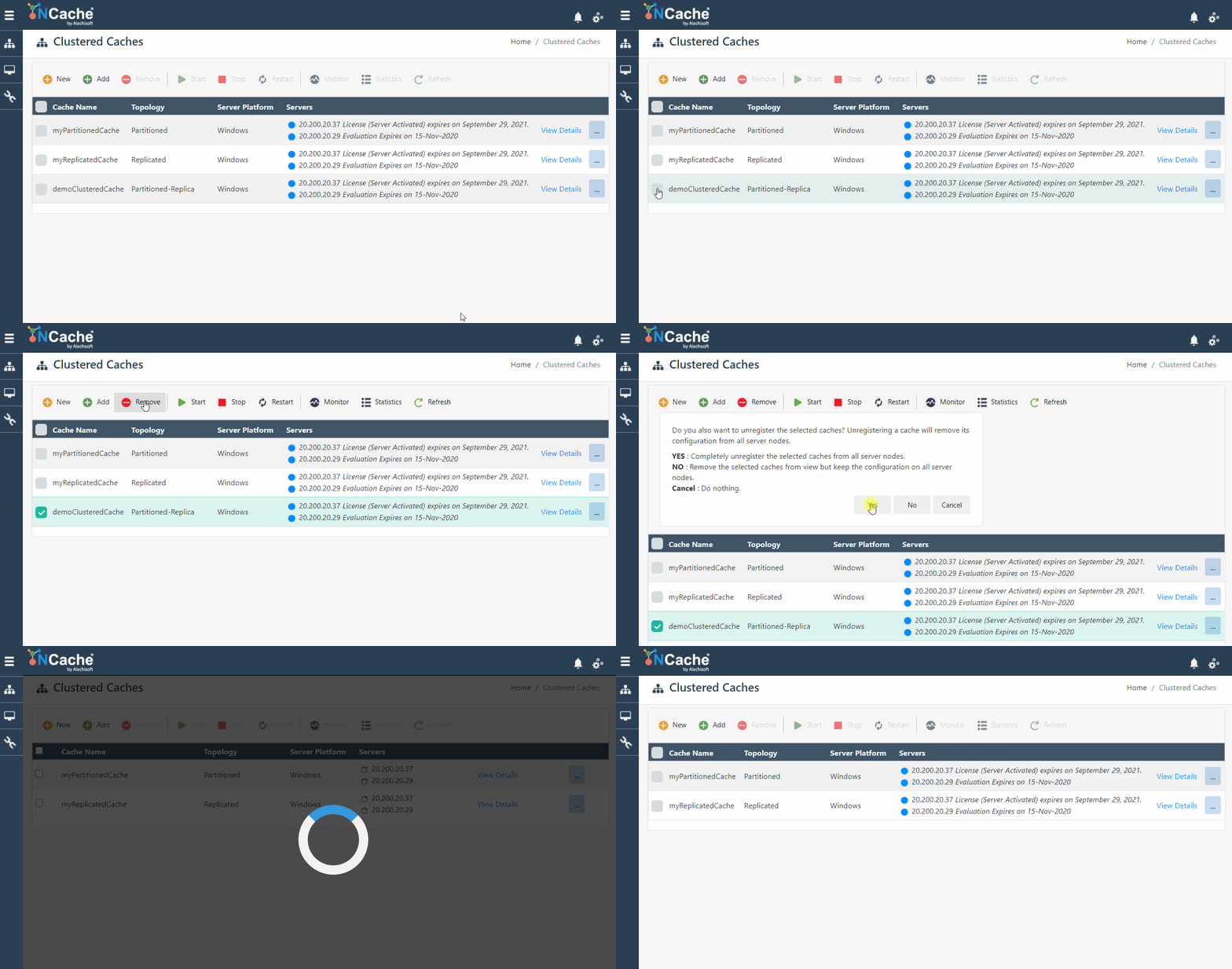
Figure 14: Remove a Cache Cluster using NCache Web Manager
Manage Bridge Through NCache Web Manager
Just like you had PowerShell cmdlets to create and manage bridges in your environment, you have an entire NCache Web Manager platform dedicated for bridge management. NCache provides an easy-to-use and understand user interface comprising of various management operations that you could perform on a bridge. Let’s go through these operations.
Create a Bridge
What you need to create a bridge through the NCache Web Manager is to launch the manager and navigate your way to the Bridge section. Creating a bridge through NCache Web Manager could not get any easier than this.
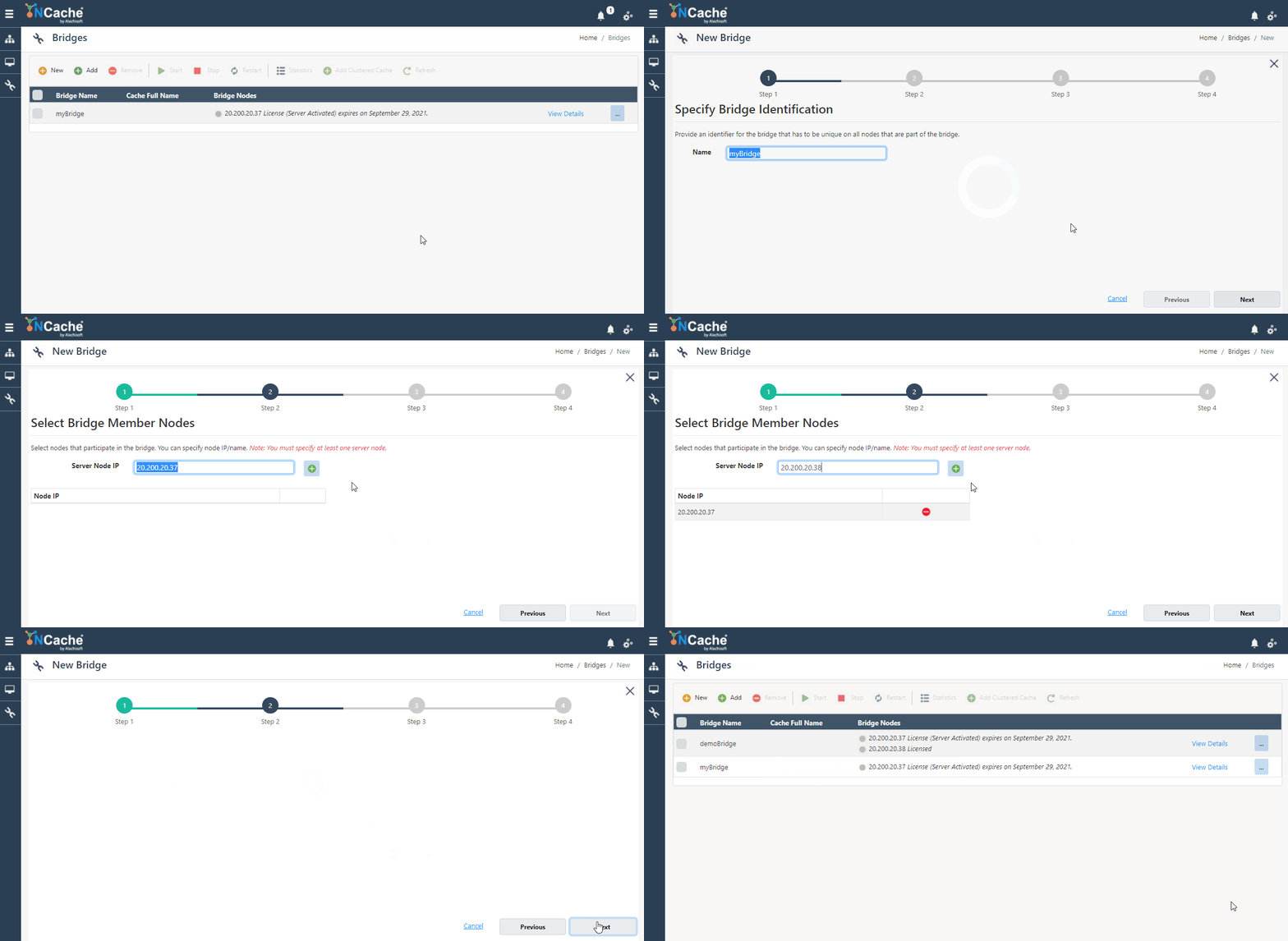
Figure 15: Create a New Bridge using NCache Web Manager
Start a Bridge
Creating a bridge alone is no fun. To start using this amazing feature for WAN replication, you should start the created bridge. Here’s what you need to click to start your bridge through NCache Web Manager.
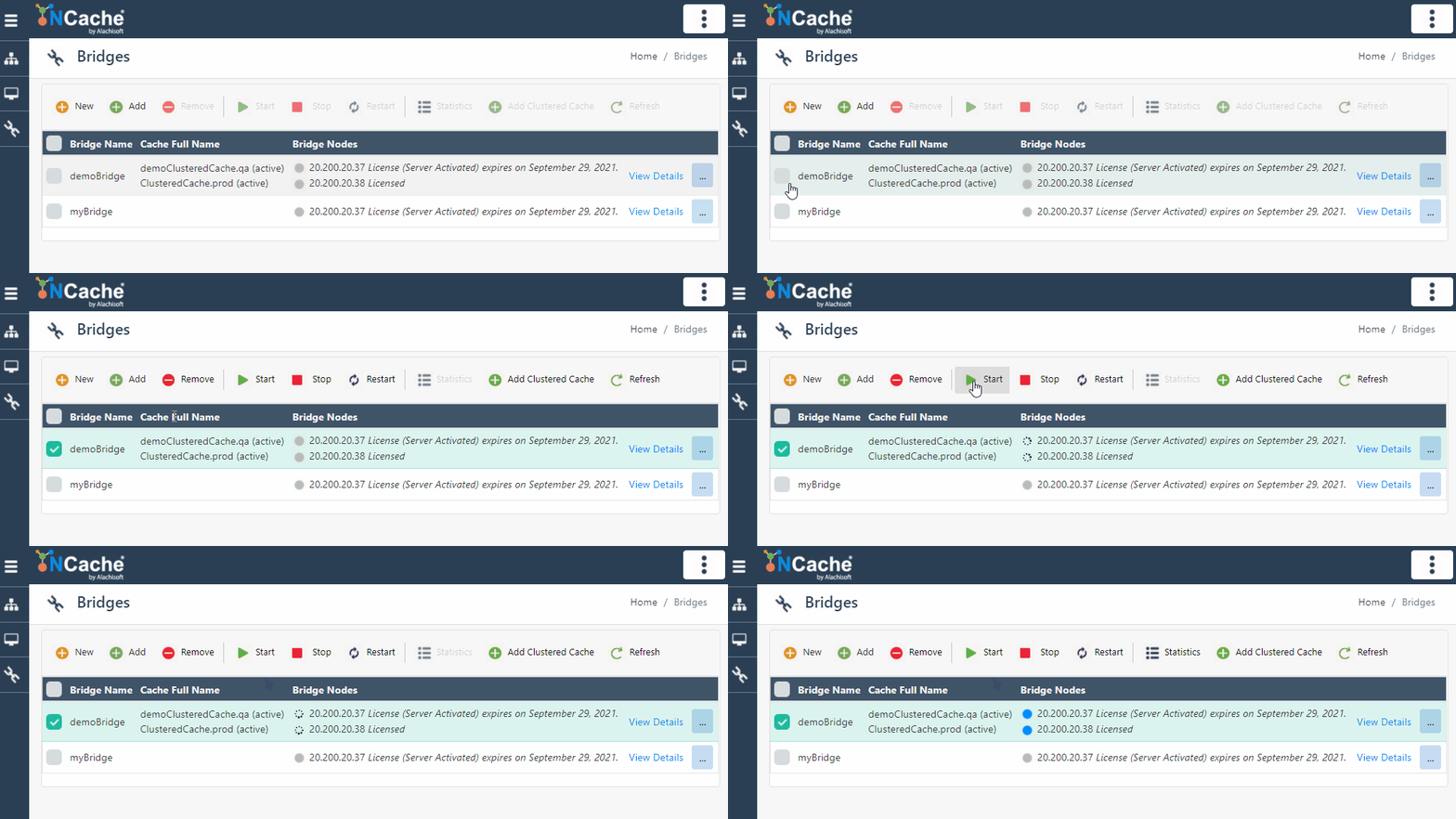
Figure 16: Start Bridge using NCache Web Manager
Stop a Bridge
Stopping a bridge through NCache Web Manager is exactly like how you started it. The same selection, clicking of buttons and waiting.
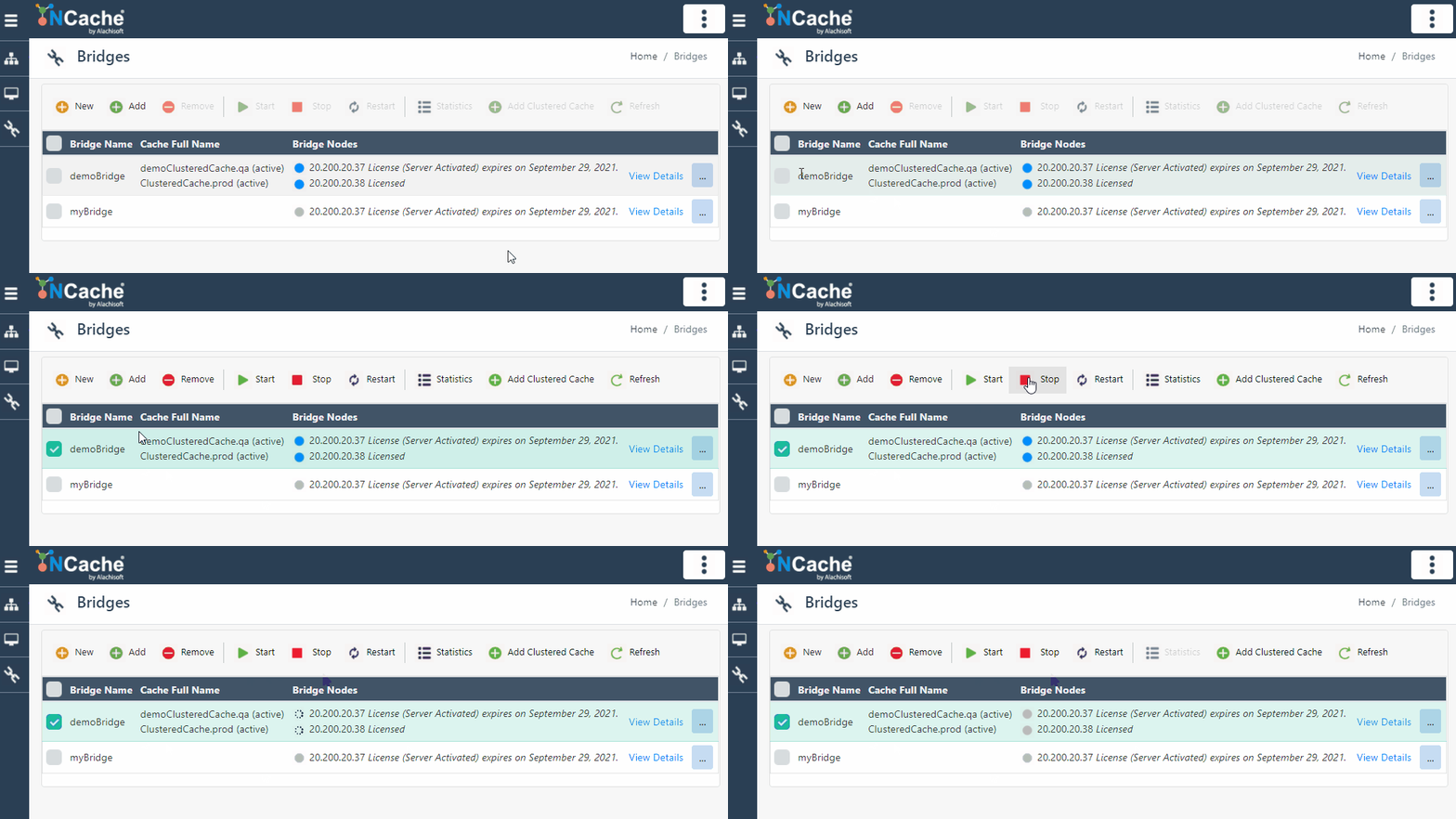
Figure 17: Stop Bridge using NCache Web Manager
Remove a Bridge
We are not going to talk about why you would want to remove a bridge but in a case where the need arises, launch your NCache Web Manager and do this:
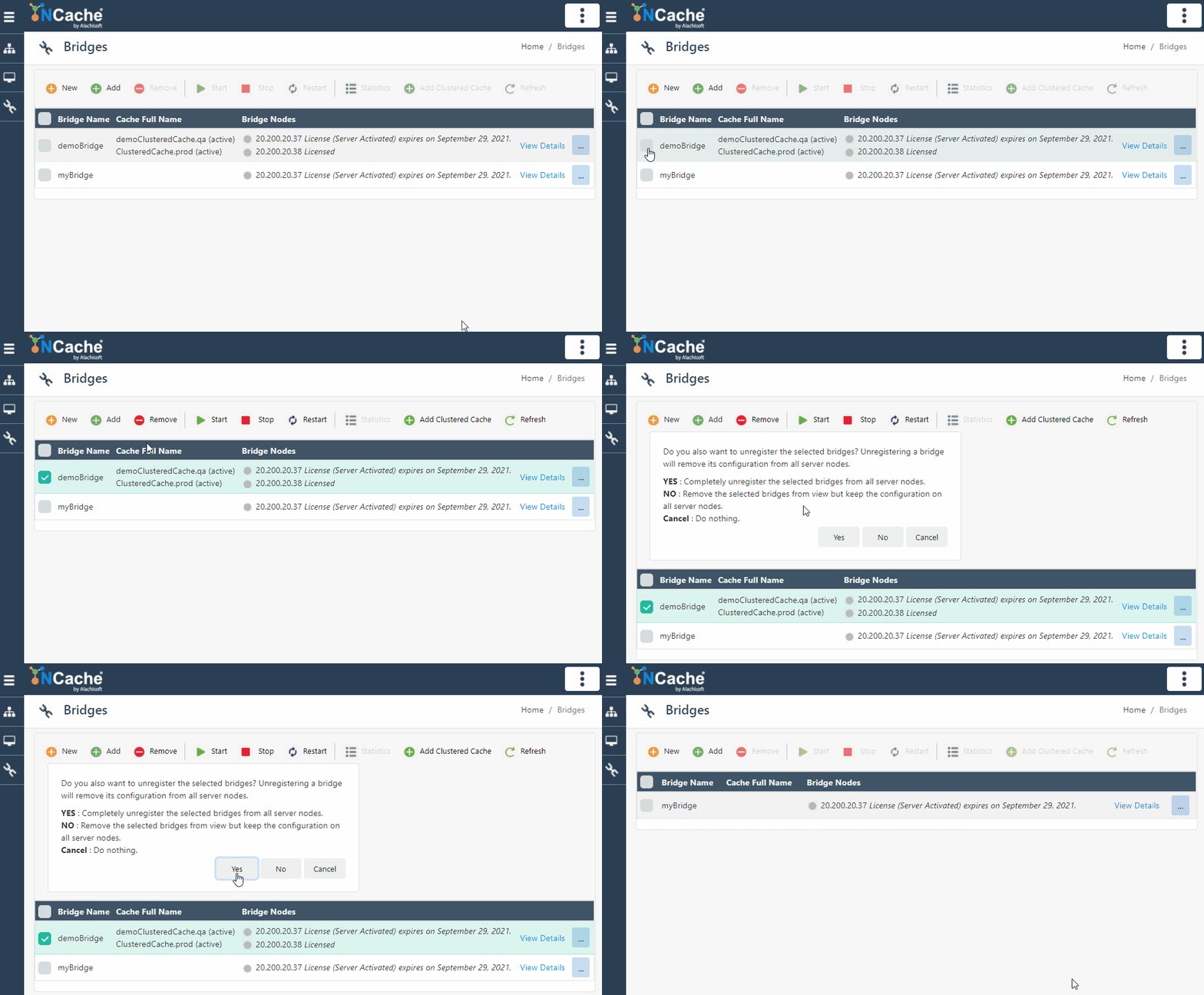
Figure 18: Remove a Bridge using NCache Web Manager
What Did This Blog Teach You?
Here’s a summary of what this blog is all about.
- You have cache servers and bridges that need management.
- To manage these, you have NCache PowerShell Cmdlets and NCache Web Manager. You have a choice whether you want to execute commands or click and drag.
- There are way too many management operations that you can perform on both these sections like create, start, stop, clear, remove, etc.
- If you are the one managing NCache for your .NET/.NET Core application, then you lucked out with NCache that provides an easy-to-understand, fast, and user-friendly way of performing management operations.
To understand more on how to perform management operations using PowerShell cmdlets or NCache Web Manager, follow our product guide on Cache Management Operations and Bridge Management Operations. The only pre-requisite is for you to have NCache installed. So, stop thinking and download NCache now, and thank me later.
Frequently Asked Questions (FAQ)
Q1: What should I do if my environment does not recognize NCache PowerShell cmdlets?
A: If NCache commands fail to execute, you must manually register the module by referencing its direct install path. Run the following command in your PowerShell console to import the required provider library: Import-Module ‘%NCHOME%\bin\tools\ncacheps\ncacheps.dll’
Q2: What parameters are required to provision a cluster topology using command line?
A: As illustrated in the article’s command usage, when executing the New-Cache cmdlet, you must define the target configuration by supplying explicit arguments for the cache name (-Name), target node IP address (-Server), data deployment behavior (-Topology PartitionedOfReplica), and total memory allocation (-Size 1024).
Q3: Does stopping a bridge with the Stop-Bridge cmdlet permanently destroy its configuration?
A: No. The stopped state induced by the Stop-Bridge command is strictly temporary. The bridge configuration remains intact on the server node and can be safely reinitialized at any time using the corresponding startup utility without losing its structural settings.
Q4: Exactly what data types are erased when clearing a cluster via NCache Web Manager?
A: Executing a clear operation via the Web Manager interface completely flushes the storage layer. This removes all stored cache records, including active keys, primitive values, custom data structures, and serialized JSON objects, reverting the cluster to an empty state.