NCache, an in-memory distributed caching solution, known for its speed and linear scalability, is an ideal choice for your .NET, Java, Python, and Node.js applications. It allows you to cache frequently accessed data, reducing network and database trips while improving the overall performance. While NCache can work with any application stack, its significance is appreciated for time and mission-critical applications where performance and high availability are key requirements.
Key Takeaways
Configuration Backup: Save config.ncconf as an XML template (config.xml) to restore settings after the upgrade.
License Deactivation: Use the Unregister-NCache cmdlet to release licenses; verify with Alachisoft Sales that deactivation is enabled for your key.
Upgrade Order: Install and configure NCache Servers before proceeding to NCache Clients to maintain cluster stability.
Activation Flexibility: Choose between Online Activation or Offline Activation (using a Request Code URL) via the Register-NCache cmdlet.
Post-Upgrade Validation: Confirm cluster health with Get-ClusterHealth and verify performance using the Test-Stress tool.
Application Migration: Recompile applications with new assemblies or use Assembly Redirection if code changes are restricted.
To maintain optimal performance, extended platform support, and overall stability, you must upgrade to the newest version. Not upgrading may result in potential compatibility issues, security vulnerabilities, and missing out on the latest feature enhancements. While NCache offers a Live Upgrade feature for its Enterprise Edition, upgrading NCache offline is also a smooth and hassle-free process with minimal interruption to your application.
The process involves backing up data, deactivating and uninstalling the old version, followed by installing, configuring, and activating the latest NCache version. This blog will guide you through each of these steps to seamlessly upgrade your NCache servers and clients offline, beginning with the servers and then clients to ensure a smooth transition.
1. Prerequisites for Upgrading NCache
There are a few important prerequisites to consider to upgrade NCache offline.
Create a Backup of config.ncconf
Before starting the upgrading process, it is recommended that you create a backup of your config.ncconf file as XML template (config.xml). This will allow you to restore your existing cache configurations post-upgrade. You can create the backup yourself or if you have any queries, you can contact the Alachisoft Support Team.
Deactivate Older NCache
Through the deactivation process, NCache allows you to transfer your licenses from one machine to another. It is important to know that license deactivation is not enabled by default, you need to get in touch with Alachisoft Sales to activate it. Once enabled, you can utilize the Unregister-NCache PowerShell cmdlet to deactivate the machines, as shown below.
|
1 |
Unregister-NCache [-Key] [-OfflineDeactivate] [-Server] [-Port] [-Credentials] [-NoLogo] |
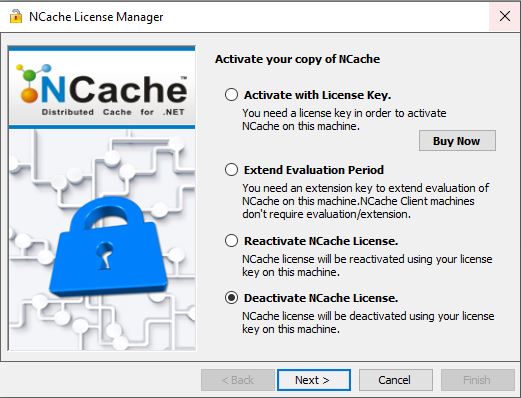
Figure 1: Managing licenses via the NCache License Manager GUI.
The deactivation can be done through two methods:
- Online Deactivation Process: In this process, you run the above command with your license key on an internet-enabled machine, followed by a success message confirming deactivation.
- Offline Deactivation Process: In this process, for a machine without internet you run the same command with the OfflineDeactivate parameter, which gives you a Deactivation Request Code URL that is verified through an internet-enabled machine to complete the deactivation process.
2. Uninstalling the Current NCache Version
Once the prerequisites are all in place, you can proceed to uninstall the current NCache version using the steps below.
Stopping NCache Processes
Prior to uninstalling, ensure all NCache processes are stopped by using the following PowerShell command as any application using NCache during this process will trigger an error.
|
1 |
Stop-Cache [-Name] [-IsGracefulStop] [-Port] [-Server] [-IsStopForMaintenance] [-Timeout] [-Credentials] [-NoLogo] |
Uninstalling NCache
Once all cache processes are halted, you can now uninstall the current NCache version from both the server and client. In Linux, you can use the command ’sudo ./uninstall’ in the terminal. However, for Windows, you can use the Control Panel.
3. Installing NCache Version and Activating Licenses
You are now ready to install the new NCache version by following the steps below.
Installation Process
Download the latest NCache version. Next, follow the installation wizard to complete the installation for Windows. Whereas for Linux, run the below command from the directory where the NCache installation script is placed:
|
1 |
sudo ./install -f John -l Smith -e johnsmith@yourdomain.com -c your_company_name -k XXXXXXXXXXXXXXXXX -m server -s yes -i 20.200.20.38 -P password |
Activating New NCache Licenses
Once installed, you must activate your NCache license to enable full functionality. To do this, use the Register-NCache PowerShell cmdlet with the license key provided by the Alachisoft Sales Team.
Register-NCache Command Syntax
The following syntax includes all available parameters for environment tagging, contact details, and offline workflows:
|
1 2 |
# Full syntax for NCache license registration and activation Register-NCache [-Key] [-Environment] [-Clients] [-Address] [-City] [-Company] [-Country] [-Email] [-FirstName] [-LastName] [-Phone] [-Reactivate] [-State] [-ZipCode] [-AuthCode] [-Server] [-Port] [-Credentials] [-OfflineActivate] [-KeyType] [-RegisterAs] [-NoLogo] |
Choosing an Activation Method (Online vs. Offline)
Depending on your server’s internet connectivity, choose one of the two following methods:
| Activation Method | Requirement | Primary PowerShell Command |
|---|---|---|
| Online Activation | Internet Access | Register-NCache -Key [YourKey] |
| Offline Activation | No Internet | Register-NCache -Key [YourKey] -OfflineActivate |
- Online Activation Process: For machines with internet, run the command above. Upon successful activation, a confirmation message is displayed immediately.
- Offline Activation Process: For secure or isolated machines, run the command with the -OfflineActivate parameter. This generates an Activation Request Code URL, which you must verify through an internet-enabled machine to receive your final activation code.
4. Reconfiguring Caches and Adding Client Nodes
To reconfigure your caches post-upgrade, use the NCache Management Center or the New-Cache PowerShell cmdlet. This ensures your settings from the config.xml backup are replicated correctly and avoids configuration discrepancies.
Replicate Settings: Use the following command to restore your configuration from the backup template created in Step 1:
|
1 2 |
# Restore cache configuration from XML template New-Cache -Name demoCache -Server 20.200.20.39 –Path C:\config.xml |
Adding Client Nodes: Connect your applications to cache servers using the NCache Management Center or Command Line Tools. For specific client-server mapping, refer to the NCache Administrator’s Guide.
Upgrading NCache Clients
Now, to successfully migrate to a new version, you must also upgrade the NCache client nodes, whether through online or offline processes, the approach remains the same as outlined for the server-side. This includes deactivating, uninstalling the older version, installing the latest version, and activating the new licenses.
Recompiling Applications and Assembly Redirection
When the client-side nodes are installed and the new licenses are activated, it is essential to verify the application’s compatibility with the new version. Upgrading your application can be done in the following two ways:
- Recompiling Applications: In most cases, rebuilding applications with the latest NCache assemblies or NuGet Packages is sufficient to upgrade them without any code changes. However, there can be situations where minor code or configuration changes may be needed, as detailed here.
- Assembly Redirection: Assembly redirect can be used as an alternative if you are constrained by unalterable code requirements. It is recommended to consult the Alachisoft Support Team for detailed guidance on assembly redirects or a comprehensive understanding, refer to the Assembly Redirection section.
5. Post-upgrade Testing and Verification
Once your NCache version is upgraded, it is essential to assess the functionality of the server and client nodes. This includes verifying connectivity and performance of both, under normal and stress conditions.
Testing the Cache Cluster for Connectivity
To ensure successful installation, verify connectivity among the cache servers for effective communication and high performance. You can use the following PowerShell cmdlet to list all the nodes of the cache, their statuses, the connections between them, and connected clients to check the cluster’s health:
|
1 |
Get-ClusterHealth [-CacheName] [-Server] [-Continuous] [-SampleInterval] [-NoLogo] |
Verifying Client Operations
After ensuring cluster connectivity, another crucial thing to verify is the client-side operations. You can use the following PowerShell cmdlet to simulate heavy transactional load on a specified:
|
1 |
Test-Stress [-CacheName] [-Server] [-DataSize] [-GetsPerIteration] [-ItemsCount] [-ReportingInterval] [-SlidingExpiration] [-TestCaseIterationDelay] [-TestCaseIterations] [-ThreadCount] [-UpdatesPerIteration] [-Credentials] [-NoLogo] |
Alternatively, you can use the NCache Monitor to have a detailed overlook and identify any performance bottlenecks, ensuring optimal performance and high availability across the cluster.
Conclusion
Upgrading NCache offline is a seamless process, allowing users to transition from one version to another effortlessly. By upgrading, you can avoid compatibility issues and enjoy improved scalability and efficiency. So, do not miss out on the latest features, download NCache today and get the latest version to elevate your caching experience!
Frequently Asked Questions (FAQ)
Q: Can I upgrade NCache servers without an active internet connection?
A: Yes. By using the -OfflineActivate and -OfflineDeactivate parameters in PowerShell, you can manage licenses on isolated machines via a manual Request Code URL verified on any internet-enabled device.
Q: What happens if I forget to deactivate NCache before uninstallation?
A: Failing to deactivate via the Unregister-NCache cmdlet may result in license seat loss. Always ensure deactivation is enabled by contacting the Alachisoft Sales Team before removing the software.
Q: Is it necessary to stop cache processes manually before an upgrade?
A: Yes. Running the Stop-Cache command is required. Any application attempting to access NCache during the uninstallation or installation phase will trigger an error and may disrupt the upgrade process.
Q: Do I need to change my application code when upgrading NCache versions?
A: Generally, no code changes are required. Most migrations are handled by recompiling the application with the latest assemblies or utilizing Assembly Redirection in your configuration files.
Q: How do I confirm the new NCache cluster is performing optimally?
A: Beyond checking connectivity, use the Test-Stress cmdlet to simulate a heavy transactional load. This helps identify potential performance bottlenecks or configuration issues in the new environment.